

Geofencing for employee time tracking creates a virtual boundary around a work location and uses an employee's mobile location to support clock-ins, clock-outs, reminders, or other timekeeping rules. It’s useful for construction crews, technicians, cleaners, home health workers, and other employees whose work depends on being at a specific job site.
That does not mean every workforce needs it. Physical location should matter to the job. A remote employee completing reports from home doesn’t need the same location controls as an electrician assigned to several customer sites.
Used thoughtfully, geofencing can make location-based time records easier to verify while keeping the focus on accurate timekeeping rather than constant employee monitoring.
How geofencing for employee time tracking works
Geofencing combines a mapped work area with an employee's mobile location. Once the employer creates the boundary, the time tracking app uses the phone's location services to detect whether the device is inside, entering, or leaving that area. The software can then use that information to support a clock-in, clock-out, reminder, or another timekeeping action.
The exact behavior varies by platform, but the underlying process is similar.
A geofence defines the approved work area
An administrator starts by identifying the work location and creating a virtual boundary around it. Depending on the software, this may involve entering a street address, selecting a point on a map, or adding latitude and longitude coordinates.
Multiple geofences can also be added. For example, a landscaping company might create one geofence around a commercial property and another around its equipment yard. A home services business could set up separate boundaries for key customer locations.
The boundary also needs to be large enough to cover the actual work area. Google Android’s geofencing guidance recommends a minimum radius of roughly 100 to 150 meters for reliable results because location accuracy can vary with Wi-Fi availability, network conditions, and the surrounding environment.
Software like QuickBooks Workforce lets admins attach an address or latitude and longitude coordinates to a job or customer, adjust the geofence radius, and view approved locations on a map, which can help with large sites or locations that do not yet have a conventional street address.
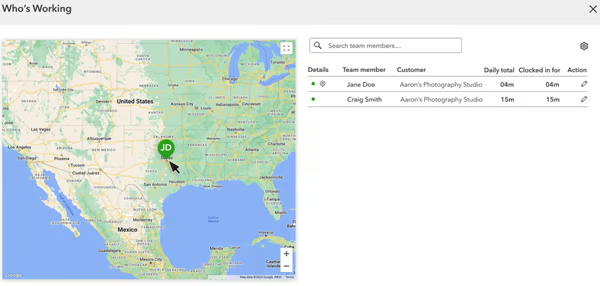
The employee's device determines its location
A smartphone does not rely on GPS alone to determine where it is. Mobile location services can draw from GPS, Wi-Fi, cellular signals, Bluetooth, and other device data.
That location estimate is not flawless. Weak connectivity, disabled permissions, nearby buildings, device settings, or the size of the work site can affect the result. Geofence notifications or alerts may also arrive with some delay because mobile operating systems balance location checks against battery use.
The time tracking app responds to the geofence event
Once the device enters, leaves, or attempts to record time around the defined work area, the software applies its configured action. Depending on the product and settings, that might mean sending a clock-in reminder, allowing or restricting a punch, automatically starting or stopping time, or recording location information with the time entry.
The right approach depends on how predictable the workday is. A retail store where every shift starts in the same building can reasonably use a stricter rule than a field service company whose technicians sometimes collect equipment or speak with customers before reaching the job site.
Those differences matter more than simply looking for the presence of a geofencing feature. When comparing systems, check exactly what happens when an employee crosses the boundary and what information is saved with the resulting time record.
From there, the employee’s recorded hours can follow the normal timesheet review and manager approval process. Once the work hours are approved, they can move into the rest of the pay process. If you want a closer look at that sequence, our payroll processing guide explains how time collection, approvals, wage calculations, and other payroll tasks connect.
Geofencing vs. GPS time tracking
Geofencing and GPS time tracking both use location information, but they answer different questions. A geofence checks whether a device has entered, exited, or remained within a defined work area. GPS time tracking can record specific location points while someone is working. The best time tracking systems offer both, but some only have one option.
Geofencing | GPS time tracking | |
| Primary purpose | Checks location against a defined work area | Records or displays employee location |
| Typical use | Supports location-based timekeeping rules | Shows where mobile employees were while working |
| Data focus | Entry, exit, or presence within a work zone | Individual GPS points or movement |
| Good fit | Fixed job sites and approved work locations | Mobile employees traveling between locations |
These distinctions matter for employee privacy. If you only need to know whether a worker reached a job site, you may not need a detailed location trail for the entire shift.
When geofence time tracking makes sense
Geofencing is most useful when an employee’s work location directly affects how their time should be recorded, reviewed, or assigned. It tends to work best for location-based teams, especially when managers need to verify job-site attendance, reduce recurring punch errors, or connect labor hours with specific work.
Work must happen at a specific location
Geofencing makes sense when employees need to be at an assigned site to perform their work. Construction crews, cleaners, home health workers, restaurant teams, warehouse staff, and retail employees are common examples.
A location check gives managers additional context when reviewing time entries. If a technician is scheduled at a customer’s property but records time somewhere else, the manager can review the discrepancy before approving the hours rather than assuming the punch is automatically correct or incorrect.
Employees move between several job sites
Mobile teams can be harder to track with a traditional time clock because their workplace changes throughout the day. Geofences let businesses create separate work zones for customer sites, properties, or projects and apply location-based time rules to each one.
For example, a field technician may visit one customer in the morning and another in the afternoon. Assigning geofences to both locations can make it easier to see whether the employee’s recorded time lines up with the expected schedule without asking them to reconstruct every stop later.
Managers regularly correct missed or off-site punches
Location rules may also help when managers repeatedly fix timecards because employees forget to record time until after leaving a site or accidentally punch from the wrong place.
The right rule depends on the problem. If employees mostly forget to punch, reminders may be enough. If off-site entries are a larger concern, requiring a note or restricting punches may make more sense.
Labor hours must be assigned to the right job or customer
For contractors and service businesses, geofencing can support more than attendance. Location data can give managers another reference point when checking whether an employee recorded hours against the correct customer, property, or project.
That matters when labor hours feed job costing, client billing, or project reporting. In this case, the value of geofencing is not simply confirming that an employee reached a site. It is helping the business produce a clearer record of where paid labor was used.
With QuickBooks Workforce's time tracking tools, you can associate employee time with jobs and projects. This provides another way to compare labor hours with the actual work being performed.
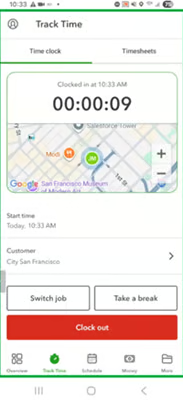
How to set up geofencing for employee time tracking
A good setup starts with how work actually happens. Before configuring maps and permissions, decide what the business needs location data to accomplish and which employees genuinely need it.
Step 1. Decide which roles need location verification
Do not enable geofencing for everyone simply because your time tracking system includes it.
Identify the positions where physical presence affects whether a time entry is valid. A janitorial crew assigned to customer buildings may benefit. An HR manager working remotely probably will not.
Write down the business reason as well. "We need to associate field hours with customer sites" creates a clearer boundary than a broad goal such as "increase accountability." A specific purpose also makes it easier to explain the policy to employees and determine whether the setup is working.
Step 2. Choose a realistic geofence size
Consider the entire work area, not just the pin on the map.
Where do employees park? Which entrances do they use? Does the property cover several buildings? Could a worker spend legitimate time near the edge of the site?
Start with a reasonable radius and test it. If employees who are clearly at the correct site repeatedly appear outside the fence, widening the work zone is usually more useful than creating a steady stream of corrections.
Step 3. Decide what happens outside the boundary
Software may let you block an off-site punch, display a warning, request an explanation, allow the time but flag it, or trigger another action. Choose the response based on the job rather than applying the strictest option to everyone.
With QuickBooks Workforce, employees who try to clock in outside a configured geofence can be given options for handling the exception, including providing a reason when they need to start time before arriving at the site.
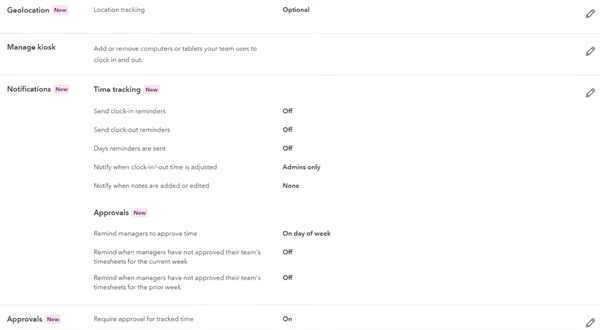
Step 4: Create a simple exception process
Employees and managers need to know what to do when the geofence and the real workday do not match. Define who reviews the entry, what explanation is needed, and how the manager corrects or approves the record.
For example, an employee might add a short note explaining that they picked up equipment before reaching the work site. A supervisor could then approve the time, correct the job assignment, or ask for clarification.
Keep the process simple. If a valid exception requires several messages among the employee, supervisor, and payroll team, location tracking can create more administrative work than it removes.
Step 5. Explain the location policy to employees
Before rollout, tell employees which location information the system collects, when collection occurs, what managers can view, and how location data affects their time records. They should also know what to do if their phone cannot determine a location or the app identifies the wrong job site.
Connecting the requirement to its business purpose makes the policy easier to understand. Explaining that job-site location helps verify field hours and reduce missed clock-ins gives employees more context than simply requiring location permissions.
Specificity matters here. "We use your location while you are working to help associate field time with assigned job sites" gives employees considerably more useful information than "GPS may be monitored."
Step 6. Test the geofence in real working conditions
Test clock-ins and clock-outs from the places employees actually use, including entrances, parking areas, the edge of a property, and areas where cellular or Wi-Fi coverage may be weaker. If several sites are close together, check whether their boundaries overlap or create confusing alerts.
Include employees in the pilot rather than testing only from an administrator's device. Different phone models, operating system settings, permissions, and connectivity can affect how the feature behaves in practice.
Step 7. Review early exception patterns
The first few weeks of exception data can tell you whether the configuration matches reality.
One unusual punch probably needs an explanation. Twenty similar exceptions across the same work site suggest something else. The radius may be too small, employees could be starting work elsewhere, or the policy may not reflect the job.
Making small adjustments early can prevent managers from spending every pay period correcting predictable geofence issues.
Employee privacy and compliance considerations
Location data can reveal more than a basic clock-in timestamp, so employers should be clear about why they collect it and how it will be used. Keep the tracking tied to a legitimate work purpose and avoid collecting more location data than the business actually needs.
Before rolling out employee geofencing, make sure you can answer these questions:
- What is being tracked? Explain whether the app checks location only at clock-in and clock-out, monitors geofence entry and exit, or collects GPS points during the workday.
- When is tracking active? Employees should know whether location access continues in the background and what happens when they are off the clock.
- Who can see the data? Limit access to managers, HR, payroll, or other employees who need the information for a clear business reason.
- How long is it kept? Set a retention period that matches your operational and legal needs rather than storing location records indefinitely.
- What happens on personal devices? If employees use their own phones, explain what permissions the app requires and what location information becomes visible to the employer.
Background location access also deserves a clear explanation. Some geofencing apps need permission to check a device's location so they can recognize when an employee reaches a work zone, but that does not necessarily mean managers can view every off-duty movement.
Federal labor considerations can apply as well. The National Labor Relations Board (NLRB) has identified GPS and other electronic surveillance technologies as an area that can affect employees' rights under federal labor law, particularly when monitoring could interfere with protected activity.
You should also review applicable federal, state, and local requirements before rollout. Unionized workplaces may have additional obligations, and legal counsel can help when the rules are unclear.
Also Read: For a broader look at privacy boundaries and monitoring practices, our employee monitoring guide covers GPS tracking alongside other forms of workplace monitoring.
What to look for in geofencing time clock software
Don’t stop at a checkbox labeled "geofencing." Two products can both offer the feature and behave very differently once employees arrive, leave, record time from the wrong place, or lose location access.
Focus on these areas:
- Geofence controls: Look for adjustable boundaries, support for multiple work sites, and flexible rules for different jobs or teams.
- Employee experience: Check whether workers get reminders, encounter a hard block, or can explain an off-site punch.
- Manager review tools: Make sure supervisors can see exceptions, review notes, correct records, and approve time without rebuilding the timesheet.
- Location permissions: Confirm whether GPS tracking can be required, optional, or disabled by employee or role, and check who can view location data.
- Time and job tracking: If employees work across customers or projects, look for ways to connect hours with the correct job, site, or cost center.
- Audit history: A clear record of edits, approvals, and location-related exceptions can help with payroll reviews and disputes.
- Payroll or billing connections: If approved hours feed payroll, invoicing, or job costing, tighter system connections can reduce duplicate entry and manual corrections.
- Fallback options: Check what happens when connectivity drops, location permissions change, or the device cannot confirm its location. Employees and managers should still have a practical way to record and resolve legitimate work time.
If geofencing is only one part of your time and attendance requirements, our best time clock software guide can help you compare options. It covers products with mobile, GPS, and workforce management capabilities.
Frequently asked questions (FAQs) about geofencing for employee time tracking
Can geofencing automatically clock employees in and out?
Yes, some geofence time tracking systems can automatically start or stop time when an employee enters or leaves a work zone. Others send reminders, block off-site punches, or flag exceptions instead. Look at the exact trigger and employee experience because "geofencing" does not describe one standard behavior.
Does a geofencing time clock track employees all day?
Not necessarily. A geofence only needs enough location information to determine whether a device entered or left a defined area, but some time tracking products also collect GPS points while employees are working. Check when your software accesses, stores, and shares location data rather than assuming all geofencing tools work the same way.
Can geofencing work without GPS?
Geofencing on a mobile phone typically relies on the device's location services rather than GPS alone. Those services can use GPS, Wi-Fi, cellular signals, Bluetooth, and other device information to determine location. Turning off required location permissions can prevent a geofencing time clock from working correctly.
Can geofencing prevent buddy punching?
Geofencing can make some forms of buddy punching more difficult. A mobile punch may need to come from an approved location, but it does not prove who is holding the device. Businesses with a significant identity verification concern may need additional controls, such as individual logins, device restrictions, manager review, or biometric time clock features where legally appropriate.