

Microsoft Teams Phone brings your business calls seamlessly into Microsoft’s cloud collaboration platform, offering flexible deployment options, competitive pricing, and rich communication features. Choosing the right setup and subscription plan can reduce costs and complexity, whether you’re a small business or a startup. This guide covers everything from features to licensing, helping you make informed choices to maximize productivity and lower overhead costs.
What is Microsoft Teams Phone?
Microsoft Teams Phone transforms your existing Teams app into a complete cloud phone system. Instead of using separate apps or hardware for calls, Teams Phone lets you send and receive external calls directly within Teams. It leverages VoIP (voice-over-internet-protocol) technology, ensuring secure and reliable calling over your internet connection.
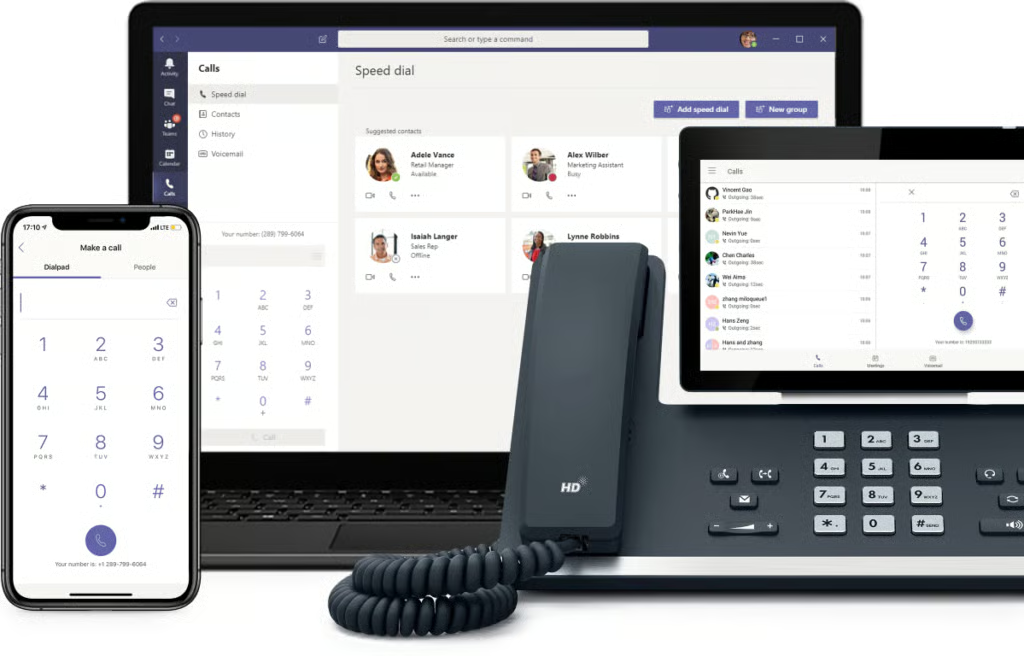
This solution is especially useful if you’re already invested in the Microsoft 365 ecosystem. Microsoft Teams Phone integration connects seamlessly with Office 365 applications such as Outlook, Exchange, SharePoint, and OneDrive, as well as your existing telephony infrastructure, including SIP trunks, Session Border Controllers (SBCs), and certified telecom operators.
As a cloud-based phone service, Teams Phone eliminates the hassle and expense of maintaining traditional telephony infrastructure. Whether employees work remotely or in-office, Teams Phone ensures they stay connected wherever they go.
Core features of Microsoft Teams Phone
The Microsoft Teams calling features streamline your business communications by providing robust calling, voicemail, call forwarding, and advanced call management options. Here’s a closer look at the top features your business can leverage today.
| Teams Phone Feature | Function |
|---|---|
| Auto-attendant | Build an automated phone menu to help callers easily reach specific team members or departments within your company directory. |
| Call queues | Automatically distribute incoming calls to available team members and play personalized greetings and hold music when routing the call. |
| Call transfer | Transfer calls to colleagues or switch between office and mobile devices without dropping the conversation. |
| Call sharing | When activated, incoming calls ring several team members at the same time, ensuring important calls are answered quickly. |
| Voicemail | Directly sends voice messages right to your Exchange inbox with automatic transcription and lets you customize greetings and call handling rules. |
| Music on hold | Plays a default or custom music configured by the phone admin and ensures on-hold notifications are handled the same way as other platforms. |
| Call park | Temporarily hold calls in the cloud and retrieve the call using a code so any authorized users can conveniently pick up the call from any supported device. |
| Shared line appearance | Allows multiple employees to manage calls on a single phone line, so calls are answered promptly even when the primary user is unavailable. |
| Presence-based call routing | Manages your incoming calls based on your availability status and allows only priority contacts to reach you while busy or away. |
| Video call | Hold face-to-face meetings from your desktop or laptop, using built-in or external cameras and audio. |
Deployment options for Microsoft Teams Phone
Choosing the right deployment option for a Microsoft Teams Phone system can significantly impact your business’ cost and communication setup. Below, we break down each method clearly to help you identify the best fit.
| Direct Routing | Operator Connect | Microsoft Calling Plans | |
|---|---|---|---|
| Best for | Organizations managing their own telecom hardware on-site | Companies with an existing telecom provider relationship | Any business seeking a complete cloud voice solution |
| Deployment type | Bring your own telecom provider with manual connection via SBC | Connect with telecom providers certified by Microsoft | Microsoft provides carrier services |
| Cost structure | Higher fees for SBC setup and maintenance | Teams Phone license + per-user monthly fee for calling services | Simple per-user monthly fee through Teams call Plans. |
| Who manages it | Your IT team | Your existing telecom provider | Microsoft |
Let’s dive deeper into how each deployment type works to help you choose the right option for your business.
Direct Routing
Direct Routing is suitable if your organization maintains full control of its own Public Switched Telephone Network (PSTN) infrastructure. This lets your business connect Teams Phone to your telecom provider through Session Border Controllers (SBCs).
SBC is a network device that acts as a security checkpoint or protocol translator between your telecom provider’s session initiation protocol (SIP) trunks and Microsoft Teams. Understanding the differences between SIP trunking and VoIP can help you better assess the technical setup behind Direct Routing.
Managing your own SBCs gives you the flexibility to customize call routing, connect global office locations, and integrate seamlessly with your existing phone system. It also lets you closely manage data security, ensuring compliance with industry standards. However, this approach requires an in-house IT team to roll out the initial setup, regular system updates, and ongoing maintenance, all of which require a substantial upfront cost.
Operator Connect
Operator Connect simplifies Teams Phone setup by letting you connect directly with Microsoft-certified telecom operators. It’s ideal if you prefer a straightforward alternative to Direct Routing, as it involves minimal management. The operator handles infrastructure maintenance and offers enterprise-grade reliability and support.
With Operator Connect, you benefit from high-quality calling and predictable costs without needing internal telephony expertise. This approach is perfect for medium to large-sized businesses looking for a quick rollout. Plus, you maintain enough flexibility to choose from multiple trusted telecom providers certified by Microsoft.
Microsoft Calling Plans
Microsoft calling plans provide an easy, all-in-one solution that is fully managed by Microsoft. This is the simplest option for businesses needing straightforward calling capabilities, minus the complex setup. Users simply receive a Teams phone license from Microsoft, which includes bundled minutes for domestic or international calls.
Calling plans are excellent for small businesses with basic calling needs and limited IT resources. It involves simplified management as everything is managed directly by Microsoft, from phone number provisioning to billing. While convenient, it’s important to verify country availability and cost efficiency if your business scales significantly.
Pricing & licensing guide for Teams Phone
For small businesses exploring affordable alternatives, some of the cheapest VoIP phone services, like Teams Phones, can support business-grade communication needs. With this in mind, understanding the pricing structure and licensing options of Microsoft Teams Phone ensures value for your money. Below, we’ll explain the type of licensing you need and how costs stack up.
Teams Phone add-on vs. Microsoft 365 E5
The Teams Phone Standard is an add-on license to your Teams platform offering a hosted telephone service. This lends private brand exchange (PBX) capabilities such as voicemail, auto-attendant, caller ID, and call forwarding. You simply pay an additional fee per user monthly to activate calling features within your Teams subscription.
Alternatively, Microsoft 365 E5 includes the Teams Phone standard plan along with enhanced security and analytics. E5 licenses are typically ideal for enterprises needing advanced features beyond basic calling. While more expensive per user, E5 provides extensive functionality and may offer better overall value depending on your needs.
Additional licensing for Operator Connect & Direct Routing
If you’re using Operator Connect or Direct Routing, additional costs apply beyond the standard Teams Phone licenses. Opting for Operator Connect may involve charges from your telecom provider for calling services. For Direct Routing, you’ll need SBCs, which involve setup and maintenance fees. Consider these costs in your deployment budget for accurate cost planning.
Cost comparison: monthly breakdown
Evaluating the monthly breakdown of different Microsoft Teams Phone plans lets you identify which subscription option aligns best with your budget and requirements. Note that Teams Phone plans must be paid yearly and require a separate license for Microsoft Teams.
| Plans | Standard | Pay-as-you-go | Domestic calling | Domestic &international calling |
|---|---|---|---|---|
| Cost (user/month) | $10 | $13 | $17 | $34 |
| Key features | Make & receive voice and video calls via PSTN or an internet connection | Phone number with metered outbound calling minutes | Phone number with 3,000 outbound domestic calling minutes | Phone number with 3,000 outbound domestic or 600 outbound international calling minutes |
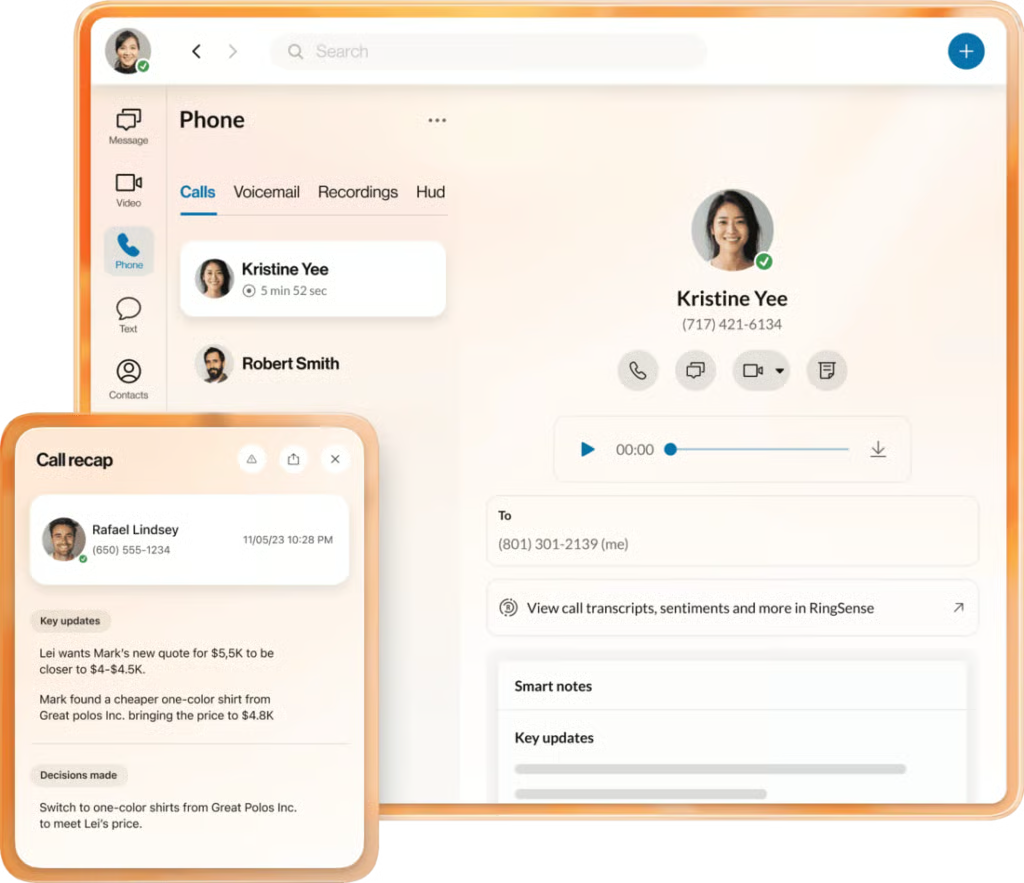
Businesses looking for entry-level options may also benefit from understanding free VoIP phone services for startups and smaller teams. If Microsoft Teams Phone feels too complex or overwhelming, RingCentral offers a more intuitive business communications solution with broader built-in functionality, making it a strong choice for growing teams needing an all-in-one platform.
Hidden costs to consider
While comparing pricing, don’t overlook hidden costs, such as SBC equipment for Direct Routing, telecom operator fees for Operator Connect, and carrier plans. It’s worth noting that complex setups, particularly on-premise systems, involve potential expenses such as ongoing maintenance, IT staff training, and support contracts.
Another often-overlooked expense is the cost of certified desk phones and audio conferencing devices compatible with Teams Phone. If your staff needs new hardware for effective communication, these device costs can significantly increase your initial investment.
How to set up Teams Phone
Setting up Microsoft Teams Phone can be straightforward if approached carefully. Here is a clear step-by-step guide to ensure a successful implementation.
Step 1: Choose the deployment method
Start by matching each option’s management model to your communication needs and preferred setup method — Direct Routing for full control, Operator Connect for managed simplicity, or Calling Plan for plug-and-play ease. Match your deployment choice with your compliance requirements, budget constraints, and future growth plans to avoid costly adjustments down the road.
Step 2: Assign licenses
Use the Teams Admin Center to provide the right phone licenses to each user based on their calling patterns. Double-check license counts against headcount to avoid unexpected fees on your monthly bill and ensure everyone can dial out immediately.
Step 3: Configure emergency locations
Map physical addresses to your phone numbers so emergency services receive accurate location data when 911 (or local equivalent) is dialed. Start by gathering site addresses, validating them in Teams, and confirming the caller’s location during test calls.
Step 4: Add & assign phone numbers
Port your existing business numbers or order new ones directly within the Teams Admin Center. Then, link each number to users, call queues, or auto attendants. Organize ranges by department or geography to simplify administration and reporting down the road.
Step 5: Set up call queues & auto attendant
Build an auto-attendant menu by adding call queues for teams, assigning agents, uploading hold music, and setting overflow rules. A well-crafted auto-attendant accurately reflects your operating hours and improves the overall caller experience.
Step 6: Test & deploy
Before deploying your phone system, make sure to go through every call scenario, such as internal transfers, external calls, voicemail drops, and emergency dialing. This lets you capture potential errors or unexpected behaviors within your phone system. Do this with a small pilot group first to easily spot training gaps. Use the Microsoft Teams Phone help desk guide as a learning resource.
Teams-certified phones & devices
To maximize the capabilities of Microsoft Teams Phone, consider investing in Teams-certified devices specifically designed to enhance your team’s calling and collaboration experience. The right equipment ensures better audio and video quality, smoother interactions, and higher overall productivity.
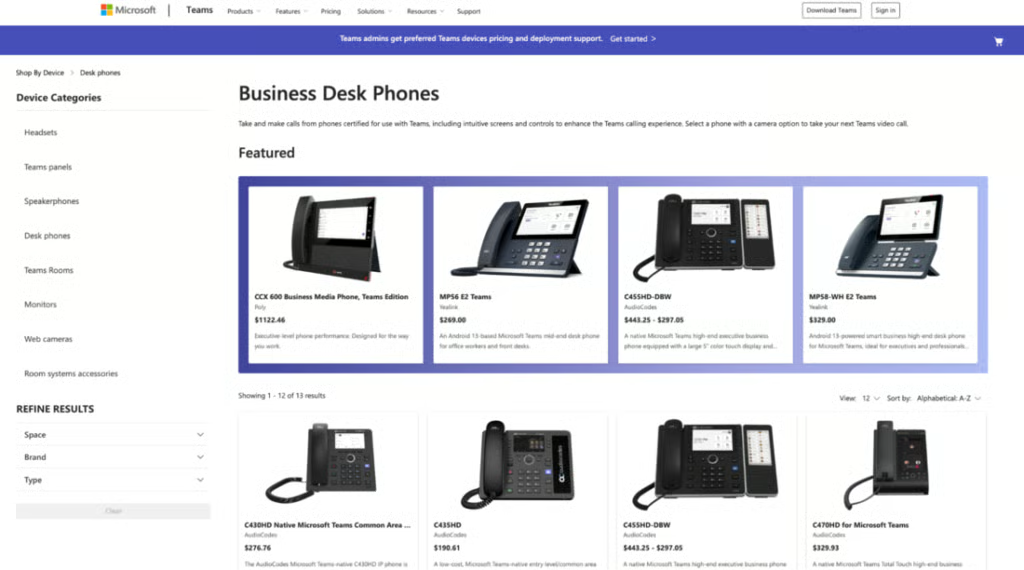
To check the list of compatible devices, visit the Microsoft Teams website, where you can browse supported desk phones, headsets, webcams, and speakerphones, as well as options for purchasing directly.
FAQs
What is Microsoft Teams Phone & how does it work?
Teams Phone enables cloud-based external and internal calls by integrating directly into the Microsoft Teams app.
Does Teams Phone replace a traditional phone system?
Yes, it works as a cloud phone system that fully replaces traditional phone systems by routing calls over the internet, reducing hardware costs, and simplifying communications.
How much does Microsoft Teams Phone cost?
Pricing for Microsoft Teams Phone varies based on your subscription plan and add-on/licensing choices. Its cloud-based calling option begins at $10 per user monthly, while an enterprise-level package costs $54.76 per user, per month, both billed annually.
Can I use Microsoft Teams Phone with my existing phone numbers?
Yes, you can submit your number porting request through the Teams Admin Center.
What are the benefits of Teams Phone for small businesses?
Teams Phone provides small businesses with enterprise-level communication features, easy management, and significant cost savings.
Bottom line
The Microsoft Teams Phone system offers powerful, scalable, and flexible calling solutions for modern businesses. By understanding your options, costs, and deployment choices, you can easily adopt Teams Phone and streamline your organization’s communications. Ultimately, Teams Phone positions your business to adapt seamlessly to changing communication needs and supports growth over the long term.