

Key takeaways
- ClickUp is my top AI task manager for teams that need a centralized workspace with AI access across tasks, docs, and projects.
- monday work management follows for customizable AI-powered boards, while Motion stands out for automatically scheduling tasks around calendar availability.
An AI task manager lets you stay on top of a growing mix of work and personal tasks. When I evaluate these tools, I look beyond basic task summaries and focus on auto-scheduling, natural language capture, and task prioritization. If your task list keeps getting harder to manage, I ranked the seven best AI task managers to help organize your day.
The best AI task managers compared
| Best for | AI features | Starting monthly fee | |
|---|---|---|---|
| ClickUp | Best for team workflows | AI task creationTask summariesAI-generated subtasks | $7/user/mo |
| monday | Best for board automation | Project monitoringRisk analysisTimeline optimization | $9/user/mo |
| Motion | Best for schedule planning | Auto-scheduling Calendar planning Task prioritization | $19/user/mo |
| Reclaim | Best for calendar blocking | Task scheduling Auto-rescheduling Task prioritization | $10/user/mo |
| Notion | Best for knowledge workflows | Database autofillMeeting notesEnterprise search | $10/user/mo |
| Sunsama | Best for daily planning | Task importAI daily summariesWorkload analytics | $17/user/mo |
| Todoist | Best task capture | Natural language task entryAI-generated subtasksVoice task capture | $5/user/mo |
Why you can trust TechnologyAdvice
I’ve spent five years testing task managers across dozens of platforms. For every tool, I run real projects, add AI features to my workflow, and evaluate each tool against a scoring rubric. Official documentation helps me confirm what each platform offers, but my ratings are based on how those features perform during testing.
Marianne Sison, Senior Staff Writer for Project Management

My methodology: What I specifically looked for
I evaluated AI task managers based on how well they help users capture, organize, schedule, and complete work. I did not score tools higher just for having an AI chatbot or content-generation feature. I focused on whether the AI made task management easier in terms of prioritizing work, estimating time, turning notes into tasks, protecting calendar space, or helping users plan a realistic day.
General features (25%): I gave the most weight to the AI task management experience itself. This included task capture, recurring tasks, reminders, subtasks, calendar views, collaboration, integrations, and workflow organization. Tools scored higher when these features worked well together instead of feeling like separate add-ons.
Pricing (20%): I compared free plan availability, paid plan costs, annual billing rates, trial access, and whether AI features were included or sold separately. I gave stronger scores to products with transparent pricing and useful AI functionality available without a major price jump.
Advanced and niche features (20%): I looked at capabilities that go beyond basic to-do lists, such as AI scheduling, automatic rescheduling, workload visibility, task prioritization, project templates, time tracking, and reporting. Tools earned higher scores when these features supported all aspects of task planning.
Expert score (15%): I considered the overall quality of each platform, including product maturity, value for money, AI usefulness, and fit for different types of users. This score reflects how confidently I would recommend the tool based on its strengths and limitations.
Support (10%): I reviewed each vendor’s support options, help center, onboarding resources, training materials, and security policies. Tools scored higher when users could find clear answers without relying heavily on direct support.
Ease of use (10%): I evaluated how quickly a new user could set up the tool, capture tasks, organize work, and understand what to do next. I also considered customization options and common usability feedback from G2 or Capterra.

ClickUp: Best for team workflows
Pros
- Turns notes into tasks
- Connects tasks to team chat
- Automates complex workflows
Cons
- Takes time to set up
- AI limits depend on the subscription plan
- Navigation can feel crowded for beginners
Free plan available
Why I chose ClickUp
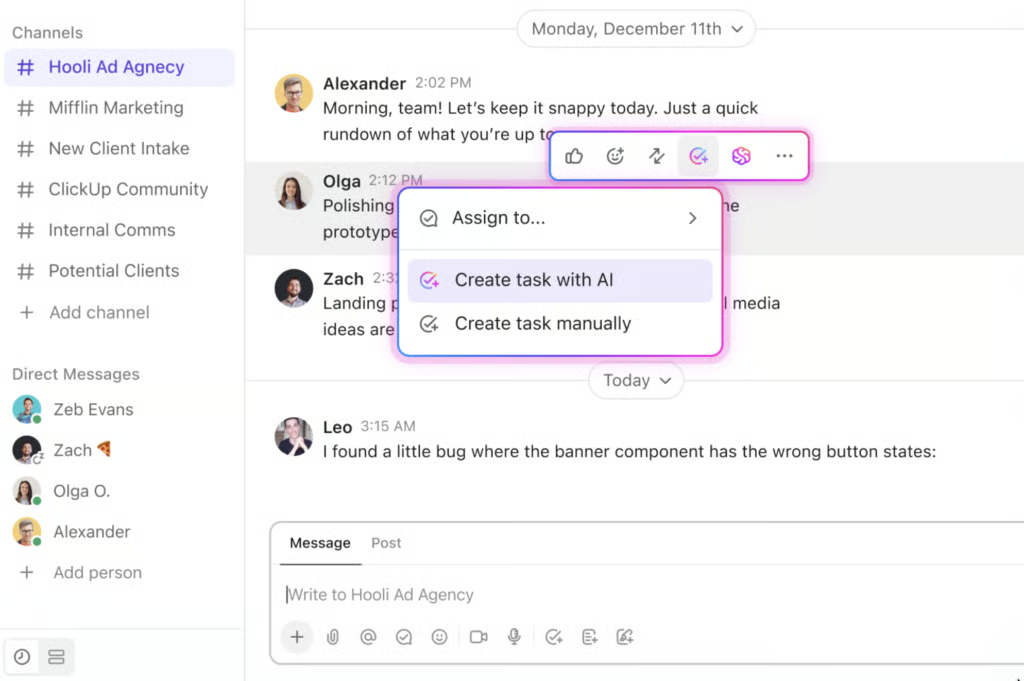
ClickUp keeps tasks, documents, chat, goals, project dashboards, and whiteboards in one workspace. Its structure can scale from individual tasks to team projects and company-wide goals.
ClickUp also gives teams several ways to manage work. It offers 15+ views, custom roles and permissions, Gantt charts, and workload views. These features help managers see what each team member is working on, how projects are progressing, and where capacity issues may appear.
ClickUp Brain is built into the workspace, so it can use information from tasks, documents, and connected apps when generating responses. It creates subtasks from prompts, summarizes task activity, captures meeting notes, and answers questions using project context.
With its feature-rich workspace, individual users may find ClickUp more complex than necessary. For simple task capture, Todoist is the better choice.
Key features
- ClickUp Brain: Answers work questions using context from tasks, docs, chats, and connected apps.
- AI Knowledge Manager: Searches workspace knowledge so teams can find decisions, updates, and project context faster.
- AI Project Manager: Creates updates, summarizes task activity, and helps teams track project progress.
- AI Writer for Work: Drafts and edits work content, including task descriptions, docs, emails, and project briefs.
Pricing
AI pricing note: Brain AI costs $9/user/mo, while Everything AI costs $28/user/month
- Unlimited: $7/user/month — Includes unlimited spaces, Gantt charts, integrations, storage, custom fields, and resource management.
- Business: $12/user/month — Includes advanced dashboards, timeline views, automations, sprint reporting, and portfolio workload management.
- Enterprise: Custom pricing. Includes enterprise permissions, SSO, audit logs, data residency, onboarding, and higher automation limits.
Read our ClickUp review.

monday Work Management: Best for board automation
Pros
- AI blocks automate board actions
- Prioritizes items inside workflows
- Visual boards simplify adoption
Cons
- AI pricing can be confusing
- Limited advanced project controls
- Less ideal for solo planning
Free plan available
Why I chose monday work management
monday work management is a strong fit for teams that manage work through boards. Its visual grids make it easy to track tasks by status, owner, stage, or project type. Teams can use them for client projects, sprint tracking, campaign planning, and other shared workflows.
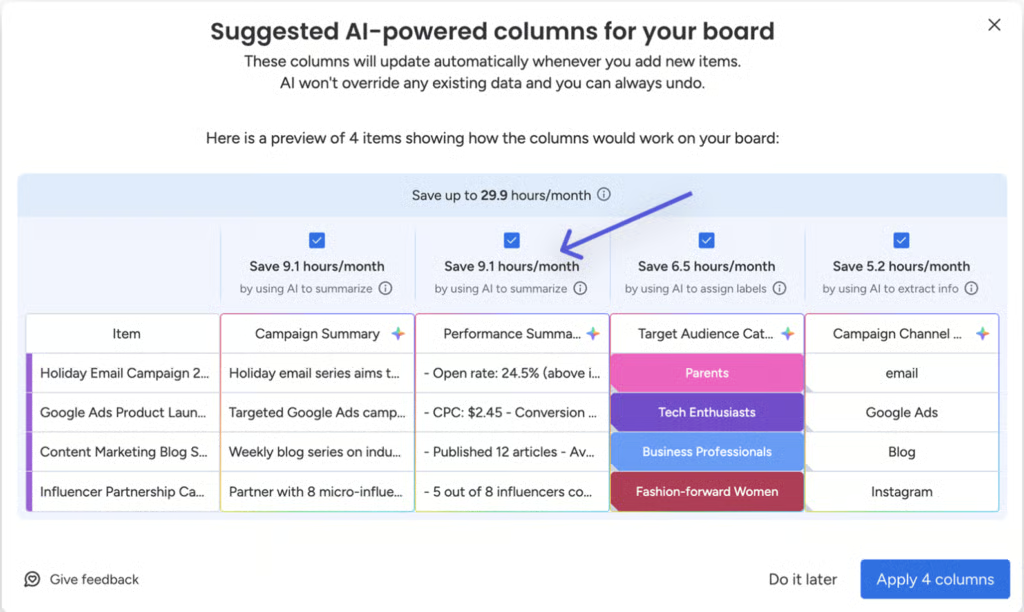
Within boards, users create trigger-based automations that move items, notify owners, assign work, or update fields. AI Board Suggestions reviews a board and recommends columns that could save time, while automation blocks can categorize items, summarize text, extract details, detect sentiment, or write updates.
The platform also includes monday Sidekick, an in-app assistant for creating tasks and answering project questions. Like ClickUp, monday is less focused on personal planning. It tracks work across multiple teams, but it does not schedule tasks around your calendar the way Motion does.
Key features
- monday agents: Assigns AI agents to operational work, such as vendor research, ticket triage, and roadmap updates.
- Agent builder: Allows teams to create custom agents for repeatable work across monday workflows.
- Project risk analysis: Monitors project work and flags tasks at risk.
- Timeline optimization: Updates roadmaps and adjusts timelines when plans or milestones change.
Pricing
AI pricing note: Monthly AI credits range from 1,000 to 3,000, depending on the monthly plan. Additional credits are available as an add-on.
- Basic: $9/user/mo – Includes work tracking, unlimited items, dashboards, and limited AI credits.
- Standard: $12/user/month — Includes timelines, Gantt views, automations, integrations, and guest access.
- Pro: $19/user/month — Includes time tracking, private boards, chart views, formulas, and higher automation limits.
- Enterprise: Custom pricing. Includes enterprise automations, advanced reporting, permissions, governance, and priority support.
Read our monday work management review.
Motion: Best for schedule planning
Pros
- Builds your schedule automatically
- Reschedules work when plans change
- Flags deadline risks early
Cons
- Works best with calendar users
- Less flexible for custom workflows
- Higher cost for small teams
No free plan
Why I chose Motion
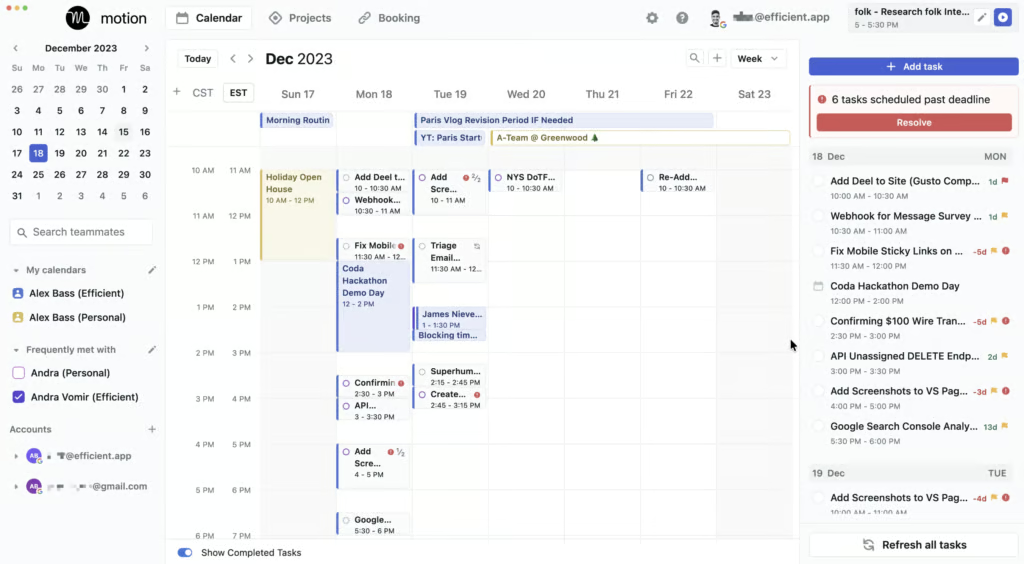
Motion stands out because it treats your calendar and task list as one system. Every task gets a duration and deadline, and Motion automatically finds time for it around meetings, priorities, and dependencies.
When your schedule changes, Motion recalculates your plan instead of leaving you to move tasks around. This benefits busy individuals who spend a lot of time adjusting their day around shifting priorities.
Motion’s AI features can break larger tasks into smaller work blocks and spread them across your calendar. It also highlights the most important task to focus on throughout the day, flags at-risk deadlines, and sends warnings when you’ve gone beyond your workload.
While Motion excels in auto-scheduling, it is less useful for teams that need a central place for docs, wikis, and shared knowledge. For that kind of workflow, Notion is the stronger option.
Key features
- AI task scheduling: Builds a workday plan from task deadlines, priorities, dependencies, and available calendar space.
- Schedule re-optimization: Rebuilds your task plan when meetings run long, priorities shift, or new work appears.
- Hourly priority guidance: Surfaces the most important task for the current hour, so users do not have to scan multiple lists.
- Deadline risk alerts: Warn when a task is at risk of missing its deadline and show where attention is needed.
Pricing
AI pricing note: Credit allocations vary by subscription: Pro AI includes 7,500 credits, while Business AI provides 15,000 credits.
- Pro AI – For AI task planner and workflow generator
- Individuals ($29/mo)
- Teams ($19/user/mo)
- Business AI – For Gantt charts, time tracking, and team capacity planning
- Individuals ($39/mo)
- Teams ($29/user/mo)

Reclaim: Best for calendar blocking
Pros
- Finds the ideal time for new tasks
- Protects focus time automatically
- Syncs with project tools
Cons
- Requires consistent scheduling habits
- Not built for managing projects
- Team planning features are limited
Free plan available
Why I chose Reclaim
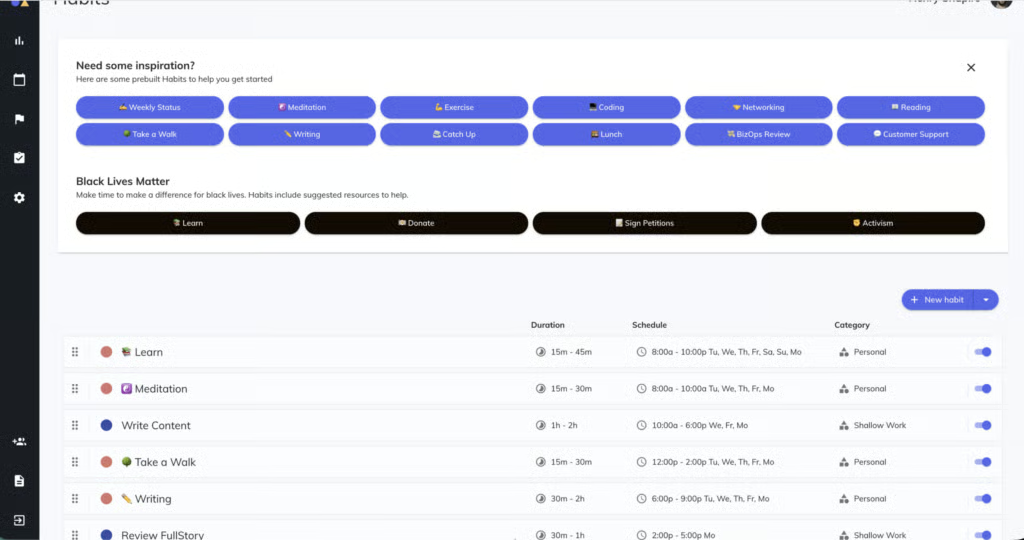
Reclaim is best for keeping your calendar aligned with your priorities. It works with Google Calendar and Outlook, then uses AI to schedule tasks, habits, focus time, and recurring routines into open time slots.
As deadlines approach or your available time shrinks, Reclaim protects work blocks by marking them as busy. Instead of finding time for focused work, Reclaim adjusts your calendar throughout the day based on meetings, deadlines, and priorities.
Tasks synced from project management tools, such as Todoist, Asana, Linear, and ClickUp, are added to your calendar based on due dates and priority levels. Focus Time works like a weekly goal: you set the number of deep work hours you want, and Reclaim finds open blocks to protect that time. Habits are like flexible recurring events, so they can move when meetings get in the way instead of disappearing from your schedule.
One thing to note is that Reclaim is built specifically for calendar management. monday work management is a better option for teams that manage shared tasks across project boards.
Key features
- AI task scheduling: Converts tasks from Jira, Asana, and Todoist into calendar blocks.
- Auto-rescheduling: Moves task blocks when meetings or priorities change.
- AI task prioritization chat: Helps users decide what to work on next.
- Split work sessions: Break large tasks into focused calendar blocks.
Pricing
AI pricing note: Included by plan tier.
Starter: $10/seat/month — Includes small-team scheduling with 10 AI agents per seat, up to 10 seats, 8-week scheduling range, 3 calendar syncs, 3 scheduling links, unlimited integrations, and task recommendations.
Business: $15/seat/month — Includes larger-team scheduling with 100 AI agents per seat, up to 100 seats, 12-week scheduling range, unlimited calendar syncs, unlimited scheduling links, webhooks, Team OOO Calendar, and delegated access.
Enterprise: $22/seat/month — Includes enterprise-grade support, unlimited AI agents, over 100 seats, SSO, SCIM user provisioning, org-chart-aware scheduling intelligence, and broader admin controls.

Notion: Best for knowledge workflows
Pros
- Turns docs into task systems
- Agents automate recurring workflows
- Searches knowledge across apps
Cons
- Requires discipline for database setup
- AI value favors Business plans
- Scheduling is not a native tool
Free plan available
Why I chose Notion
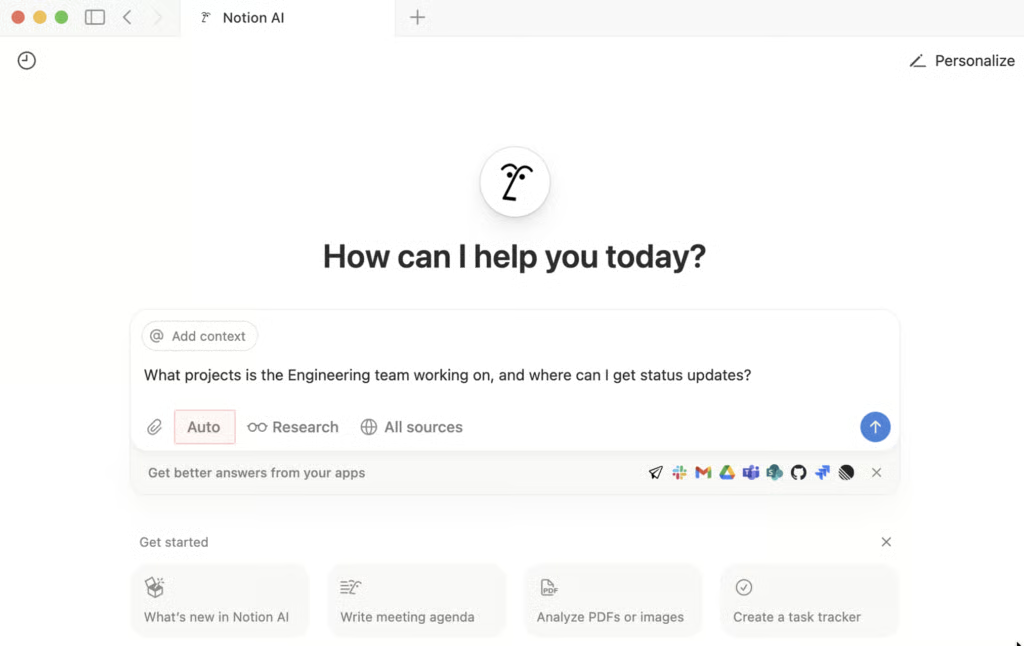
Notion works best when tasks need supporting context from docs, notes, and team knowledge. This setup is useful for teams that need more than a basic task list. For example, product teams can track specs alongside delivery work, while operations teams can link process documentation to active projects.
Notion AI supports workflows by searching across the workspace and connected apps like Slack and Google Drive. It can answer questions with cited sources, summarize relevant pages, and generate meeting notes.
The trade-off is that Notion is not built for automatic scheduling. For teams that need tasks planned around calendar availability, Motion is an excellent choice.
Key features
- Notion Agent: Completes multi-step work using context from Notion, connected apps, and the web.
- Custom Agents: Handle repeatable workflows automatically after the team sets up the agent once.
- Enterprise Search: Searches across Notion and connected tools like Slack, Google Drive, and GitHub.
- AI Meeting Notes: Captures meeting details and turns them into summaries and follow-up notes inside Notion.
Pricing
AI pricing note: Free and Plus plans include limited AI trials. Business includes AI workspace features, while custom agents require Notion credits.
- Plus: $10/member/month — Includes unlimited blocks, file uploads, charts, custom forms, sites, and basic connections.
- Business: $20/member/month — Includes Notion Agent, AI Meeting Notes, Enterprise Search beta, SAML SSO, and granular database permissions.
- Enterprise: Custom pricing. Includes advanced security, SCIM, audit logs, customer success, and zero data retention with LLM providers.
Read our Notion review.

Sunsama: Best for daily planning
Pros
- Guides daily task planning
- Combines tasks with calendar scheduling
- Integrations centralize work intake
Cons
- Limited native AI capabilities
- Not ideal for team workflows
- Can be pricey for individual use
14-day trial only
Why I chose Sunsama
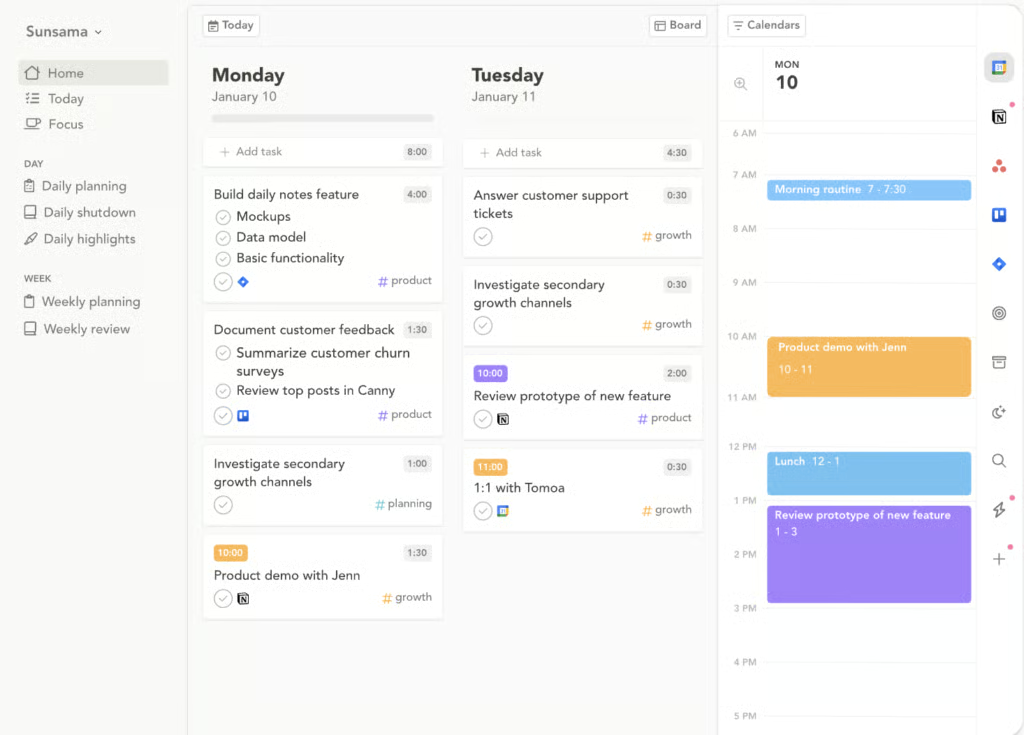
Sunsama is built around daily planning. Each morning, it guides you through choosing what to work on that day. You can pull in tasks from tools like Asana, Jira, Linear, Notion, and Trello. You can also bring in emails from Gmail or Outlook, along with meetings from your calendar.
From there, Sunsama helps you decide which tasks are realistic for the day and how much time each one should take. Sunny, Sunsama’s AI assistant, assigns time estimates and channel tags to tasks based on your previous activities. These estimates get better as Sunsama learns your habits.
Sunny also lets you manage tasks through conversation. You can use it to capture tasks in a brain dump and organize work more quickly. At the end of the day, Sunsama summarizes what you completed and prompts you to write a short journal entry.
Keep in mind that Sunsama does not automatically schedule tasks on your calendar. It also does not protect focus time from meetings. If you need a tool that actively defends calendar space, Reclaim is the better fit.
Key features
- Guided daily planning: Walks users through choosing a realistic set of tasks instead of dumping a full backlog into the day.
- Task import for planning: Pulls tasks from tools like Asana, Jira, Trello, Notion, and Todoist into one daily plan.
- AI daily summaries: Summarize completed work in notes so users can review progress for the day.
- Workload analytics: Shows how time was spent across tasks and categories, which helps users adjust plans.
Pricing
AI pricing note: AI features are included on paid plans
Pro: $17/user/month – Includes daily planning, task and calendar integration, unlimited usage, unlimited integrations, and AI access.
Enterprise: Custom pricing – Includes custom security, compliance, integration, and billing needs, plus SSO, SAML, SCIM, and audit logs.
Todoist: Best for task capture
Pros
- Captures tasks in natural language
- Breaks large projects into smaller tasks
- Intuitive mobile experience
Cons
- Relatively fewer AI features
- Limited team project views
- Less suited to team planning
Free plan available
Why I chose Todoist
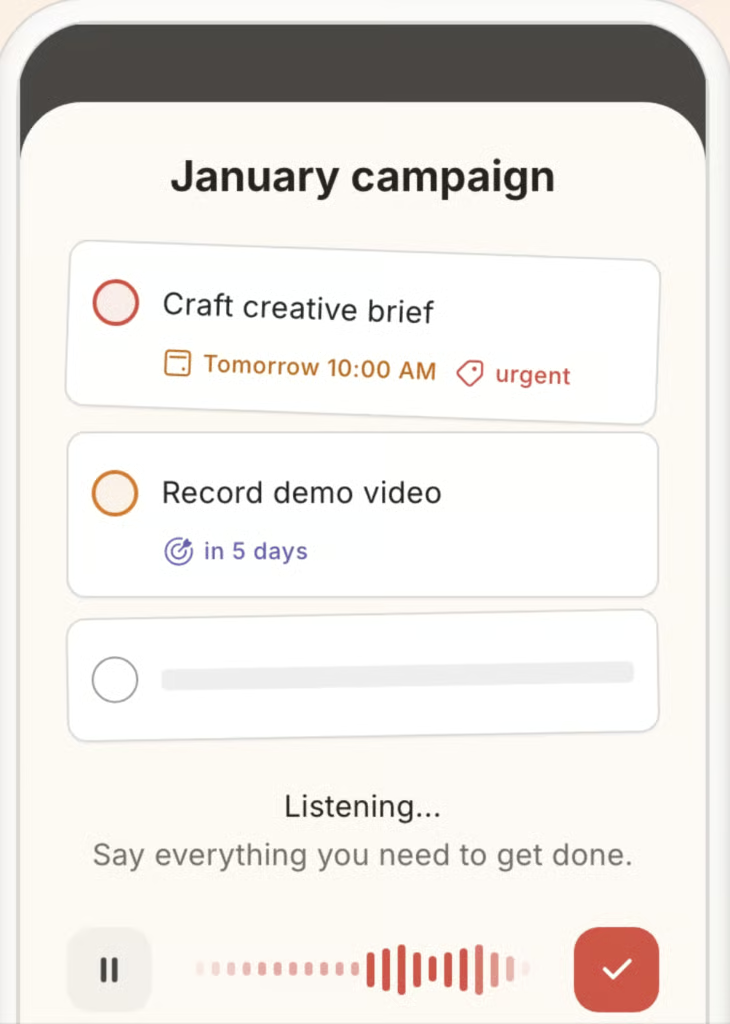
Todoist’s main strength lies in turning your thoughts into a task list as quickly as possible. Its natural language input can read dates, priorities, and project names from a typed or spoken phrase.
Todoist adds two AI features for task capture. The first is Ramble, which lets you speak naturally in more than 40 languages. It transcribes your task in real time, then identifies details like the project name, due date, priority level, and estimated duration. Before the task is added to your list, Todoist shows a preview so you can double-check.
The second feature is Task Capture, which turns multimedia content into tasks. For example, you can upload a photo of a whiteboard, paste meeting notes, or add a PDF. Todoist then pulls out a task list with dates, priorities, and assignees when those details are available.
Todoist also offers Task Assist, which can break complex work into subtasks and turn goals into action plans. With its focus on personal task planning, Todoist falls short in team coordination. If your team needs boards, automations, and workflow tracking, monday is the stronger option.
Key features
- Quick Add: Turns spoken phrases into tasks with dates, labels, and priorities.
- Recurring date recognition: Reduces the need to manually set up repeat schedules like “every Monday” or “every 15th.”
- Typed reminders: Create reminders from text inside Quick Add, so users can set alerts without date pickers.
- Integration-based capture: Turns emails, browser content, and app activity into Todoist tasks through its integrations.
Pricing
AI pricing note: Included by plan level. The free plan includes limited Ramble, while Pro and Business include unlimited Ramble. Task Assist is listed for paid plans.
Pro: $5/user/month — Includes personal task management with 300 personal projects, calendar, task duration, custom reminders, reporting history, and deadlines.
Business: $8/user/month — Includes shared team workspaces, up to 500 team projects, team activity logs, shared templates, team roles and permissions, and centralized billing.
Read our Todoist review.
Find your next AI task manager
How to choose the best AI task manager
The right AI task manager depends on how you work, what you need it to automate, and whether it connects to your current app stack. These are the factors I highly suggest when evaluating one:
- Compare AI access and pricing: Check whether AI features are included in the base plan or require an upgrade or add-on, and whether there is a usage limit.
- Auto-scheduling: The best AI task managers don’t just hold your to-do list. They schedule tasks into your calendar based on deadlines, priorities, and available time blocks.
- Natural language input: You should be able to add tasks the way you think them, by typing or speaking in plain language without answering fields or navigating menus.
- Prioritization logic: Look for tools that surface actual priorities, not just what was added most recently.
- Calendar and app integrations: An AI task manager works best when it connects to your existing calendar, email, and project tools.
- Platform availability: Check whether the tool runs on the devices and operating systems you use, including mobile, if you need to capture tasks on the go.
FAQs
What should I look for in an AI task manager?
Look for features that reduce manual planning, such as natural language task capture, auto-scheduling, task summaries, prioritization, and calendar integration. The best choice depends on whether you need personal productivity support or team task management.
Do AI task managers automatically schedule tasks?
Some do, but not all. Tools like Motion and Reclaim can schedule tasks around calendar availability. Others focus more on task capture, summaries, planning prompts, or AI assistance inside a workspace.
What is the difference between an AI task manager and a regular task manager?
An AI task manager can help interpret, organize, and prioritize work, while a traditional task manager mainly stores the tasks you enter. Traditional tools are useful for lists, due dates, reminders, and project views. AI task managers go further by creating subtasks, summarizing updates, suggesting priorities, capturing tasks from natural language, or scheduling work around your calendar.