

Key takeaways
- monday.com is our best overall project management software: It offers customizable project workflows and automation, while ClickUp stands out for AI-powered project assistance and Smartsheet for spreadsheet-based project management.
- The best platform depends on project complexity: Teams managing simple tasks may prefer Asana, while organizations with multiple concurrent projects should prioritize resource management and portfolio reporting.
- Subscription prices don't reflect the full cost of deployment: Compare plan-specific features, user limits, and additional charges for AI or automation before choosing a platform.
Project management software | Best for | Free plan | Starting monthly price |
|---|---|---|---|
Best customizable project boards | ✓ | $9 | |
Best for spreadsheet-based work management | X | $9 | |
Best AI-powered project assistant | ✓ | $7 | |
Best centralized project workspace | ✓ | $10 | |
Best for software development workflows | ✓ | $9.05 | |
Best for user-friendly task tracking | ✓ | $10.99 |
Why you can trust TechnologyAdvice
I’ve spent four years evaluating dozens of project management software for a wide range of users, including independent contractors, project managers, small businesses, and large enterprises. I personally use every platform I review and design a comprehensive scoring rubric to ensure unbiased evaluation and rankings. My recommendations are grounded in hands-on experience with each tool and feedback from business users across industries.
Marianne Sison
Senior Staff Writer for Project Management

Update notes
- October 25, 2024: Kara Sherrer revised the copy for clarity and accuracy, in addition to adding more screenshots of each software.
- February 23, 2024: Irene Casucian reviewed and revised the copy for clarity, accuracy, and depth. She added our expert recommendations to help project managers make informed decisions in selecting the right project management software for their needs. She also added dynamic design elements to improve the visual flow of information.
- March 17, 2026: Marianne Sison updated the provider information to reflect the latest product features.
My methodology
To find the best project management software, I designed a scoring rubric to reflect what project professionals and business users actually need from a platform. Each category was weighted based on how much it influences buying decisions and real-world performance.
Using the rubric sheet, I scored dozens of leading project management platforms and narrowed the selection down to the top six based on overall performance.
Pricing (20%) I looked at whether each platform offers a free-forever plan or just a time-limited trial, then scored entry and mid-tier plans based on monthly cost and what each tier actually includes. I factored in annual billing discounts and assessed how well each pricing tier scales as a team or workload grows.
General Features (25%) I examined the core functionality found in most PM software, including task creation, subtasks, dependencies, and deadline tracking. I also reviewed collaboration capabilities such as in-task commenting and file sharing, along with built-in views like lists, boards, calendars, and timelines so teams can work in whatever format suits their projects best.
Advanced Features (20%) I evaluated capabilities that go beyond basic task management, including resource and workload planning, portfolio-level visibility, and workflow automation. I also scored the depth of third-party integrations with tools like CRMs, communication platforms, and file storage apps, as well as any AI-powered features that summarizes task lists or surface useful insights.
Ease of Use (10%) I assessed how much setup is required before a team can get started and how quickly a new user can navigate core tasks without outside help. The user interface, website navigation, and the overall learning curve all factored into this score.
Customer Service and Support (10%) I reviewed what support channels each platform offers, such as live chat, email, or phone, and checked whether assistance is available around the clock or limited to standard business hours. I also evaluated the quality and depth of each vendor’s documentation, help center, and onboarding resources for users who prefer to self-serve.
User Feedback (15%) I incorporated real-world ratings and reviews from verified business users across trusted software review platforms. This gave me a broader picture of how each tool performs across various users , including recurring praise, common frustrations, and how vendors respond to criticism over time.

monday work management: Best customizable project boards
Pros
- Can accommodate large-scale organizations
- Straightforward communication and collaboration features
- Advanced automation capabilities
Cons
- May not be ideal for small teams due to its cost and complexity
- Steep learning curve
- Mobile app’s limitations on generating and viewing reports
Why I chose monday work management
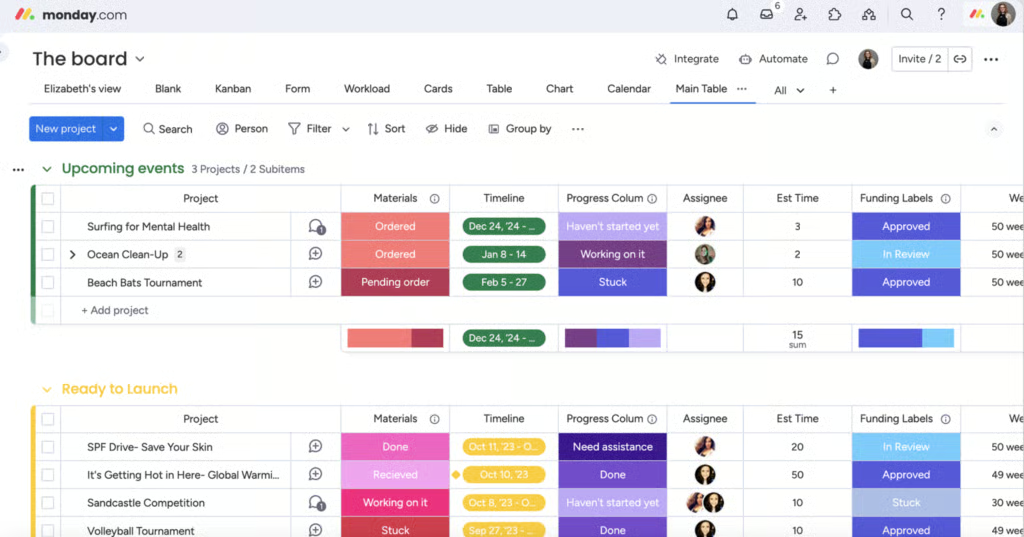
As a visual project tool, monday.com offers a range of customization features that help you tailor your workspace around your team’s unique processes. Using configurable groups, columns, and permission settings, a marketing team can organize campaigns differently from an operations team while both continue working in the same platform. I recommend it for organizations where departments follow different project workflows but want a common project management system.
During setup, I define whether each row represents a task, project, or another work item, then add columns for owners, due dates, budgets, or status updates. Teams can filter and group information in different ways, and once a board proves effective, I can save it as a template instead of rebuilding it for every new project. According to monday.com’s documentation, main boards are intended for internal teams, shareable boards support collaboration with external users, and private boards limit access to invited members.
The main tradeoff is that board flexibility requires strict oversight. Teams can rename columns, reorganize groups, or create new boards, which can lead to inconsistent project structures if admins do not establish shared standards. If your priority is consistent task ownership and due-date tracking with fewer configuration decisions, I recommend Asana instead.
Key features
- Collaborative platform: monday.com stands out as a collaboration and communication tool because of functionalities such as shared boards, commenting on tasks, sharing files, and updating statuses. Each task or item has its own conversation thread, allowing members to add updates, ask questions, and provide feedback.
- Custom workflows and boards: Fine-tune your workflows, views, and boards to align them with your project’s needs. It also simplifies workflow comprehension for stakeholders and helps project managers to easily identify bottlenecks and track progress.
- Automation: monday.com’s no-code automation builder is quite intuitive; even those without technical expertise can easily set up automation rules. The platform also provides a variety of predefined automation recipes that cover common project management needs, such as sending email alerts, updating statuses, and creating new items.
monday work management pricing
- Free plan: Up to 2 users and includes 200+ templates, Kanban view, and shareable forms
- Basic: $9/user/month — Adds 5GB storage, custom fields, documents, and monday AI
- Standard: $12/user/month – Adds Gantt view, 20GB storage, guest access, 250 automation actions, and integrations
- Pro: $19/user/month — Adds private boards, chart view, time tracking, and formula
- Enterprise: Custom — Adds portfolio reporting and resource management

Smartsheet: Best for spreadsheet-based work management
Pros
- Reports consolidate multi-sheet portfolio data
- Dependencies recalculate downstream task dates
- Forms standardize project intake records
Cons
- Creating formulas requires Smartsheet-specific training
- No free plan
- Charges a monthly fee for portfolio management
Why I chose Smartsheet
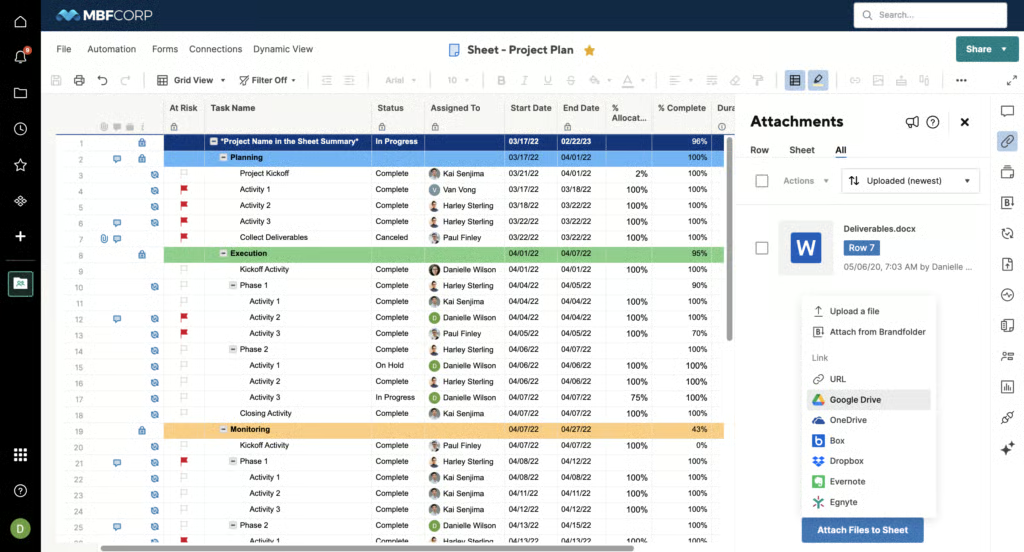
Smartsheet works best for spreadsheet-oriented teams that rely on formulas to calculate project data within a shared worksheet. I highly recommend it for PMOs that strictly track budgets and want to keep familiar spreadsheet functions while connecting costs to project records. This reduces the effort of moving from spreadsheets to project management software because formula-based processes are built into the platform.
I can enter budget and schedule data into rows, then use formulas such as SUM, IF, or COUNTIF to calculate totals or evaluate project conditions. Column formulas use the same calculation to current and succeeding rows, while multi-sheet references pull information into portfolio summaries. As project values change, the calculations update automatically, making it easier to identify budget or schedule variances.
The tradeoff is that building formulas requires spreadsheet experience within Smartsheet. Column formulas also cannot reference specific row numbers because every row must follow the same calculation. If my team prefers configurable boards and reusable templates over spreadsheet formulas, I would choose monday.com instead.
Key features
- Scenario Planning: Test timeline and allocation changes without altering the approved plan
- Portfolio reports: Aggregate project data across portfolios to compare progress and surface trends
- Dynamic View: Share selected project fields without exposing the underlying sheet or report
Smartsheet pricing
- Free plan: Unavailable
- Free trial: 30 days
- Pro: $9/user/mo. – Includes project views, formulas, unlimited sheets and reports, and 250 monthly automations
- Business: $19/user/mo. – Includes timeline planning, workload tracking, multi-sheet reporting, and unlimited automations
- Enterprise: Custom pricing – Includes portfolios, scenario planning, SAML SSO, and directory integrations.
- AI pricing note: Smart Assist and Smart Columns are included with every paid plan. AI formula generation and data analysis require Enterprise.

ClickUp: Best AI-powered project assistant
Pros
- Detailed hierarchy structure for organizing complex projects
- Native time-tracking feature is available for all paid plans
- Competitive pricing structure for mid-sized companies
Cons
- Steep learning curve
- Some integrations only offer basic connectivity
Why I chose ClickUp
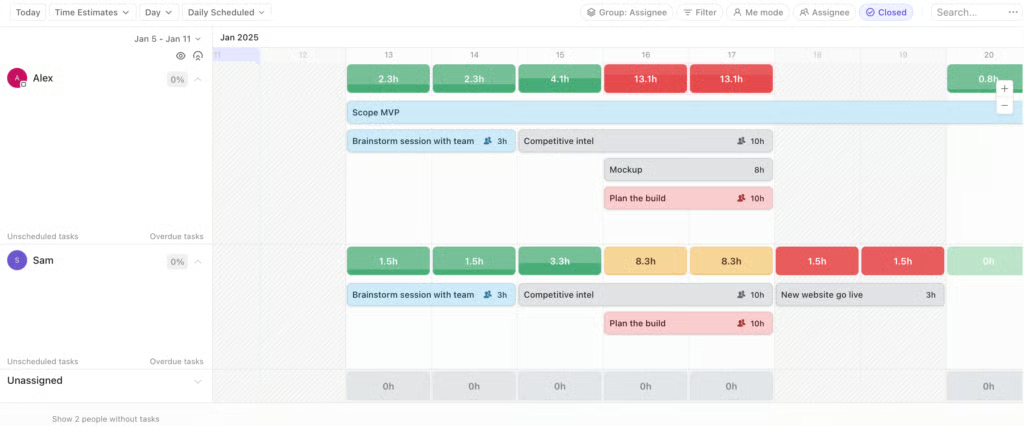
When status checks take up too much of a manager’s week, ClickUp Brain can review task activity within a selected workspace and generate an update from existing project records. Since it draws on project data already stored in ClickUp, I find this more reliable for looking up project delays or missing follow-ups compared to a standard chatbot.
As a current ClickUp user, I often use Brain when searching for an old task from hundreds of workspace data. I simply access my project assistant in the top navigation of my workspace, choose the relevant source, and request a summary or duplicate-task check. I have the option to convert the response into a task or Doc and send follow-up prompts to refine the output. Suggested subtasks are optional, and the project lead should still verify owners, dates, and other key details before accepting the output.
If you wish to sign up for a free trial, note that full access to Brain adds to your monthly subscription cost. Asana is a better choice if you want essential project management tools without the added cost of workspace-wide AI access.
Key features
- Time tracking: ClickUp’s native time tracker, which is available on all paid plans, helps teams monitor time spent on specific tasks. It allows users to manually input time entries and create custom statuses, workflows, and time-tracking settings specific to their project needs.
- Comprehensive reporting: You can quickly generate detailed reports based on project progress, team performance, and resource allocation. After you generate these reports, ClickUp can export them in PDF, CSV, and Excel formats. Combining this functionality with its native time-tracking feature gives ClickUp an edge in demonstrating distinction over its competitors.
ClickUp pricing
- Free Forever: Includes unlimited users, 60MB storage, Kanban view, and sprint management
- Unlimited: $7/user/month — Adds integrations, forms, Gantt charts, chat messages, time tracking, portfolios, and resource management
- Business: $12/user/month — Adds timeline view, activity views, workload management, and reporting
- Enterprise: Custom — Adds SSO, advanced permission, enterprise API, and custom roles

Wrike: Best centralized project workspace
Pros
- Flexible project templates
- Effortless task management
- Quick access to customer support through its floating chat icon
Cons
- Can be overwhelming for beginners
- Some users report slow load times
Why I chose Wrike
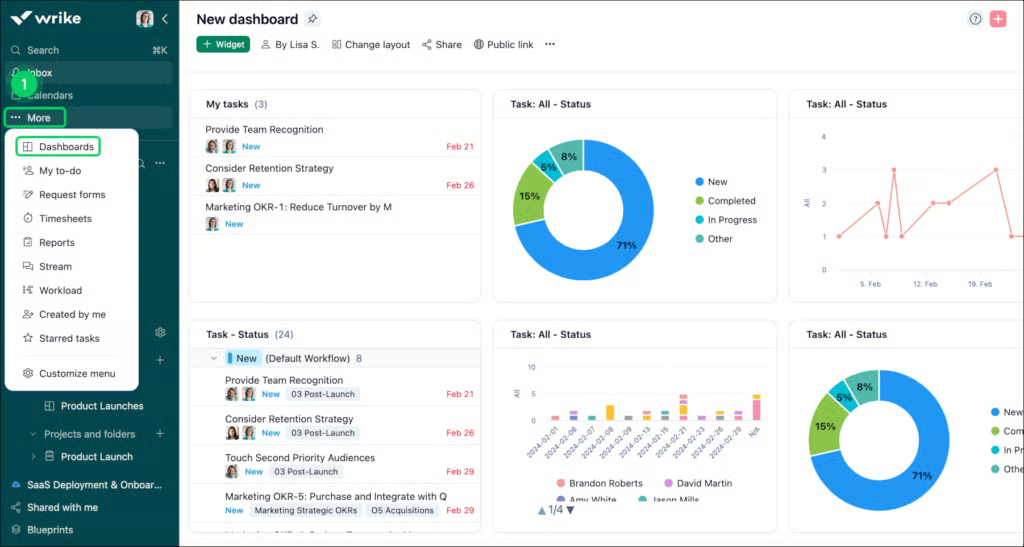
Wrike organizes work into Spaces, which serve as dedicated work areas for individual departments. Each Space can contain projects, folders, dashboards, reports, and supporting resources, making it easier for teams that want separate departmental workspaces in a centralized platform.
For new users, I recommend starting with a Space for your department, then organizing projects into folders and adding dashboards or reports that the team can easily access. A task can also appear in multiple folders or projects without creating a duplicate record, so any update is reflected everywhere the task is referenced. Wrike also provides Space templates with predefined request forms and workflows, which reduces setup time for teams that follow the same process across multiple projects.
One limitation is that adding a task to another location automatically shares it with anyone who has access to that location. Before reusing tasks across departments, I would review each Space’s permissions to avoid exposing work to unintended users. If my priority is separating internal projects from external collaboration through basic permission settings, I would choose monday.com, which manages access at the board level.
Key features
- Dynamic Gantt charts: Wrike’s interactive Gantt charts can easily identify task durations, dependencies, and milestones through intuitive drag-and-drop actions. Additionally, Wrike’s Gantt chart can also perform a critical path analysis and highlight the sequence of tasks that directly impact the project’s completion date.
- Custom workflows: Wrike stands out for its versatility as project management software. Fields and labels can be adjusted easily to make sure the project meets its requirements.
- Wrike Lock: Wrike Lock is an additional layer of encryption on top of standard encryption for workspace data and files. It uses AES-256 encryption keys, and it allows project managers to have a clear view of who is accessing the data and when. This feature enables businesses to use cloud applications with fewer worries.
Wrike pricing
- Free: Unlimited users and basic task management
- Team: $10/user/month — Adds cross-tagging, custom fields, Gantt charts, and portfolio management
- Business: $25/user/month — Adds AI elite features, request forms, templates, approvals, and resource planning
- Pinnacle: Custom pricing — Adds advanced reporting, resource and capacity planning, budgeting, and locked spaces
- Apex: Custom pricing – Adds Wrike Datahub (30M records), and bi-directional integrations with third-party solutions

Jira: Best for software development workflows
Pros
- Designed to support Agile methodologies.
- Offers 4,000+ integrations through the Atlassian marketplace.
- Scrum and Kanban support
Cons
- May not align well with the waterfall model.
- Complex initial setup.
Why I chose Jira
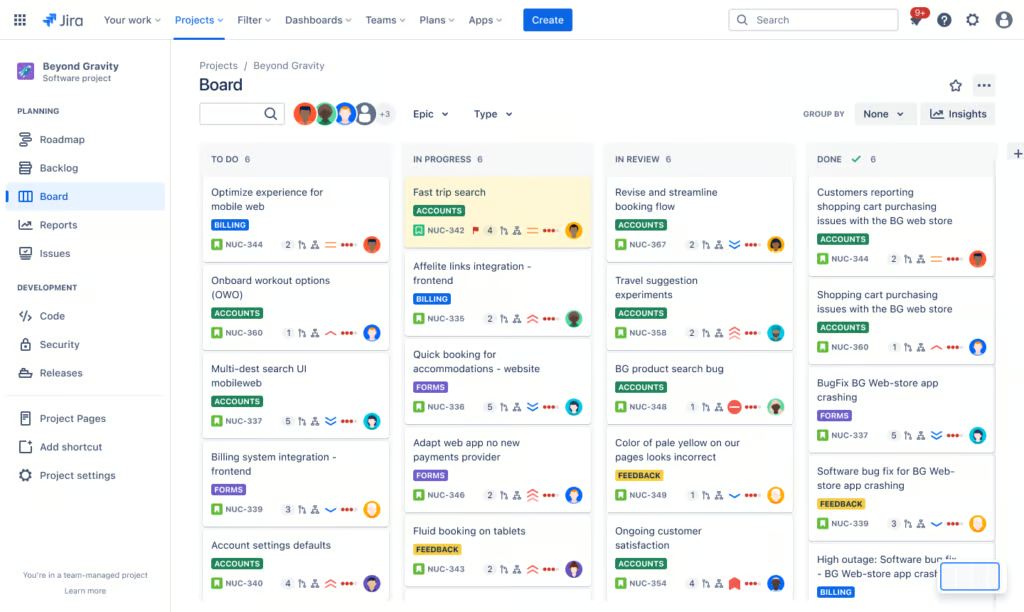
Jira organizes software work through configurable statuses and transitions, which gives engineering teams a defined path from backlog planning to completion. Product owners can prioritize upcoming work, while delivery leads use sprint and flow reports to identify bottlenecks and assess release risk. I consider this type of Agile workflow better suited to software development than broader project methodologies.
A product owner, for instance, creates and ranks backlog items, then moves selected work into a sprint where developers advance each item through defined stages. Through various Agile reports, Jira can show cycle time, backlog growth, or progress against the original estimate, which helps managers investigate delays before they affect a release date. Still, delivery leads must interpret the reports and adjust priorities when progress stalls.
Company-managed Jira spaces require an admin to configure screens and schemes, which further complicates setup when an organization standardizes workflows across teams. Alternatively, Asana is ideal for departments that need simpler ownership and deadline tracking without software-specific workflow administration.
Jira features
- Agile reporting: These reporting tools help provide a detailed view of team performance through Agile-specific reports such as velocity charts, burndown charts, and cumulative flow diagrams.
- Extensive integrations: Jira can integrate with other Atlassian products like Confluence, Bitbucket, and Trello. After setting up their Confluence accounts, users can link project documentation, requirements, and decision records to Jira issues and sprints. Additionally, by integrating with Atlassian’s control system, Agile teams can link commits, branches, and pull requests to Jira issues.
Jira pricing
- Free: Up to 10 users — Includes core project management features, reports, dashboards, unlimited projects, forms, 2GB storage, and project views (backlog, list, board, timeline, and summary)
- Standard: $9.05/user/month — Adds AI assistant, user roles, external collaboration, 250GB storage, and 1700 automation rule runs
- Premium: $18.30/user/month — Adds dependencies, custom approvals, scenario modeling, capacity management, sandbox, unlimited storage, and 1,000 automation rule runs per user
- Enterprise: Custom — Adds advanced admin controls and security, cross-product insights, and unlimited automation rule runs

Asana: Best for user-friendly task tracking
Pros
- Intuitive interface with straightforward navigation
- Free plan can accommodate up to 10 users
Cons
- Task assignments are limited to one person only
- Limited exporting and importing functionality for reporting and analysis’
Why I chose Asana
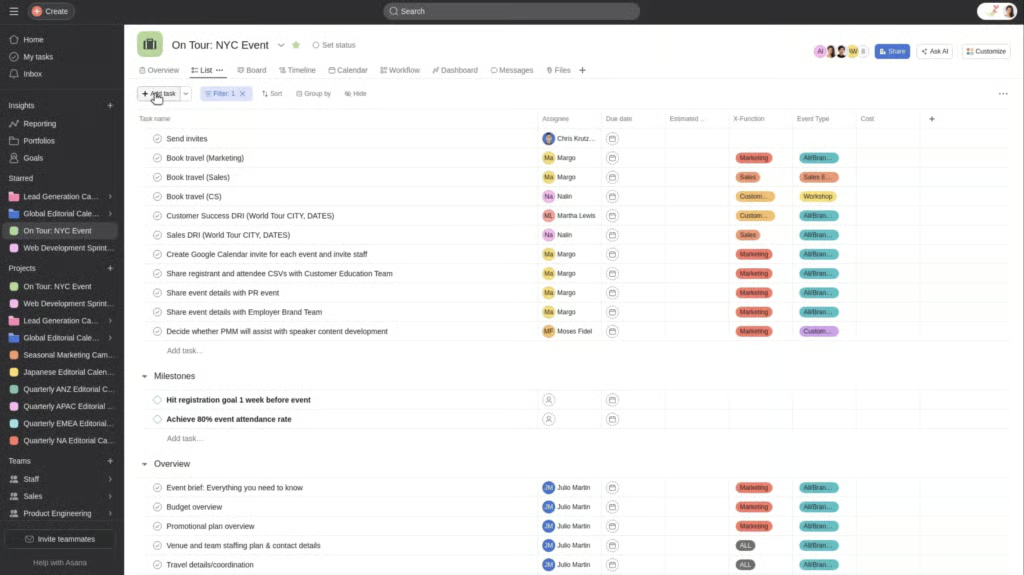
Asana organizes work around individual tasks with a single owner and due date, so each person knows their exact role. One example is the My Tasks view, which gathers a user’s assignments from across the workspace in one place.This works best for companies running recurring projects, and employees need a platform they can adopt quickly.
For instance, I can create a task by entering a title, description, assignee, and due date, then add dependencies or custom fields only when the project requires them. A task can also appear in multiple projects through multi-homing, and any update is reflected everywhere the task is referenced. This allows multiple teams to work from the same task instead of having duplicate copies, while managers can track progress from one workspace.
This approach still depends on people maintaining owners and deadlines, so incomplete task records can affect the accuracy of the personal queue and project view. If you want to spend less time organizing tasks, ClickUp’s AI assistant can turn recent task activity into status updates and identify overdue work.
Key features
- Multi-homing tasks across projects: Asana lets your team add a single task to multiple projects or to multiple sections within a project, a feature called multi-homing. This feature ensures that all relevant stakeholders have access and visibility to the task and can collaborate on it.
- Task covers: Asana now offers task covers, a.k.a. thumbnail images for tasks, to make project management more intuitive and visually appealing. This picture provides a quick visual preview of what each assignment involves.
- Workload view: Asana’s workload reporting feature visually represents the team’s capacity and helps a project manager ensure no one is overwhelmed or underutilized. It presents the data in a neat graph to better understand the team’s workload. This feature in Asana is available for Advanced and Enterprise customers.
Asana pricing
- Free: Up to two users — Includes list, board, calendar views, and 100+ integrations
- Starter: $10.99/user/month — Adds forms, templates, Gantt view, AI studio, automations, custom fields, workflow builder, project dashboards, and unlimited guests
- Advanced: $24.99/user/month — Adds goals, proofing, approvals, time tracking, goals, forms branching, and portfolio workload
- Enterprise: Custom – Adds capacity planning, mobile app controls, and admin controls
- How much does project management software really cost?
- Find your new project management software
- What is project management software?
- Key features of project management software
- How to choose the right PM software for your project
- 1. Define project requirements
- 2. Identify must-have features
- 3. Assess team size and collaboration needs
- 4. Examine integration capabilities
- 5. Evaluate user experience
- 6. Determine budget and ROI
- What does it cost to switch project management software?
- FAQs
How much does project management software really cost?
The advertised starting price can underestimate what project management software costs once advanced features are required. The table compares annual subscription costs based on published US per-user rates with annual billing.
| Software and plan | Price per user/month | 25 users/year | 100 users/year |
|---|---|---|---|
| ClickUp Business | $12 | $3,600 | $14,400 |
| monday.com Pro | $19 | $5,700 | $22,800* |
| Smartsheet Business | $19 | $5,700 | $22,800 |
| Asana Advanced | $24.99 | $7,497 | $29,988 |
| Wrike Business | $25 | $7,500 | $30,000 |
All figures exclude taxes, optional AI subscriptions, implementation costs, and volume discounts.
Note that licensing rules affect the final bill. If some employees only need to review project updates, check whether they qualify for free viewer or guest access. Compare the least expensive plans that meet your requirements rather than selecting software based on its advertised entry price.
Find your new project management software
What is project management software?
Project management (PM) software helps businesses and organizations achieve their goals and objectives more efficiently and effectively. It guides project managers and stakeholders through different phases of the project management life cycle, especially during project planning, execution, and monitoring.
With functions that include project planning, scheduling, task management, and resource allocation, the right project management tool enables teams to streamline the intricate project management process. Furthermore, these PM software solutions help stakeholders stay on the same page through features that enhance file sharing, communication, and collaboration.
I reviewed five project management software solutions and narrowed my list of recommendations to the best of the best:
Key features of project management software
The best software for project management offers features that help the team build a project plan, track tasks through the different stages of the project, and collaborate on tasks to ensure on-time completion. When you prioritize the features you need from your project software, you’ll be better equipped to find the right project management app for the projects you manage.
| Feature | Description |
|---|---|
| Scheduling | Visualizes project timelines and task schedules using calendars, timelines, or Gantt charts. |
| Forecasting | Estimates project costs, resource needs, risks, and potential return on investment before execution. |
| Resource Management | Tracks team capacity and resource allocation to optimize workloads and project performance. |
| Budgeting & Expense Tracking | Monitors project spending and expenses to support cost control and future budgeting. |
| Time Tracking | Records time spent on tasks to measure productivity and improve project planning accuracy. |
| Task Management | Assigns, organizes, and tracks project tasks to ensure accountability and progress visibility. |
| Kanban Boards | Displays tasks as cards that move through workflow stages to track work status. |
| Gantt Charts | Maps task durations, dependencies, and project timelines in a visual chart format. |
| Permission Settings | Controls user access to projects, tasks, and project management functions. |
| Automation | Automates repetitive tasks, workflows, approvals, and notifications to improve efficiency. |
| Analytics & Reporting Dashboards | Provides project insights through reports and dashboards that track performance and resource utilization. |
| Document Sharing | Stores and shares project files within tasks or projects for easier collaboration and access. |
How to choose the right PM software for your project
Selecting the best software for your project management needs is crucial because it directly impacts a project’s efficiency, productivity, and success. Selecting the right project management tool is all about understanding your project’s needs, picking out must-have features, knowing your team, and ensuring it provides excellent value for your money.
1. Define project requirements
Clearly define your project’s scope, complexity, and specific needs. This first step ensures you choose a tool that aligns with your objectives and keeps you well-equipped to handle potential challenges effectively.
2. Identify must-have features
Determine the essential features your project cannot do without. These may include task management, time tracking, reporting capabilities, or resource planning.
3. Assess team size and collaboration needs
Evaluate how your team collaborates and communicates. Ensure the software you choose is an excellent collaboration tool that supports your needs with features like chat, file sharing, and real-time workspaces.
4. Examine integration capabilities
Identify the integrations your team needs and choose a tool that connects seamlessly with third-party apps. Smooth integration can greatly enhance workflow efficiency.
5. Evaluate user experience
Check if the tool is user-friendly and has a gentle learning curve. A good user experience increases adoption rates and overall productivity.
6. Determine budget and ROI
Compare pricing plans, scalability, and how the software’s benefits justify the investment. Your chosen software should be cost-effective and contribute to the overall financial health of the project.
What does it cost to switch project management software?
Migrating to another project management platform introduces expenses for data transfers and workflow configuration. Task names and deadlines are often easier to transfer than dependencies, historical comments, or automation rules. Companies may also need to retain their existing subscription while employees transition to the replacement software.
Project management software migration costs
| Cost factor | What to account for |
|---|---|
| Data migration | Transferring project records and attachments |
| Workflow configuration | Recreating automations and approval processes |
| Integrations | Reconnecting communication and business applications |
| Employee training | Paid work hours spent learning the new platform |
| Parallel subscriptions | Maintaining both systems during migration |
For example, training 50 employees for two hours each requires 100 staff hours. At an illustrative labor cost of $40 per hour, training alone would cost $4,000, excluding migration services and configuration expenses.
Before switching platforms, import one active project and one completed project. Verify that task relationships and historical records remain accessible, then identify which automations or integrations need to be recreated manually. This trial provides an estimate of the work required before the remaining projects are transferred.
If you’re looking for specific types of project management tools, visit our other project management categories for product overviews, reviews, and recommendations:
- Bug Tracking Software
- Enterprise Project Management Software
- Marketing Project Management Software
- Project Portfolio Management Software
- Time Tracking Software
FAQs
What is the best project management software?
monday.com is our best overall project management software for its customizable workflows, visual project boards, and automation capabilities. ClickUp is an alternative for teams that need detailed task organization and AI-powered assistance, while Smartsheet suits organizations accustomed to spreadsheet-based project reporting. The best choice ultimately depends on your workflow requirements and budget.
Which project management software is best for a midsize business?
monday.com is a suitable choice for midsize businesses that manage projects across departments, thanks to its customizable workflows and reporting capabilities. Wrike is worth considering for organizations with complex approval processes, while Smartsheet supports spreadsheet-based reporting. Compare resource planning requirements and subscription costs before selecting a platform.
What is the easiest project management software to use?
Asana is one of the easiest project management platforms to learn, particularly for teams familiar with task lists and Kanban boards. Its interface makes task assignments and project progress accessible to new users. However, organizations requiring advanced resource management or portfolio reporting may need its higher-priced Advanced plan.
How much does project management software cost?
Project management software typically costs between $7 and $25 per user per month for common paid plans, although advanced subscriptions can exceed this range. For 25 users, a $12-per-user plan costs $3,600 annually. Enterprise features, AI add-ons, and implementation expenses can increase the total, so compare plans based on required capabilities.
Can AI manage projects automatically?
Yes. AI can automate selected project management tasks, including status summaries, task creation, and workflow updates. However, its ability to identify risks or recommend schedule changes depends on access to accurate project data. Project managers still need to verify AI-generated recommendations and make decisions about resource allocation, priorities, and stakeholder requirements.