


Key takeaways
- Workflow automation helps teams scale work by reducing manual coordination, not just improving productivity.
- At its core, automation connects triggers and actions to ensure tasks, whether simple or complex, happen consistently and on time.
- The biggest impact comes from eliminating gaps between steps, allowing teams to reduce errors, maintain momentum, and focus on higher-value work.
What is workflow automation?
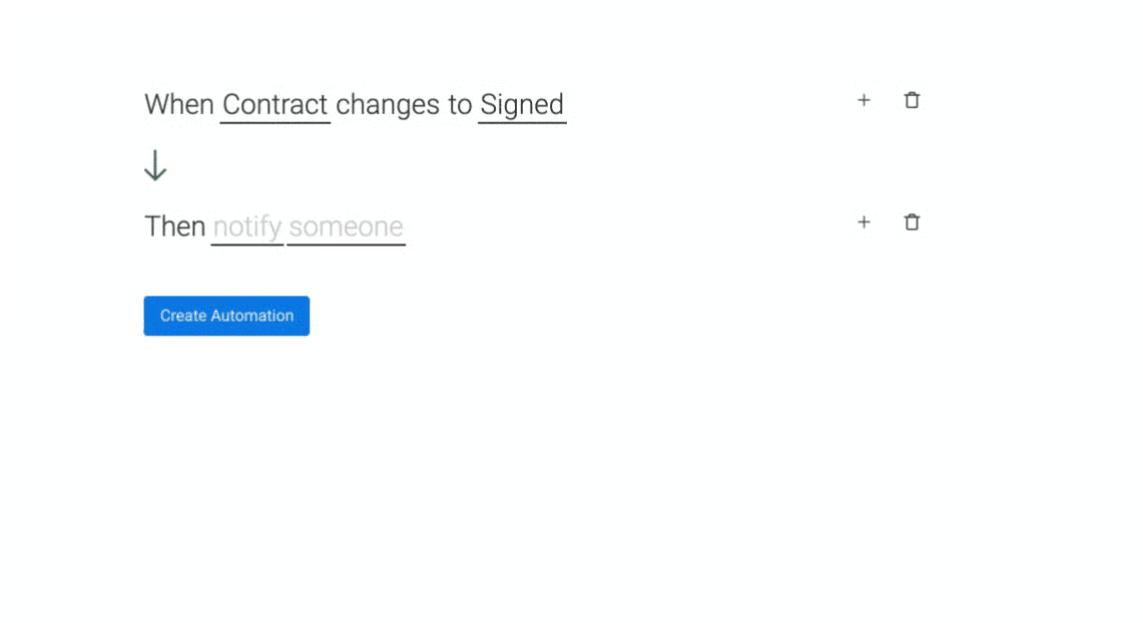
Workflow automation is the process of setting up rules that automatically trigger actions when specific conditions are met. At its simplest, it follows a clear logic: when this happens, then do that.
The “when” represents the trigger or condition (such as a status update or a deadline), while the “then” defines the action (like assigning a task or sending a notification). Together, they create a system that removes the need for manual follow-ups and repetitive coordination.
Most project management tools simplify this process through pre-built automation templates, making it easy for teams to get started. Common automation types include:
- Status change: Triggers an action when a task status is updated. For example, when a task is marked Done, automatically archive it.
- Time-based: Executes an action based on a date or deadline. For example, notify a stakeholder three days before a due date.
- Item creation: Initiates actions when a new item is created or on a recurring schedule. For example, assign a team member whenever a new task is added.
Note that workflow automation is not the same as robotic process automation (RPA). Learn the differences between the two in our RPA vs workflow automation guide.
How teams use workflow automation
Workflow automation becomes most valuable when applied to high-friction, repetitive processes across teams. While the use cases vary by department, the underlying goal is the same: reduce manual handoffs, improve visibility, and keep work moving without constant follow-ups.
Below are practical examples of how different functions use automation to streamline their workflows:
Human resources (HR) management
HR teams handle a high volume of administrative and compliance-driven tasks, from onboarding new hires to maintaining employee records. These processes often involve multiple stakeholders and frequent handoffs, making them ideal candidates for automation.
In our experience, the biggest gains in HR automation come from eliminating status checks and manual coordination between departments.
These HR workflows are especially well-suited for automation:
1. New employee onboarding
Onboarding new employees requires collecting important pieces of information, including their job titles, business departments, office locations, and hiring dates. With a project management software solution in place, you’ll be able to gather these details without manually asking employees one by one.
For example, ClickUp offers an employee onboarding template with fields for hire source, department, induction date, and onboarding stage. Using status-based automation, teams can streamline handoffs between departments.
When the onboarding stage moves from HR to Legal, the system can automatically reassign the task to a legal team member and notify them to take action. This ensures the process continues without bottlenecks or manual intervention.


2. Time-off request approval
Time-off requests can quickly become difficult to track when managed through scattered emails, leading to delays, missed approvals, and limited visibility for HR.
Workflow automation centralizes and standardizes this process, making it easier for both employees and managers to submit, review, and approve requests without back-and-forth communication.
By using a time-off request form, teams can capture all requests in a single, shared board where HR and managers have real-time visibility. From there, automation ensures the process moves forward without manual follow-ups.
For example, when a request status changes to Approved, the system can automatically notify the employee who submitted it. This keeps everyone informed and reduces the need for status-check emails.
3. Expenses reimbursement
Expense reimbursement processes often involve multiple steps before it is completed. This makes them prone to delays and missed handoffs when managed manually.
With workflow automation, employees simply need to fill out and submit a reimbursement request form that their manager will review and approve. The request is visible on a project board that the finance department can access, which will then be evaluated to ensure that it reflects on the employee’s next paycheck.
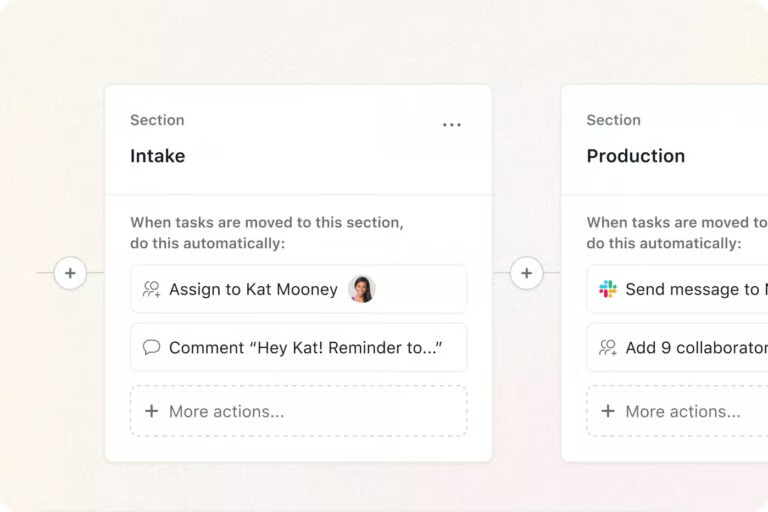
For example, in Asana, you can configure an automation so that when a reimbursement request moves to the finance review stage, it is automatically assigned to a finance team member and triggers a notification via Slack or Microsoft Teams. This ensures timely evaluation and keeps the process moving toward payroll without delays.
4. Employee status change
HR practitioners find it tedious to update statuses when employees get promoted or leave the company. Workflow automation ensures these updates happen consistently and across all relevant platforms without requiring repetitive input from HR teams.
By integrating your project management tool with systems like your HRIS and employee directory, you can create a single source of truth for employee data. When a status change is initiated and the necessary documentation is submitted, the update can automatically sync across connected systems.
For example, when an employee’s status is updated in the directory, automation can trigger corresponding updates in other platforms and notify relevant stakeholders. This reduces the risk of outdated records and ensures that all teams are working with accurate, up-to-date information.
Information technology
Your IT department handles numerous complex business processes, from implementing software solutions to accommodating users’ requests. While some IT processes may be complicated, others can be automated to reduce the burden on the team, facilitate efficiency, and ultimately offer better services to internal stakeholders. Apply these workflow automation examples in your IT operations:
5. Ticket management
Organize incoming service requests by setting up a form and letting the system automatically convert the requests into tasks in the IT board. Workflow automation brings structure to this process by standardizing how requests are submitted and routed. By using an intake form, IT teams can automatically convert requests into tasks on a centralized board, ensuring every ticket is logged and visible.
For example, monday.com allows teams to collect requests through customizable forms and trigger automations when new items are created. Once a ticket is submitted, the system can notify the appropriate team member or assign ownership automatically, enabling faster response times and more consistent handling of IT requests.

Use monday work management’s IT service desk template. (Source: monday.com) 
Choose from monday work management’s pre-built automation recipes. (Source: monday.com)
6. Asset management
When an employee joins or leaves the company, the IT team is actively involved in the onboarding and offboarding process, particularly in the distribution and return of hardware. By implementing online forms, you can easily monitor which employees already received or handed back the required devices. With workflow automation, the system will notify key IT team members for action about an asset that needs to be deployed or received.
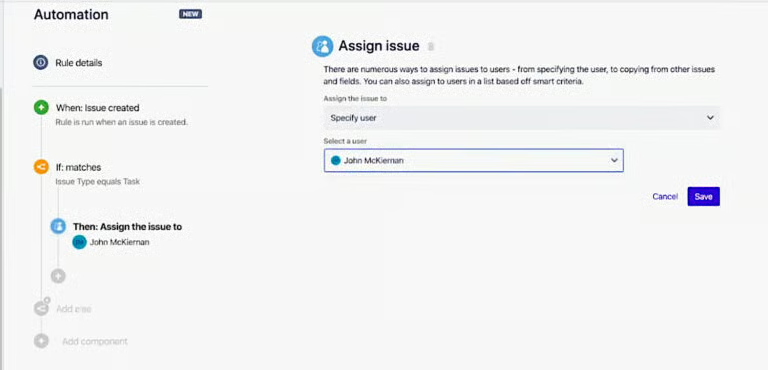
For example, in Jira, you can set up an automation where “when an issue is created,” it is automatically assigned to the appropriate team member responsible for provisioning or recovery. This ensures that every asset request is immediately owned and acted on, improving turnaround time and reducing the risk of lost or untracked equipment.
7. Compliance
Software solutions used in the company must adhere to regulatory and data protection standards. The IT team must conduct regular inspections to ensure that no data security protocols are bypassed. By using automated forms, you’ll quickly build a master list of team members who finished the compliance testing and those who haven’t gone through it yet.
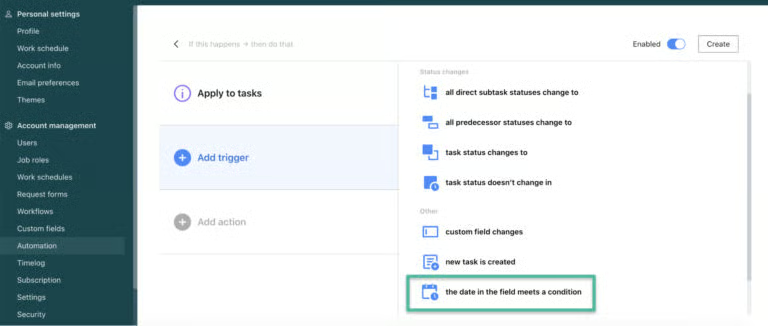
Workflow automation software tools like Wrike allow you to set time-based automations that trigger reminders ahead of audit deadlines. When a deadline approaches, the system can automatically notify team members—either through a comment or alert—ensuring that compliance tasks are completed on time and nothing is overlooked.
Marketing production and campaign management
The marketing production process includes many moving parts that can easily be automated. This allows team members to focus on more high-yield tasks instead of the administrative assignments the workflow demands. These are the marketing production to-dos you can set automatically:
8. Task request organization
The marketing team receives several collateral creation requests. These materials may be used on various platforms: websites, blogs, or social media. Workflow automation helps bring structure to this intake process by standardizing how requests are categorized and assigned from the start.
By using a request form with predefined fields (such as asset type or channel), teams can automatically sort incoming requests into the appropriate workflow. This eliminates manual triage and ensures that each request is directed to the right team or pipeline.
You can create an automation rule where, when a request is tagged as a specific asset type, it is automatically moved to the corresponding column or section on your project board. This allows teams to organize work instantly and focus on execution rather than administrative sorting.

Let team members specify the type of marketing collateral they need. (Source: ClickUp) 
Automate the filtering of marketing collateral requests. (Source: ClickUp)
9. Output approval
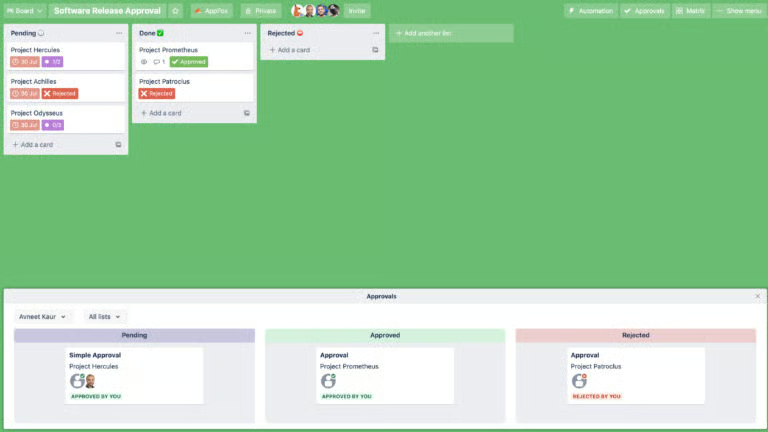
Marketing workflows often slow down during the review and approval stage, where delays, unclear ownership, and missed notifications can create bottlenecks.
With workflow automation, asking for feedback becomes easier and quicker for team members. Simply configure the automation settings to notify a team leader or a supervisor when a task is moved to a specific stage, for example, when it reaches the Done or Ready for Approval column.
In Trello, you can set up an automation where cards move between columns based on approval status. When a task reaches a stage like Ready for Approval, the system can automatically notify the appropriate manager or supervisor, ensuring timely review and faster turnaround.
10. Content posting
Publishing content can become a repetitive, time-sensitive task, especially when managing multiple campaigns and channels. Delays or missed posts often happen when teams rely on manual scheduling and follow-ups.
Workflow automation helps ensure content goes live at the right time without requiring constant oversight.
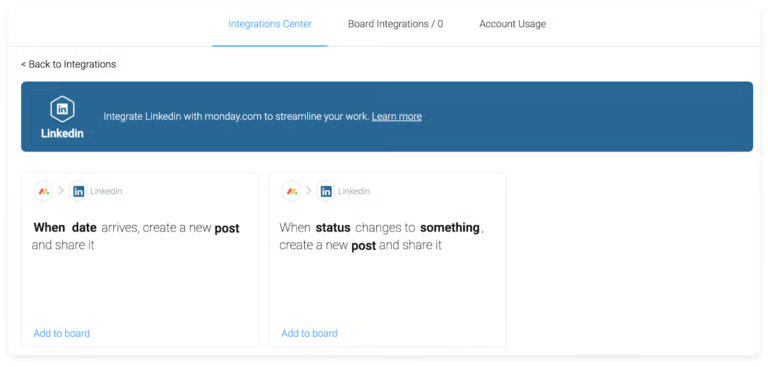
On monday.com, you can integrate your LinkedIn account and set automations so that when a task is marked Ready to Publish or a scheduled date arrives, the system automatically creates and publishes the post. This reduces manual effort and ensures consistency across campaigns.
11. Drip campaigns
Drip campaigns allow marketing teams to engage audiences consistently over time by sending targeted messages based on user behavior. However, managing these touchpoints manually is impractical at scale and often leads to missed opportunities or inconsistent follow-up.
Workflow automation makes it possible to deliver timely, personalized communication without ongoing manual effort.
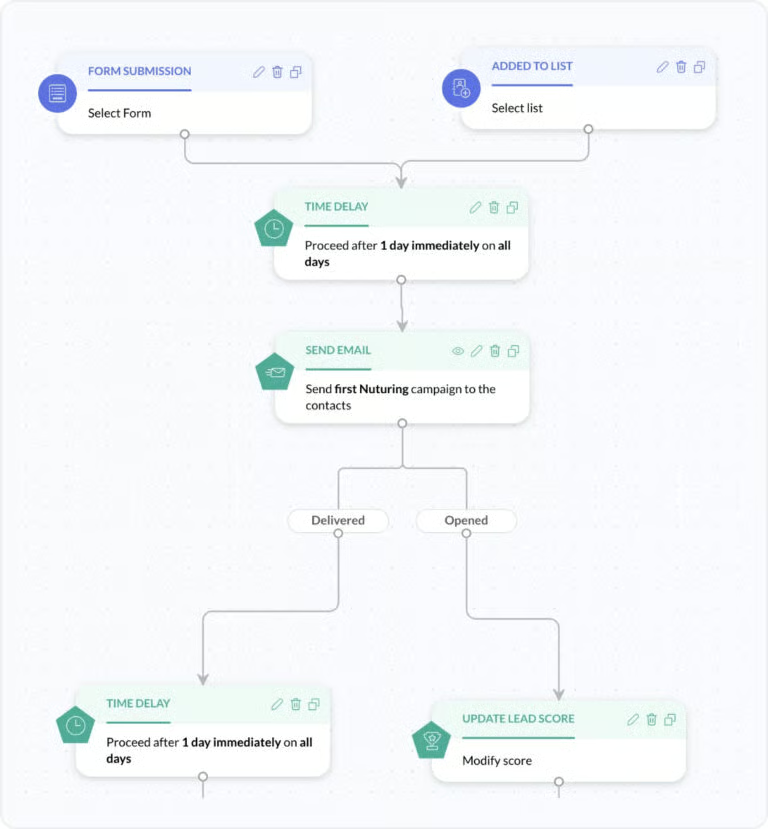
By segmenting audiences based on actions (e.g., signing up for a trial or making a purchase), teams can trigger a sequence of emails that guide users through a predefined journey. This ensures that every lead or customer receives relevant messaging at the right moment.
Zoho is one of the best marketing automation platforms for drip campaigns because of its drag-and-drop customer journey builder where you can choose triggers and decide corresponding actions. For example, when a new lead fills out the sign-up form, the platform automatically sends a welcome email. The best part is that the platform offers pre-designed templates for different campaigns, including lead nurturing, re-engagement, and customer retention.
Customer relationship management (CRM)
CRM processes are intricate, requiring follow-ups with prospects, sending messages to clients, and plotting appointments. Fortunately, you can automate these and ensure no important task is neglected. This results in positive customer experiences that translate to brand loyalty. Below are some automated workflow examples for CRM:
12. Lead follow-ups
Timely follow-up is one of the most critical factors in converting leads into customers. Yet, manual outreach often leads to delays, inconsistent messaging, or missed opportunities. Workflow automation ensures every inquiry is acknowledged immediately and consistently, without relying on manual intervention.
By connecting your contact forms to your CRM or project management tool, you can trigger instant follow-ups when a prospect takes action. This allows teams to engage leads while interest is still high.
For example, when a potential customer submits a form, the system can automatically send a welcome email—whether it’s an invitation to book a meeting, explore a product, or receive promotional updates. This creates a seamless first touchpoint and sets the stage for further engagement.
13. Sales pipeline management
Managing a sales pipeline often means manually updating deal stages, tracking progress, and notifying team members. These tasks can slow down momentum and create inconsistencies in how opportunities are handled.
Workflow automation helps by ensuring deals move through the pipeline automatically based on predefined triggers. For example, when a contract status changes to Signed, the system can instantly move the deal to the Closed stage and notify the team via Slack. This eliminates manual updates, keeps pipeline data accurate, and ensures everyone stays aligned on key milestones.
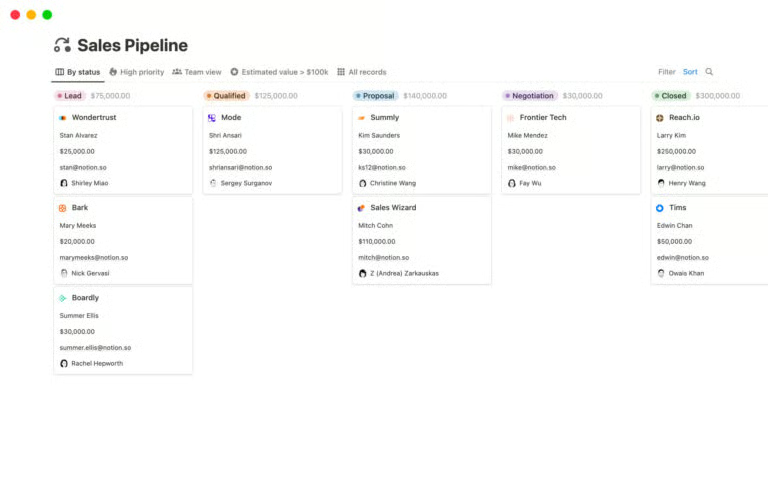
Tools like Notion support this by allowing teams to manage leads, deals, and contacts within a centralized, Kanban-style view. With the right automation rules in place, teams can maintain real-time visibility into pipeline progress while reducing administrative overhead.
14. Post-interaction customer communication
After a successful meeting with a client, you want to maintain customer engagement and send them an email expressing your appreciation for their time and presence. However, when managed manually, these follow-ups can be inconsistent or delayed, especially when handling multiple conversations at once.
Workflow automation ensures that every interaction is reinforced with timely, professional communication.
By linking follow-up messages to pipeline stages, teams can automatically trigger emails after key touchpoints, such as meetings, demos, or calls. This removes the need for manual outreach while ensuring no opportunity slips through the cracks.
For example, when a deal is moved to a post-meeting stage in your workflow, the system can automatically send a follow-up email thanking the client and outlining next steps. This keeps engagement high and reinforces a consistent customer experience across all interactions.
15. Task creation in specific pipeline stages
As leads move through the sales pipeline, each stage typically requires a new set of actions. It either needs preparing proposals, scheduling meetings, or coordinating internal resources. Delays and missed steps can slow down deal progression when you do these manually.
Workflow automation ensures that the right tasks are triggered at the right stage, keeping deals moving without relying on manual coordination. By linking task creation to pipeline updates, teams can automatically generate and assign work as soon as a lead advances. This creates a more structured and predictable sales process.
For example, when a lead’s status changes to Qualified, the system can automatically create tasks for relevant team members to draft a proposal or schedule a meeting. This ensures immediate follow-through and helps maintain momentum throughout the sales cycle.
What are the benefits of workflow automation?
While workflow automation is often associated with productivity gains, its real value lies in how it changes the way teams operate. It reduces friction, improves consistency, and enables work to scale without added complexity.
In my experience, the biggest impact comes not from automating individual tasks, but from removing the gaps between them. Here are some benefits of automated workflows:
- Better team performance: When tasks are automated, employees save time. I’ve seen teams use this reclaimed time to strengthen client relationships, refine strategies, and focus on work that actually moves the needle.
- Reduced errors: Manual processes are susceptible to mistakes, especially when users are not fully focused on the task. Workflow automation reduces or removes errors. Moreover, when automation fails, users are compelled to review triggers, conditions, and data sources, recalibrating the workflow.
- Support for large projects: The intricate details of complicated projects can be overwhelming to track and manage. However, by automating processes, you can ensure that repetitive, administrative tasks are properly handled and not causing any bottlenecks to the project’s progress.
- Improved transparency: Working on projects involves several people using different tools, which sometimes results in data silos. Since automation compels you to connect business software solutions to establish the correct sequence of processes and create a smooth workflow, all departments have visibility on important data.
How do you create an automated workflow?
Most project management apps have an easy-to-use workflow automation builder, which features input fields for triggers, conditions, and actions. In general, creating a custom automation is easy.
- Input the trigger and condition: Identify the event that kicks off the automation. This may be a board item in your column, like a status update, a person assigned, or a particular date. It could be an event such as an item created. In a project management app, the triggers and conditions are indicated by the “When” clause.
- Input the action: Decide your preferred action when the triggers and conditions are met. Some examples are changing the status, moving an item to a group, notifying someone, creating an update, or assigning a team member. The actions are indicated by the “Then” clause.
- Launch the automation: Once you fill out the triggers, conditions, and actions, create the automation. See if the system successfully executes the preferred action by prompting the trigger and condition event.
Incorporate automations into your workflows
Workflow automation improves team performance, minimizes errors, and supports growing operations and complex projects. Ultimately, it facilitates efficient business processes. Adopt the automated workflow examples above or take advantage of pre-built automation recipes in your project management app to get started on automated tasks. As you become familiar with the system’s functionality, create custom, complex automations to completely remove the manual administrative work on your to-do list.
If you’re still on the market looking for the ideal software solution, check out our top picks for the best project management software.