


I’ve used Lucidchart extensively for project documentation and workflow mapping, but it isn’t always the best fit for every team or budget. Some users need more advanced features, while others want a lower-cost option or a more flexible free plan. To help you find the right solution, I tested the best Lucidchart alternatives and compared their features, pricing, and ideal use cases.
| Best for | Starting monthly price | |
|---|---|---|
| Miro | scalable team collaboration | Free or $8 per user |
| Creately | visual project management | Free or $5 per user |
| Draw.io | Best for free, open-source diagramming | Free or $37 per user |
| Gliffy | Best for user experience | Free or $3.80 per user |
| OmniGraffle | Best for macOS | $59.99 |
Why you can trust TechnologyAdvice
Over the past four years as a project management and productivity writer, I have personally tested more than 15 diagramming and visual collaboration tools, several of which have made their way into my own workflow. I have written in-depth buyer’s guides covering a wide range of use cases, from solo professionals mapping out simple workflows to technical teams building complex system diagrams, which gave me a well-rounded understanding of what users actually need from these tools. Beyond hands-on testing, I design custom scoring rubrics for each evaluation to make sure every platform based on real performance and business value.
Update notes
Nov. 17, 2023: Irene Casucian reviewed our recommendations and enhanced the page layout for easier navigation.
March 23, 2026: Marianne Sison updated the provider pricing information to reflect the latest subscription costs and included features.
My methodology
To identify the best Lucidchart alternatives, I built a scoring rubric around the factors that diagramming and visual collaboration tool users prioritize most when looking for a platform that matches or exceeds what Lucidchart offers.
Pricing (20%) I compared whether each platform offers a free-forever plan or only a limited trial, then scored entry and mid-tier subscriptions based on monthly cost. I also checked for annual discounts and assessed how much value each pricing tier delivers compared to what Lucidchart offers at the same price point.
General features (25%) I examined core diagramming capabilities including the range of diagram types, shape libraries, and templates available on each platform. I also reviewed real-time collaboration tools such as comments, shared workspaces, and multi-user editing, as well as the variety of built-in views and canvas layouts.
Advanced features (20%) I looked closely at features that go beyond basic diagramming, including data linking, interactive diagrams, and the ability to import or export files in multiple formats. I also evaluated integration options with third-party tools such as project management platforms, cloud storage, and communication apps, as well as any AI-powered features that help users build diagrams faster.
Ease of use (15%) I considered how intuitive the canvas and toolbar feel for first-time users, especially those switching from Lucidchart. The drag-and-drop experience, template quality, and how quickly a new user can get comfortable with the platform all factored into this score.
Customer support (10%) I reviewed the availability of support channels such as live chat, email, and community forums. I also checked support hours and the quality of each vendor’s documentation and tutorials.
Expert score (10%) I added a professional assessment based on my direct experience with each tool, considering overall usability, feature depth, and value as a Lucidchart alternative. Tools that delivered a better experience or more competitive pricing for comparable features scored higher in this category.
- What is Lucidchart?
- What are the limitations of Lucidchart?
- Best Lucidchart alternatives
- 1. Miro: Best for scalable team collaboration
- 2. Creately: Best for visual project management
- 3. Draw.io: Best for free, open-source diagramming
- 4. Gliffy: Best for intuitive and user-friendly interface
- 5. OmniGraffle: Best for macOS
- Choosing the right Lucidchart alternative
- FAQs
What is Lucidchart?
Millions worldwide rely on the premier diagramming and visual collaboration platform, Lucidchart. Renowned for its intuitive drag-and-drop functionality, Lucidchart boasts a vast template library catering to diverse diagramming needs, from flowcharts to organizational charts. Its real-time collaboration feature allows teams to work together, and with compatibility across various devices and platforms, users can access and edit their diagrams anytime, anywhere.
Learn more about Lucidchart in our video demo:
What are the limitations of Lucidchart?
- Limited objects with free version: The free version of Lucidchart offers a restricted number of objects and simples, which can be a limitation for users who want to create more detailed diagrams without upgrading.
- Minimal flowchart management features: Lucidchart only offers a few features for managing flowcharts, which can be a drawback for users who need advanced flowchart functionalities.
- Pricing concerns: The cost of Lucidchart relative to the range of features it offers might make it less appealing to users looking to get more value for their money.
Best Lucidchart alternatives
1. Miro: Best for scalable team collaboration

Why I chose Miro over Lucidchart
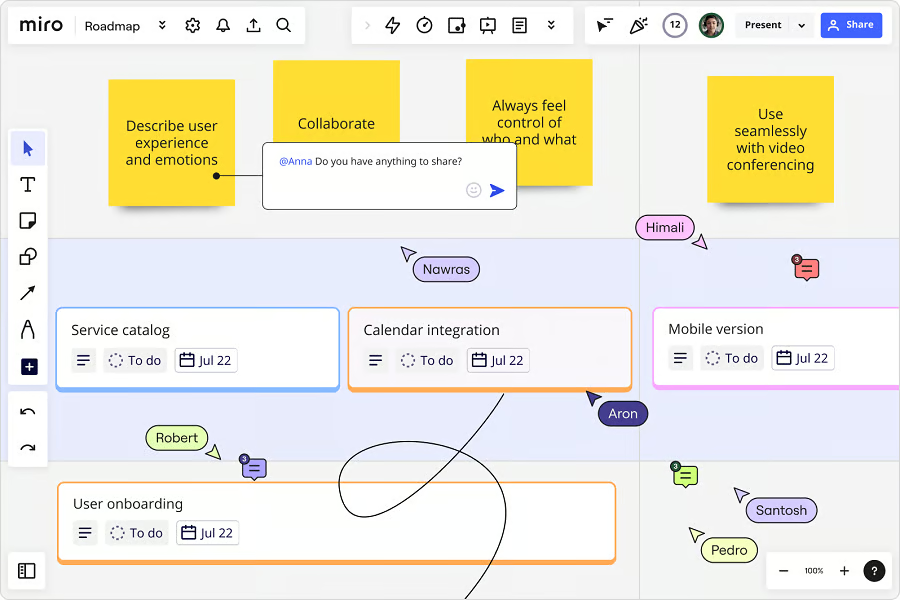
Miro stands out as a versatile diagramming tool with an extensive template library and integration capabilities. Its focus on providing a comprehensive platform for creating and sharing flowcharts makes it a compelling choice over Lucidchart, especially for teams looking for a more integrated and template-rich experience.
Miro is an online diagramming tool that I find useful for creating comprehensive workflows, organizational charts, and flowcharts. Like Lucidchart, it gives me a platform for visualizing complex information, making it easier to understand and share with my team. Both tools are designed to enhance collaboration and streamline the process of creating visual representations of data.
While Lucidchart is known for its data visualization and collaboration features, I find that Miro sets itself apart with its extensive template library tailored for various flowchart needs. It also offers integration capabilities with third-party apps like Google Docs and Microsoft Teams, making it easy for me to share my flowcharts across the tools I already use. That said, I noticed that Miro’s UX/UI has a slight learning curve compared to Lucidchart, which is worth keeping in mind if you’re switching platforms for the first time.
Pros
- Vast template library catering to different flowchart needs.
- Provides tools for creating professional diagrams.
- Syncs with apps like Google Docs and Microsoft Teams.
Cons
- The UI/UX has room for improvement.
- Free version restricted to only 3 boards.
Key features
Extensive template library
Miro offers a large library of flowchart templates that help you get started quickly. Whether you’re mapping a business process, visualizing a user journey, or brainstorming ideas, these professionally designed templates provide a practical foundation and eliminate the need to build diagrams from scratch.
Diagramming tools
Miro’s diagramming tools make it easy to create clear, professional flowcharts without extensive design experience. You can customize diagrams with various shapes, connectors, colors, and text options, while the intuitive interface helps you build visual workflows quickly.
Miro pricing
- Free plan: Includes unlimited team members and 3 active boards.
- Starter plan: Starts at $8/user/mo. billed annually.
- Business plan: Starts at $16/user/mo. billed annually.
- Enterprise plan: Requires custom pricing.
2. Creately: Best for visual project management

Why I chose Creately over Lucidchart
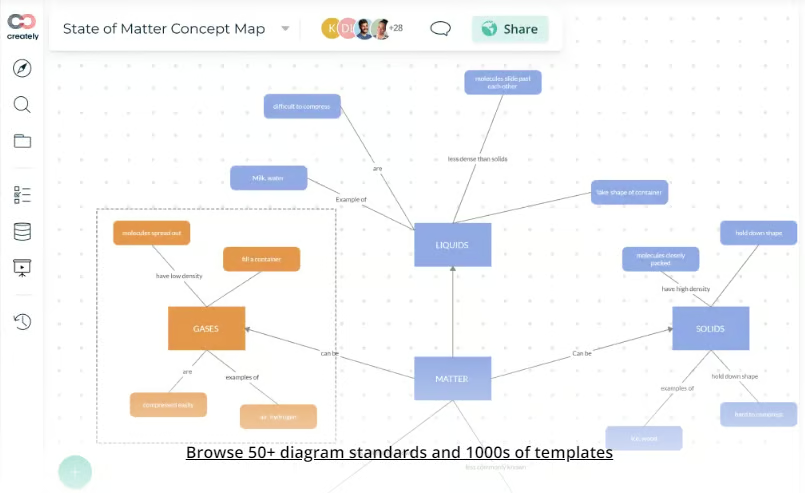
Creately stands out with its unlimited visual collaboration features, extensive diagramming standards, and integration capabilities. Its emphasis on both keyboard-first drawing and hand drawing gives users a unique blend of precision and personalization, making it a compelling choice over Lucidchart.
Designed to foster team collaboration, it offers me an interactive and functional workspace without the need for any downloads or installations. In many ways, it mirrors Lucidchart in its core objective of facilitating visual collaboration.
While Lucidchart is a popular choice for diagramming, I find that Creately sets itself apart with features like an infinite canvas, real-time text cursors, and mouse pointers that make collaborating with my team feel more dynamic. I also appreciate its advanced sharing permissions, the ability to spotlight and follow other collaborators on the canvas, and its integration capabilities with platforms I already use like Microsoft Teams, Slack, and Zoom.
Pros
- Provides infinite canvas for diagramming.
- Allows precise sharing permissions for better collaboration.
- Excellent integration with tools like Slack, Zoom, and Microsoft Teams.
Cons
- Its extensive features can be overwhelming.
- Importing an SVG file can present challenges.
Key features
Visual project management and execution tools
Creately supports project management tools such as Kanban boards, multiple timelines, and advanced workflows. Tasks can be assigned multiple roles, tracked individually via a My Tasks view, and linked through dependencies. Full-text search makes finding work across projects straightforward.
Advanced diagramming, flowcharting, and whiteboards
Creately supports over 70 diagramming standards with a library of 8,000-plus templates and 200,000 examples. The PlusCreate feature prioritizes keyboard-first drawing for faster diagramming. Additional options include hand drawing, markup support, and links and connectors for building navigational flows.
Creately pricing
- Free plan is available
- Personal/Team: Starts at $5 per month, billed annually
- Business: Starts at $89 per month, billed annually
- Enterprise: Custom pricing
3. Draw.io: Best for free, open-source diagramming
Why I chose Draw.io over Lucidchart

Draw.io stands out to me as an open-source diagramming tool that I can access and use without any cost. Like Lucidchart, it gives me a platform to create a variety of diagrams, including flowcharts, UML diagrams, organizational charts, and ER models.
Being browser-hosted, I find it accessible across different operating systems and convenient to use both online and offline. Its integration capabilities with platforms I already rely on, such as Google Drive, OneDrive, Confluence, and Dropbox, make it a versatile option for collaborative projects.
While Lucidchart offers a range of features and integrations, what draws me to Draw.io is primarily its cost-free nature. Despite being a free alternative, I find that it doesn’t compromise on the essential features I need for most projects. That said, I noticed it has more limited design options, making it better suited for simpler diagrams rather than complex, design-heavy projects. Unlike Lucidchart, which requires a subscription for advanced features, Draw.io gives me a no-cost solution without even needing to create an account.
Pros
- Completely free to use.
- Effortless integration with platforms like Google Drive, GitHub, and more.
- Users can start without any sign-up process.
Cons
- Lacks some advanced features.
- Zooming issue when opening an existing diagram.
Key features
Mobile diagramming and flexible file storage
You can access Draw.io on mobile devices through a web app and save diagrams to Google Drive, OneDrive, Dropbox, GitHub, GitLab, or local storage. This flexibility makes it easy to work across devices and storage environments.
Google Workspace, GitHub, Microsoft, and other integrations
Draw.io integrates with Google Workspace, Microsoft 365, Teams, SharePoint, GitHub, Jira, Confluence, Notion, and other collaboration platforms. These integrations allow teams to create, store, and manage diagrams within their existing workflows.
Draw.io pricing
- Free 30-day trial is available.
- Cloud: $37/mo. for up to 10 users
- Data center: $7,000/yr. for up to 500 users
4. Gliffy: Best for intuitive and user-friendly interface

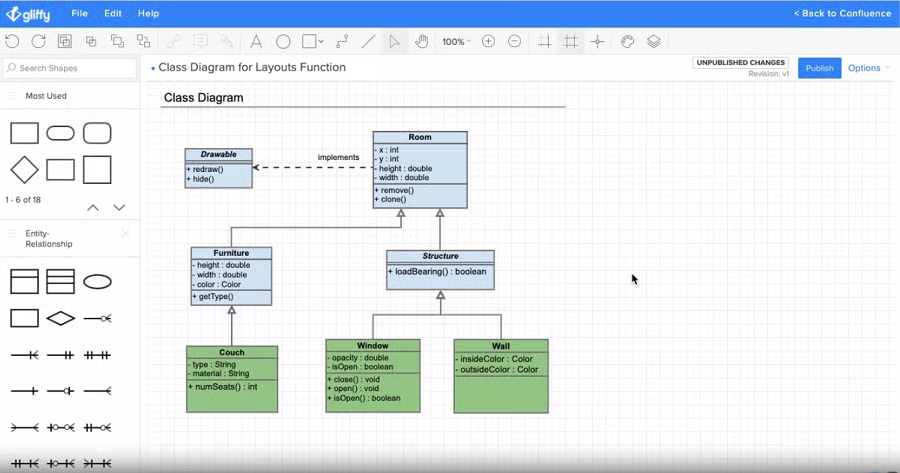
Gliffy offers a blend of intuitive design and customization options, making it a top choice for those seeking an alternative to Lucidchart. Its collaboration features, especially the integration with popular platforms, give it an edge for teams looking to streamline their diagramming process.
As an Atlassian Marketplace app, Gliffy is a tool I find useful for enhancing documentation through engaging diagrams. Whether you’re familiar with Lucidchart or new to diagramming altogether, I find Gliffy offers an intuitive experience for creating visual representations like diagrams, flowcharts, wireframes, and more.
While both Gliffy and Lucidchart serve as diagramming tools, Gliffy features more customization options. It allows me to add images, modify color palettes, and tailor diagrams to my needs. Its drag-and-drop interface also simplifies the process of drawing flowcharts and organizational charts without much effort.
What I also appreciate is Gliffy’s integration with platforms I regularly use such as Slack, Trello, and monday.com, which streamlines collaboration through real-time communication and project tracking. However, I did notice some performance issues when working with more extensive and complex charts, as the tool can become less responsive under those conditions.
Pros
- Provides an intuitive editor and user interface.
- Offers options to tailor charts, including adding images.
- Drag-and-drop feature that simplifies the process of diagram creation.
Cons
- Can be less responsive with larger charts.
- Offers a narrower range of templates compared to competitors.
- Less versatile than Lucidchart.
Key features
Online Access With Confluence and Jira Integration
Gliffy is a cloud-based diagramming tool that you can access from any browser without installing software. Its native integrations with Confluence and Jira allow teams to create, edit, and embed diagrams directly within project documentation and issue-tracking workflows.
User-friendly editor
Gliffy’s drag-and-drop editor makes it easy to create flowcharts, wireframes, organizational charts, and other visual diagrams. The intuitive interface reduces the learning curve, allowing users to focus on communicating ideas instead of learning complex design tools.
Gliffy pricing
- Gliffy Diagrams for Confluence
- Free for 10 users
- $3.80/user/month billed annually for 11 to 100 users
- Gliffy Diagrams | Zero Egress & Isolated Cloud-Ready
- $2.80/user/month for 1 to 100 users
5. OmniGraffle: Best for macOS
Why I chose OmniGraffle over Lucidchart
OmniGraffle stands out with its deep integration into the Apple ecosystem, offering features tailored for Mac and iOS users. Its extensive suite of tools, combined with unique features like the Resource Browser and advanced export options, make it a compelling choice for professionals seeking a comprehensive diagramming solution.
While OmniGraffle shares many similarities with Lucidchart in terms of diagramming capabilities, it sets itself apart with unique features such as the Resource Browser, Document Picker, and advanced export options that give me more control over my outputs. As a Mac user, I also appreciate its deep integration with Apple’s ecosystem, including Apple Pencil and Touch Bar support, which makes it a particularly strong choice for macOS and iOS users who want a more native diagramming experience.
Pros
- Accurately integrates with products in the Apple ecosystem, including Apple Pencil.
- Supports advanced export formats like SVG and Visio.
- Provides a vast array of stencils and templates.
Cons
- Might be challenging for beginners due to its feature set.
- Designed primarily for Apple users, limiting its broader appeal.
- Some features are exclusive to the Pro version.
Key features
Apple Pencil & touch bar support
OmniGraffle integrates with Apple Pencil and the MacBook Touch Bar to provide a more intuitive diagramming experience. These features enable precise drawing, quick tool access, and faster design workflows on Apple devices.
Advanced export options
OmniGraffle supports exporting diagrams in multiple formats, including high-resolution images, vector files, and PDFs. This flexibility makes it easy to share, present, or edit diagrams across different platforms and applications.
Interactive actions
OmniGraffle allows you to add interactive elements such as hyperlinks, page navigation, and pop-up notes within diagrams. These capabilities are ideal for creating interactive wireframes, prototypes, and dynamic visual documentation.
OmniGraffle pricing
- Free 14-day trial available
- Subscription (Mac, iPhone, and iPad): $129.99 billed annually
- iOS Perpetual License: Starts at $59.99
- v7 Standard License (Mac only): Available for a one-off payment of $149.99
- v7 Pro License (Mac only): Available for a one-off payment of $249.99
Choosing the right Lucidchart alternative
When exploring Lucidchart alternatives, it’s essential to consider your team’s unique requirements.
Several factors are essential when evaluating alternatives to Lucidchart:
- A user-friendly interface.
- Collaboration features.
- A variety of integrations with other platforms.
- Cost-effectiveness.
- Broad device and operating system compatibility.
Here are some considerations based on the top Lucidchart alternatives:
- For scalable teamwork, especially across dispersed teams, Miro offers real-time collaboration and powerful integration features.
- Creately stands out in visual project management with its web-based interactive workspace and cloud integrations.
- If open-source, free diagramming is your priority, Draw.io is your go-to choice.
- If you require an intuitive interface, Gliffy excels at providing a simple drag-and-drop diagramming experience with a diverse template range.
- For those committed to the Apple ecosystem, OmniGraffle is the top pick, ensuring detailed diagramming fine-tuned for macOS.
Selecting a Lucidchart alternative hinges on carefully assessing your team’s specific needs and workflow preferences. By weighing these options against the critical factors of user experience, collaboration, integration, cost, and compatibility, you can choose a diagramming and project management tool that not only matches but also enhances your team’s productivity and efficiency.
FAQs
What is the best Lucidchart alternative?
Miro is one of the best Lucidchart alternatives for collaboration and visual planning. Other strong options include Creately, Draw.io, Gliffy, and OmniGraffle, depending on your budget and diagramming needs.
Is there a free alternative to Lucidchart?
Yes. Draw.io (diagrams.net) is one of the most popular free Lucidchart alternatives. It offers robust diagramming features without subscription fees and integrates with several cloud storage platforms.
Which Lucidchart alternative is best for Mac users?
OmniGraffle is one of the best Lucidchart alternatives for Mac users. It offers native macOS support, Apple Pencil compatibility, and advanced diagramming capabilities.