

Key takeaways
- Jira is designed for tracking tasks and bugs and managing development workflows, while Confluence specializes in creating and sharing collaborative documentation and knowledge bases.
- Jira uses Agile workflows like Scrum and Kanban boards, which are suited for technical users, whereas Confluence offers a free-form editor ideal for writing and storing project context.
- When used together, Jira handles task management and progress tracking, while Confluence provides the contextual documentation, creating a unified Agile workflow that improves team efficiency and collaboration.
Confluence and Jira are part of the Atlassian product ecosystem that I find essential for managing work and documentation within Agile environments. Each tool handles a separate part of Agile work: Jira tracks tasks and issues, and Confluence creates shared knowledge bases.
Jira and Confluence supports Agile teams by separating tracked tasks from written context so project plans, requirements, and updates live in one place. In this Confluence vs Jira comparison, I’ll define the purpose of each tool in depth, explain their key differences, and show how their integration creates a unified workflow that improves team efficiency.
Why you can trust TechnologyAdvice
Over the past four years as a project management writer, I have personally tested nearly 20 PM platforms, and several of them have become part of my own workflow. I have written dozens of buyer’s guides covering a wide range of use cases and company sizes, which gave me a broader understanding of what project professionals actually need from these tools. Beyond hands-on testing, I design custom scoring rubrics for each evaluation to make sure every platform is assessed accurately and on equal footing, not ranked on gut feel or vendor claims.
Marianne Sison
Senior Staff Writer for Project Management

Jira vs Confluence: How are they different?
| Jira | Confluence | |
|---|---|---|
| Best for | Tracking tasks, bugs, user stories and managing development workflows | Creating and sharing content |
| Key features | • Scrum boards • Kanban boards • Backlogs • Sprints • Custom Workflows (JQL) | • Collaborative editing • Page hierarchy • Templates • Macros |
| User experience | Board-centric, data-heavy, geared towards technical users | Free-form editor, collaborative, intuitive for writers and general users |
| Target users | Software development and IT service management | Marketing or cross-functional teams needing a shared knowledge base |
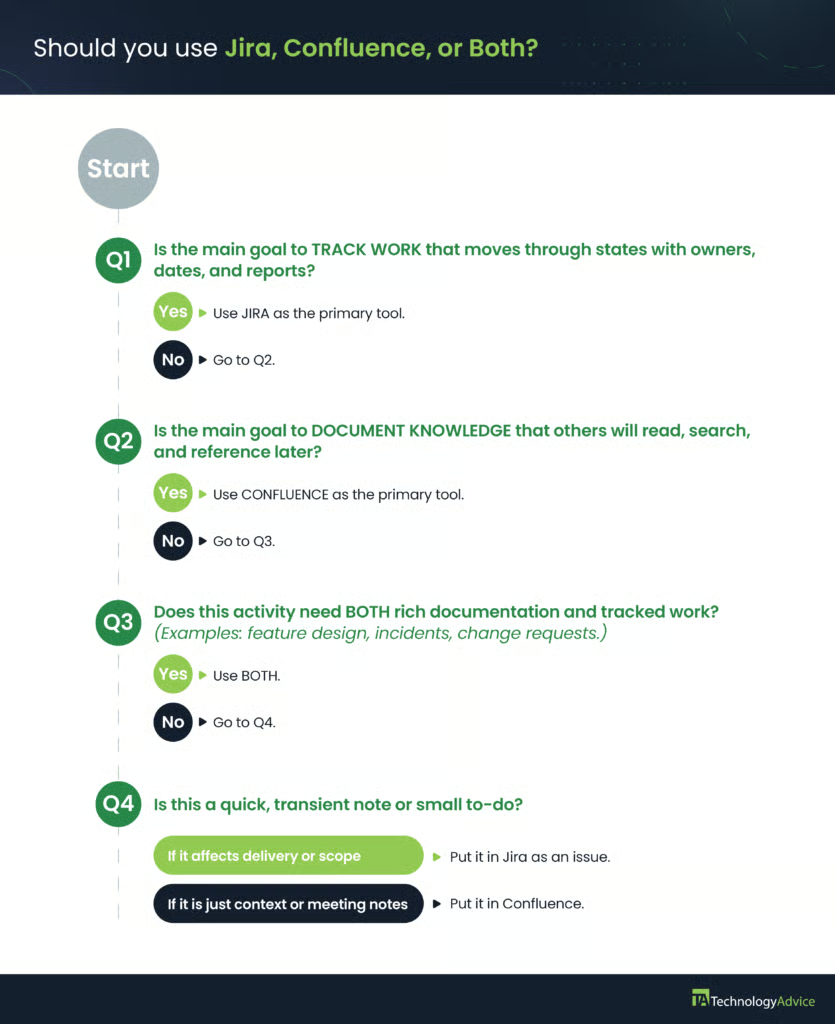
Should you use Jira, Confluence, or both?
Not sure whether Jira, Confluence, or a combination of both is right for your team? Use the decision tree below to identify the best option based on your project management, documentation, and collaboration needs.
What is Jira?
Jira, Atlassian’s project management platform, organizes work across projects and requests in one system. It is designed to help Agile teams, particularly in IT and software development, to manage projects, tasks, subtasks, and schedules from idea through completion with clear ownership and status.
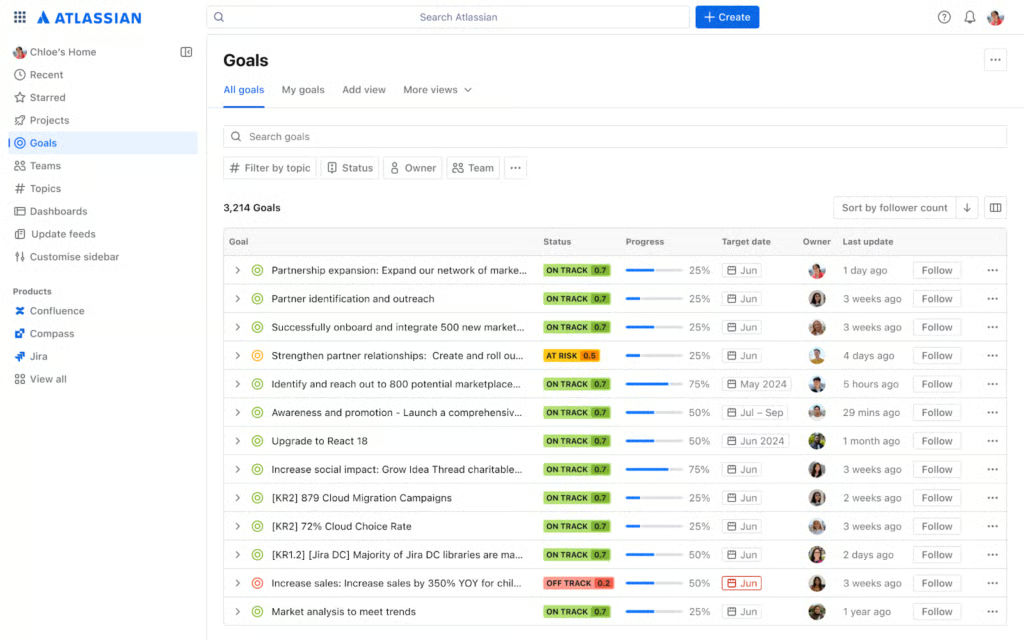
For Agile workflows, I find Jira’s Scrum and Kanban templates along with its backlog planning particularly useful for defining sprint scope and managing work intake. It also gives me detailed ticket tracking for tasks, user stories, bugs, and story points all in one place.
I can break large projects into smaller tasks, prioritize them, and align work with goals using projects and standard issue types. Progress shows up on boards or timelines, while reports help me track overall project status and plan future sprints more effectively.
Pros & cons of Jira
Here are the pros and cons of Jira to help you understand how the platform performs well and where teams may encounter limits.
Pros
- Strong support for Scrum and Kanban workflows
- Detailed reporting that helps teams review performance
- Robust integrations that connect Jira to documentation and development tools
Cons
- Setup can feel complex for new teams without prior guidance
- Workflows may require admin support when teams need changes
- Boards slow down when teams create too many filters or fields
What is Confluence?
Confluence is a collaborative workspace and information management platform from Atlassian that lets teams create and organize content in a central hub. Users can write project pages or internal wikis while comments and real-time editing keep discussions attached to the content.
For project teams, Confluence provides a single place for requirements and meeting notes so stakeholders can review decisions alongside the work tracked in tools like Jira.
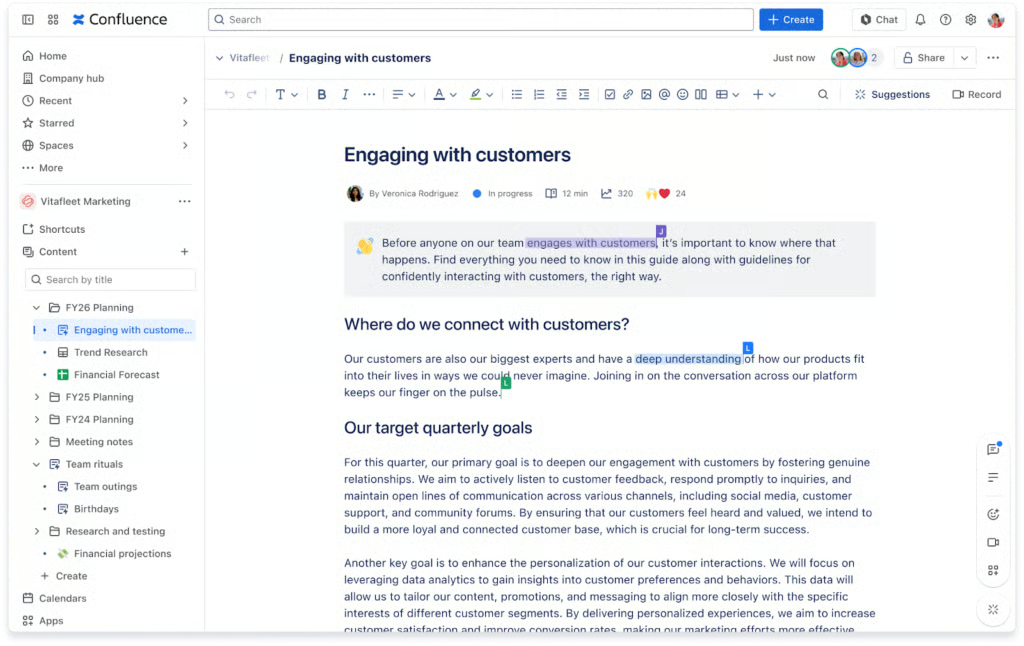
Confluence’s knowledge sharing features include spaces and page hierarchies that I use to group related topics, while search and labels help me find information quickly. I also use pages and templates to build knowledge bases and intranet hubs that store policies, onboarding guides, and technical documentation all in one place.
Pros & cons of Confluence
To help you assess if Confluence is the right tool for your needs, here is a detailed overview of its main advantages and disadvantages.
Pros
- Strong search and labeling features that help users locate content quickly
- Real time editing supports teamwork on shared documents
- Central place for documentation that organizes information by spaces and pages
Cons
- Spaces become cluttered when teams lack content structure.
- Page permissions can be difficult to manage at scale
- Limited native support for complex workflows or task tracking
Jira vs Confluence: Key differences
If you’re torn between Jira vs Confluence for your workflows, below are the key distinctions that show how each tool supports different aspects of team and project management.
| Category | Jira | Confluence |
|---|---|---|
| Pricing | Starts at $9.05/user/month | Starts at $6.70/user/month |
| Focus & purpose | Manages project planning, scheduling, and task status through structured workflows | Supports documentation and knowledge sharing by capturing context, decisions, and processes |
| Structure & hierarchy | Organizes work into projects, epics, stories, and issues focused on task execution | Organizes information into spaces and pages for long-term knowledge sharing |
| Interface & user experience | Uses boards and workflows with detailed fields and statuses | Uses a free-form editor suited for collaborative writing and inline commenting |
| Reporting capabilities | Provides standardized, quantitative reports like velocity and burndown charts | Presents qualitative summaries and project narratives with embedded Jira data |
| Best-suited teams | Ideal for software development and IT service management teams | Ideal for marketing, HR, and cross-functional teams managing shared knowledge |
Pricing
Confluence and Jira use a similar subscription model, offering Free, Standard, Premium, and Enterprise plans. The main difference is that Jira’s plans are priced higher because they include project management, issue tracking, and Agile planning capabilities, while Confluence focuses on documentation and team collaboration.
Jira runs more expensive than Confluence at every paid tier. Teams that need both tools should check Atlassian’s bundled Cloud plans, which can reduce the per-user cost compared to purchasing each product separately.
Focus & purpose
Jira focuses on execution, with each issue representing a unit of work that moves through a workflow until completion. Confluence focuses on context, capturing how work should be done and why decisions were made through shared and collaborative documentation.
Confluence holds procedures, design notes, and decision records that support the tasks stored in Jira. Teams that use both tools let Jira handle task execution while Confluence explains the methods and reasoning behind that work.
Structure & hierarchy
Jira organizes work into projects, epics, stories, and issues, creating a workflow centered on assignment and status. Each issue lives inside a project and links to other issues through relationships or epic groupings.
Confluence organizes information through spaces that contain pages and nested child pages to build deeper hierarchies of information. A space might represent a team or product, while nested pages hold requirements, meeting notes, and reference material. This structure suits long term knowledge storage in Confluence while Jira works best for task tracking.
Interface & user experience
Jira board layout highlights fields, backlogs, and task statuses. This works well for users who think in terms of queues and workflows, although new or non-technical users may find the volume of options hard to navigate.
Confluence centers on a free-form editor that behaves like a word processor with headings, tables, and media. The interface encourages collaborative writing and inline comments, which suits people who document processes or capture discussions.
Reporting capabilities
Jira provides detailed standardized reporting with metrics such as velocity charts, burndown charts, and issue distribution by status or assignee. These reports help teams understand throughput and spot bottlenecks in their workflows.
Confluence leans on high-level status summaries, project pages, and meeting notes that often embed Jira gadgets or reports. The result is a layer of narrative around the numbers rather than another analytics engine.
Leaders can review Jira reports for quantitative performance, and then read Confluence pages to understand the story behind those results.
Best-suited teams
Jira suits software development and IT service management teams that follow defined workflows and require tight control over work items. These groups benefit from Jira features such as custom issue types and service queues.
Confluence suits marketing, HR, technical writing, and other cross-functional teams that need a shared knowledge base. They use it to publish guidelines, onboarding material, and campaign plans that many stakeholders can reference.
How to use Jira & Confluence together?
Using Jira and Confluence together enables teams to manage Agile projects while having easy access to documentation. Below are ways to combine both tools to support project execution and knowledge sharing.
1. Link Jira Projects and Confluence spaces
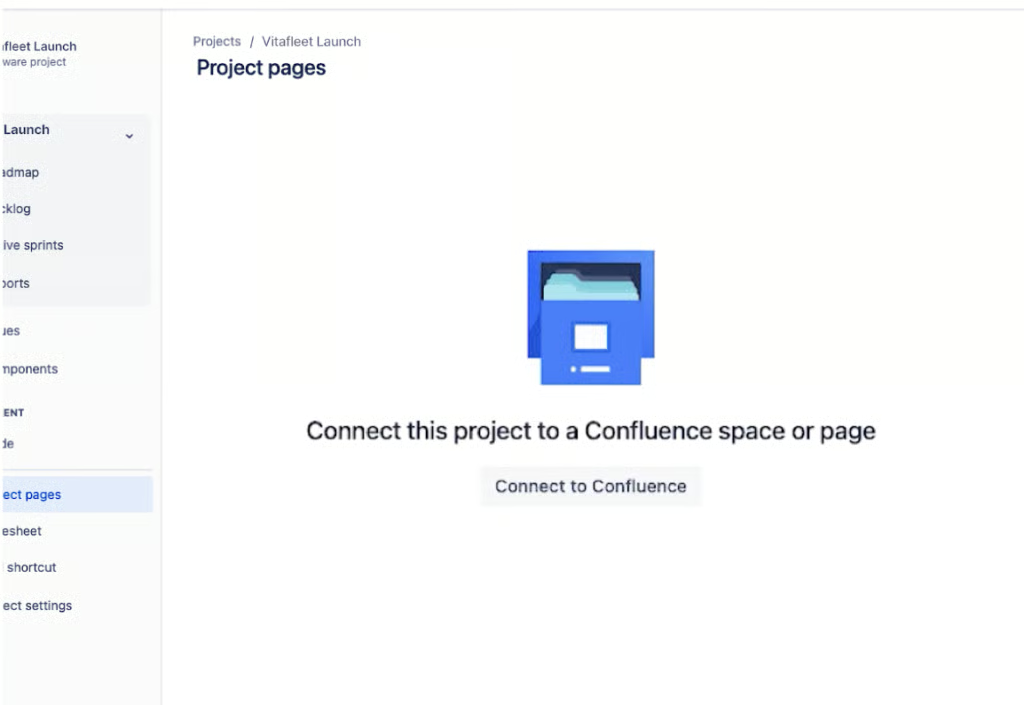
Teams connect a Jira project to the Confluence space that holds their documentation so work items and pages share a common context. Users can move from Jira into Confluence through the project Pages tab or project shortcuts, and from Confluence into Jira through space shortcuts. This setup keeps tasks in Jira close to requirements and notes in Confluence, which shortens the path between work and reference material.
2. Create Jira work items from Confluence pages
Confluence pages, such as requirements or meeting notes, can generate Jira work items directly, based on highlighted text or table rows. Writers turn decisions or action items into issues without leaving the page, so the description and scope match the source content. The created issues are linked back to the page, allowing teams to track progress in either Jira or Confluence.
3. Display Jira work items and Reports inside Confluence
Confluence pages can display Jira work items in lists or tables using the Jira work items macro. Teams also add Jira reports and charts to pages, which pull data from Jira into visual summaries including change logs or status views. Stakeholders then read narrative updates and see live delivery metrics in one place without opening multiple Jira screens.
4. View and edit Confluence content inside Jira
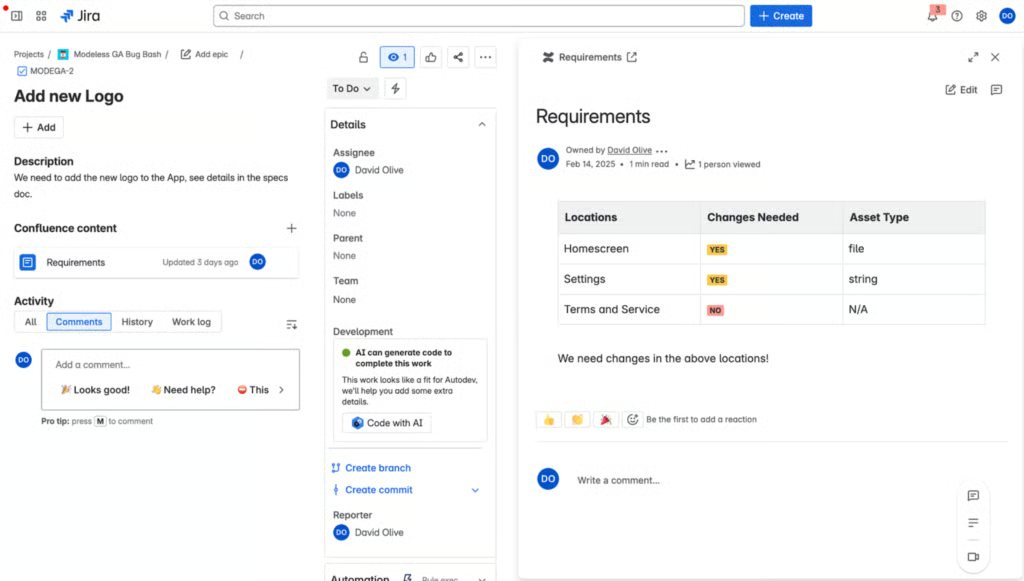
When a Jira project links to a Confluence space, users can open pages and whiteboards from the Jira project’s Pages section. The content appears inside Jira, where users read or update documentation without switching browser tabs. Developers and project members can focus on their boards while still retaining access to the pages that explain requirements or decisions.
5. Use Confluence as a knowledge base for Jira Service Management
Jira Service Management projects connect to a Confluence knowledge base space so customer portal searches can surface relevant articles. Support agents create how-to and troubleshooting pages in Confluence using knowledge base templates, then link them to common request types. Customers see suggested articles before submitting a ticket, which reduces simple requests and lets agents spend more time on complex issues.
Choosing the right tool: When to use Jira, Confluence, or both
Now you understand the distinction between Confluence vs Jira, it’s time to choose the right tool based on your team’s specific needs and workflow preferences. Below are the scenarios where Jira, Confluence, or a combination of both provide effective solutions.
Choose Jira when…
- Managing software development tasks using Scrum or Kanban boards to track bugs, user stories, and sprints with progress reports.
- Handling IT-related incidents, requests, and changes with clear ownership and escalation paths.
- Planning and executing large initiatives broken down into manageable tasks with dependencies and deadlines.
Choose Confluence when…
- Creating a centralized knowledge base with onboarding guides, HR policies, and internal wikis accessible to all departments.
- Documenting project requirements, meeting notes, and design decisions collaboratively.
- Publishing marketing campaign plans, FAQs, and training materials that require version control and easy searchability.
Combine Jira and Confluence when…
- You want to access requirements and design documentation while tracking task progress
- Creating work items within meeting notes or project plans to transform decisions into actionable tasks.
- Embedding roadmaps, issue tables, and dynamic reports inside Confluence pages to provide stakeholders with project metrics alongside narrative explanations.
FAQs
Do I need a separate license for Jira and Confluence?
Yes, Jira and Confluence are separate products with their own licenses and user counts. You can subscribe to one or both, depending on your needs. However, take note that you will be billed separately for your Jira and Confluence user counts.
Can non-technical teams use Jira and Confluence effectively?
Yes, marketing, HR, finance, and operations teams use these tools for campaigns, onboarding, and process documentation. The key in any Jira-Confluence setup is to keep configurations simple. Use the provided standardized templates so you can focus on adding content and tasks, rather than worrying about administration or creation of complex workflows.
What is the benefit of linking a Jira Project to a Confluence Space?
Linking connects task execution with documentation. Teams can store specs, meeting notes, and decisions in Confluence, then reference the exact Jira epics or issues that implement them. This keeps requirements and progress in sync and makes it easier for stakeholders to understand why work exists and how it is progressing.
Does Confluence have a feature for tracking time or resources?
Confluence does not include native time-tracking or resource management features. You can record estimates and capacity plans, then capture timelines in pages or whiteboards, but detailed tracking usually belongs in Jira. Some marketplace apps extend Confluence with resource features, yet those add-ons are meant to support Jira or other systems rather than replace a dedicated work management tool.
Is Confluence a good alternative to Jira for small teams?
Confluence is not a direct alternative to Jira. It mainly specializes in documentation and knowledge sharing, while work tracking with statuses, estimates, and reporting still fits Jira better. Beginners can start in Confluence for light planning and notes, but many small teams get most value by using both.