


Key takeaways
- ChatGPT is my overall best AI productivity tool because it can handle a wide range of tasks in a single interface, from writing to data analysis. ClickUp is the best pick for AI project management, with context-aware features, while Gemini stands out for bringing AI into Google-based workflows like meetings, email, documents, and research.
I’m always looking for ways to work faster, and AI has become a part of how I handle research, project management, and scheduling. Hundreds of AI productivity tools now claim they’ll save you hours each week, but most overlap, underdeliver, or require so much setup. After testing dozens of options across my own workflow, I narrowed this list to the tools I actually use and the specific jobs they do well.
Featured partners
The best AI productivity tools compared
| Best for | Starting monthly fee | |
| ChatGPT | Best for general assistance | $20/user/month |
| ClickUp | Best for managing team projects | $7/user/month |
| Gemini | Best for Google Workspace users | $4.99/month |
| Microsoft Copilot | Best for Microsoft 365 workflows | $18/user/month |
| Claude | Best for long-form complex reasoning | $17/month |
| Notion | Best for knowledge management | $10/user/month |
| monday | Best for no-code board automation | $9/user/month |
Having used AI productivity tools for many years and tested dozens of platforms, I bring hands-on experience to each review. During testing, I use each platform for various tasks such as planning my day, summarizing information, organizing projects, drafting content, and capturing notes. I also check official documentation to verify AI features, pricing details, integrations, and security claims, then weigh those findings using a scoring rubric.

Marianne Sison, Senior Staff Writer for Project Management
I evaluated each AI productivity tool across six categories: general features, pricing, advanced and niche features, expert score, support, and ease of use. My evaluation focused on how each platform helps users complete everyday work, including writing, research, meetings, knowledge search, task organization, and workflow automation.
General features: 25%
I weighted core AI productivity features the highest because they show how each tool supports daily tasks. I looked at AI content generation, workspace assistance, productivity automation, knowledge retrieval, and multimodal capabilities across documents, meetings, files, tasks, and conversations.
Pricing: 20%
I compared each vendor’s free plan, starting monthly price, AI feature availability, and total cost of ownership. I also checked whether AI capabilities are included in standard plans, limited to higher tiers, or priced as add-ons.
Advanced and niche features: 20%
I scored each AI productivity tool on specialized AI capabilities, including agents, cross-application intelligence, personalization, reasoning, and customization. This separates general AI chatbots from platforms that can handle multi-step workflows or connect across apps.
Expert score: 15%
I used this category to capture my overall assessment after comparing feature depth, value for money, user feedback, and ease of research. I also considered how vendors document AI capabilities, model access, pricing, usage limits, and security details.
Support: 10%
I reviewed the availability and quality of support channels, community resources, security, and educational materials. I gave higher scores to AI productivity tools when they offered reliable help options, active user communities, updated tutorials, and governance information for business users.
Ease of use: 10%
I reviewed how quickly users can set up each tool, find key features, adjust settings, and use the AI without technical expertise. I looked for AI productivity tools that balance flexibility with a manageable learning curve, especially for teams adopting AI across multiple roles.

ChatGPT: Best for general assistance
Overall score
4.94/5
Free plan available
Pros
- Drafts articles and emails quickly
- Summarizes uploaded files with context
- Organizes recurring workstreams
Cons
- Simple answers can get wordy
- Needs detailed prompting for accurate outputs
- Limited task automation
Why I chose ChatGPT
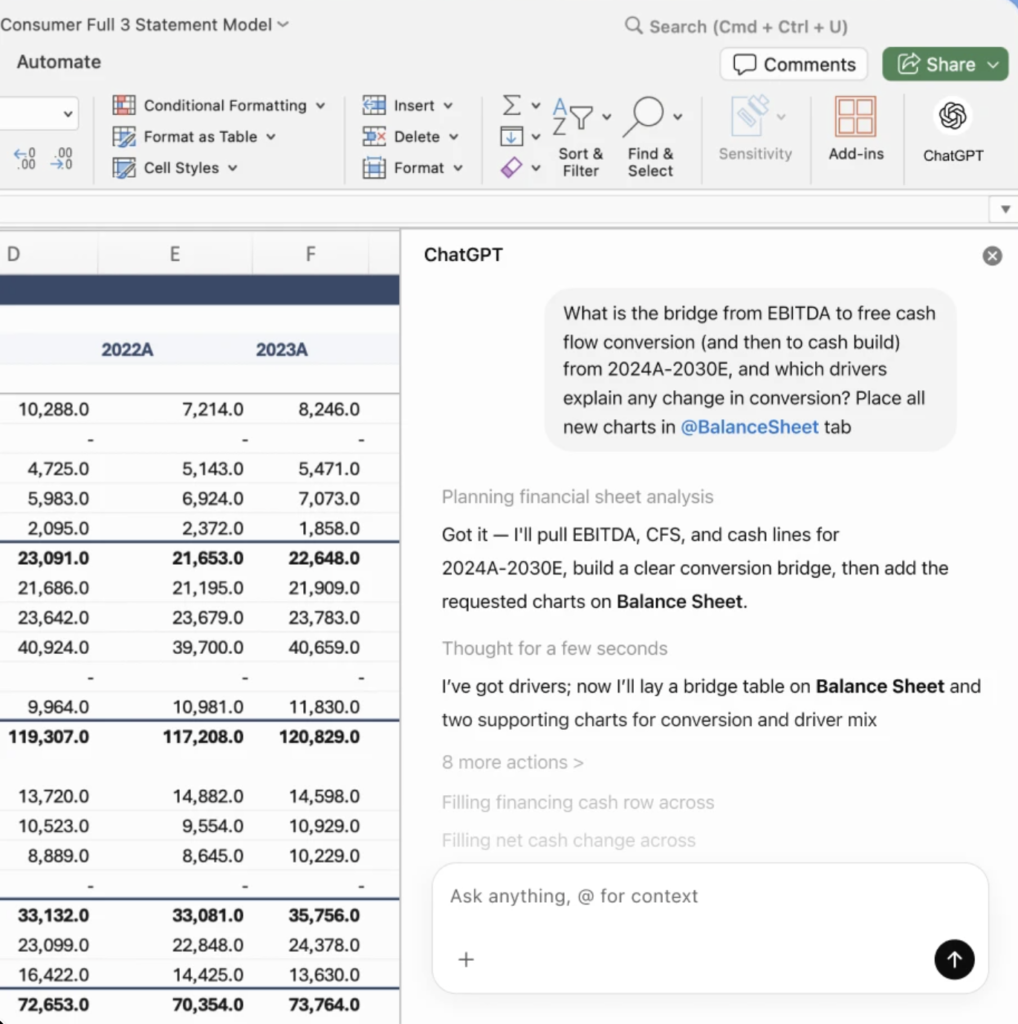
ChatGPT works well as a general-purpose productivity tool because it can handle many types of work without a custom setup. You can use it to draft a proposal, analyze an uploaded spreadsheet, or ask follow-up questions about a document.
Besides one-off requests, ChatGPT can handle recurring work. The Project feature keeps related files, instructions, and conversations in one place, so you do not have to rebuild context every time you start a new chat.
Memory is another standout tool that carries your preferences into future conversations, so you do not have to keep restating how you work. Deep Research can produce multi-source reports in formats you can export to Word, Markdown, or PDF. Agent mode is available on paid plans and can act across connected apps such as Gmail, Google Calendar, and SharePoint, while letting you review and control what it does.
ChatGPT can handle complex files, but Claude is often the better fit when the task requires consistency across hundreds of pages or strict adherence to detailed instructions.
Key features
- Project workspaces: Organize related chats, files, and instructions in one place for work that spans multiple sessions.
- Deep research reports: Search sources, reason through findings, and produce cited research outputs.
- Canvas editing: Opens a separate workspace for drafting, revising, and editing text or code.
- File analysis: Reviews uploaded files, images, diagrams, charts, and screenshots inside chat.
Pricing
- AI pricing note: Included. Business and Enterprise plan holders can purchase credits for more access.
- Go: $8/month — Includes higher access than the free plan for everyday use.
- Plus: $20/month — Includes expanded access to advanced models and tools for individual productivity.
- Pro: $100/month — Includes the highest individual access level for advanced models, research, voice, and AI productivity tools.
- Business: $20/user/month — Includes a shared workspace, advanced AI access, admin controls, and team-level security.
- Enterprise: Custom pricing — Includes advanced security, governance, admin controls, data residency options, analytics, and enterprise support.

ClickUp: Best for managing team projects
Overall score
4.84/5
Free plan available
Pros
- Summarizes tasks and project updates
- AI agents update task fields
- Automations trigger from workspace data
Cons
- The quality of AI outputs depends on consistent workspace updates.
- The interface can feel crowded
- AI access comes with monthly per-user fees
Why I chose ClickUp
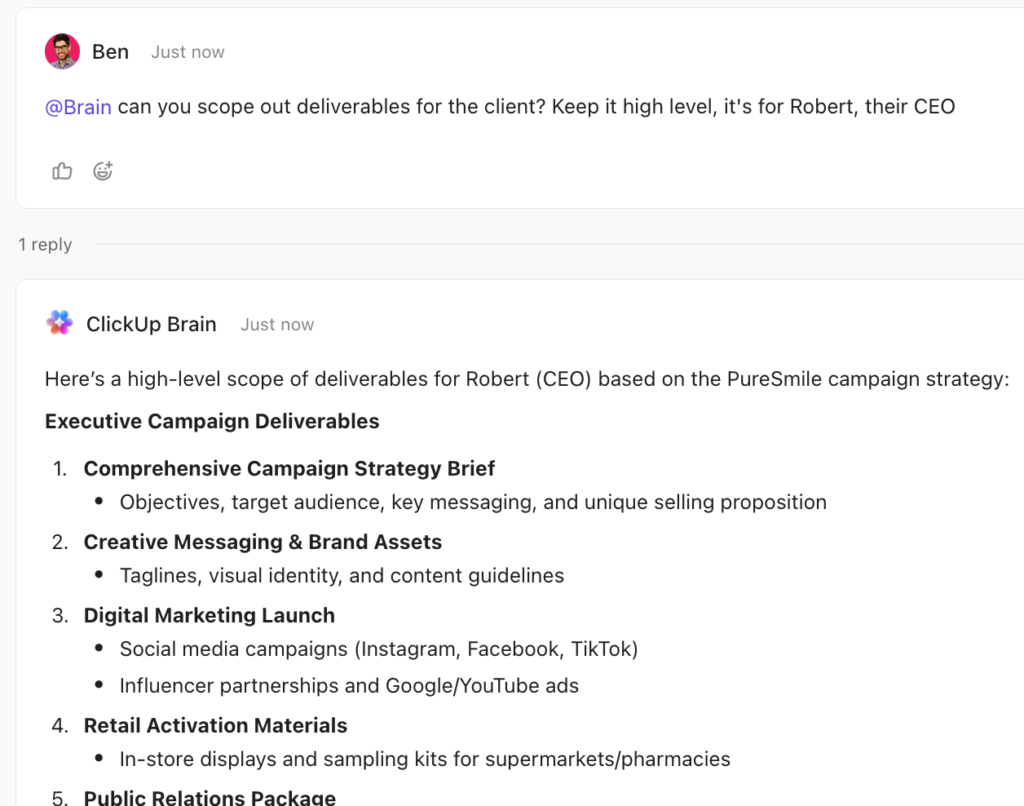
ClickUp is an AI-powered project management tool that brings project planning, documentation, communication, and automation into one workspace. Tasks, Docs, Chat, goals, and automation rules live within the same hierarchy, so a project manager can track sprint progress, review supporting documentation, and message a teammate without switching tools.
ClickUp Brain works like a workspace assistant that understands the information stored in ClickUp. It can pull context from comments, conversations, and project history, which makes its answers more useful for project coordination than a general chatbot response.
Users can also create Super Agents for a specific job. Using natural language, a Super Agent can be configured with instructions, triggers, skills, knowledge, memory, permissions, and privacy settings. That means a team can create an AI-powered workmate for checking project blockers, summarizing sprint progress, answering process questions, or routing intake requests.
ClickUp Brain is a paid add-on on top of any paid plan, so the cost can be harder to justify for smaller teams that only need a few AI features. Teams whose priority is AI-assisted schedule management will find Notion a better fit.
Key features
- Workspace-aware AI: Uses ClickUp tasks, docs, conversations, decisions, and history as context.
- Super Agents: Allows teams to assign tasks to AI agents and message them like teammates.
- Agent Builder: Creates no-code agents that reason through work and take action inside ClickUp.
- AI reporting context: Connects dashboards, goals, rollups, and task activity for project reporting.
Pricing
AI pricing note: Brain AI costs $9/user/mo, while Everything AI costs $28/user/month
- Unlimited: $7/user/month — Includes unlimited spaces, Gantt charts, integrations, storage, custom fields, and resource management.
- Business: $12/user/month — Includes advanced dashboards, timeline views, automations, sprint reporting, and portfolio workload management.
- Enterprise: Custom pricing — Includes enterprise permissions, SSO, audit logs, data residency, onboarding, and higher automation limits.
Read our ClickUp review.

Gemini: Best for Google Workspace users
Overall score
4.66/5
Free plan available
Pros
- Summarizes Gmail and Docs content
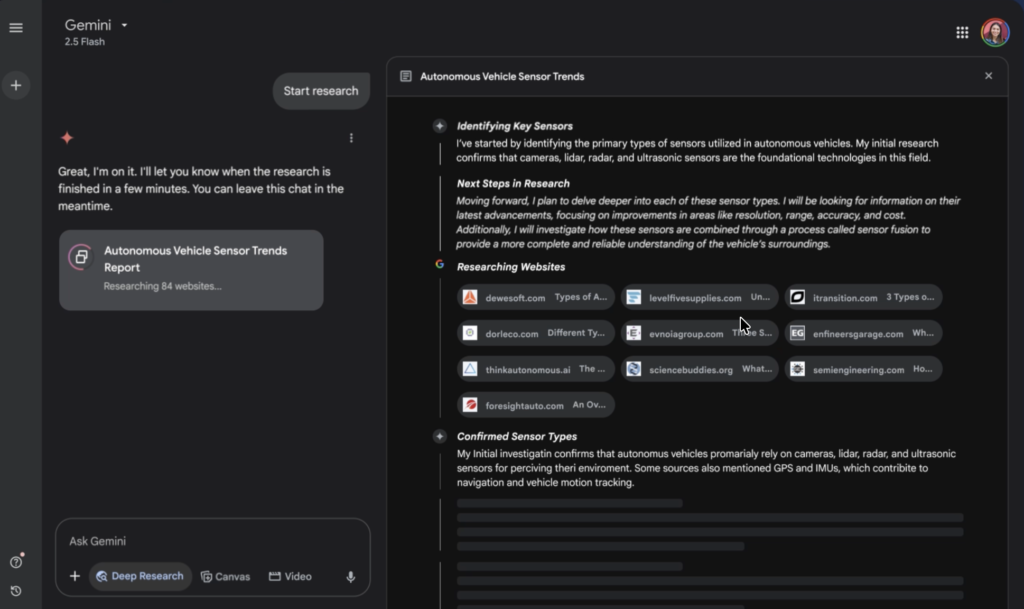
- Deep research generates sourced reports
- Handles large Google Drive files
Cons
- High-quality AI workflows require a Google Workspace plan
- Creative drafts can sound generic
- Usage limits vary by plan
Why I chose Gemini
Gemini works well for teams already using Google Workspace because it brings AI into Gmail, Docs, Sheets, Slides, Meet, Drive, and Chat. That means teams can use AI in the same apps where they already write, meet, share files, and manage communication.
For example, if you ask Gemini to draft a document, it can reference relevant Drive files, Gmail threads, and Calendar events. This gives you a useful starting point rather than a generic draft that lacks workspace context.
Gemini also helps with routine tasks within Google. It can summarize long Gmail threads and draft replies based on the conversation. During Meet calls, it captures meeting notes so participants can stay focused. For spreadsheet work, Sheets support lets users build or edit files from natural-language prompts and apply relevant file context where available.
Gemini’s biggest limitation is that its value depends on how much your team uses Google Workspace. If your organization mainly works in other non-Google tools, Gemini’s contextual features will be less useful. For Microsoft 365 teams, Microsoft Copilot is the closer fit because it works natively across Microsoft apps.
Key features
- Deep research: Builds a research plan, browses sources, and turns findings into detailed reports.
- Canvas prototypes: Turn prompts into apps, games, infographics, and other interactive outputs.
- Custom Gems: Create reusable AI assistants for specific workflows, like coding or brainstorming.
- Google app access: Brings Gemini into Gmail, Docs, Vids, and other Google apps on eligible plans.
Pricing
- AI pricing note: Included in Google Workspace business plans. Expanded access is sold separately for higher access to advanced AI capabilities.
- Google AI Plus: $4.99/month — Includes 2x higher usage than the free plan, access to Gemini in Google apps, 200 Google Flow credits, more NotebookLM access, and 400 GB of storage.
- Google AI Pro: $19.99/month — Includes 4x higher usage than the free plan, higher access to Gemini 3 Pro, Deep Search, agentic capabilities, Google apps integration, NotebookLM, 1,000 Google Flow credits, and 5 TB of storage.
- Google AI Ultra: $99.99/month — Includes up to 20x higher usage than Pro, highest access to Gemini 3 Pro and Deep Search, higher NotebookLM limits, 10,000 or 25,000 Google Flow credits, Project Genie access, and storage starting at 20 TB.

Microsoft Copilot: Best for Microsoft 365 workflows
Overall score
4.61/5
Free plan available
Pros
- Summarizes Teams meetings accurately
- Finds answers across Microsoft files
- Drafts Office documents from prompts
Cons
- Requires strong Microsoft 365 adoption
- Admin setup can be complex
- Responses still need verification
Why I chose Microsoft Copilot
Microsoft 365 remains a standard productivity suite for many enterprise teams, and like Gemini, Copilot’s main advantage is that it works inside a company workspace. Users can access Copilot across Word, Excel, Outlook, PowerPoint, and Teams, which makes it easier to apply AI to documents, email, meetings, and presentations.
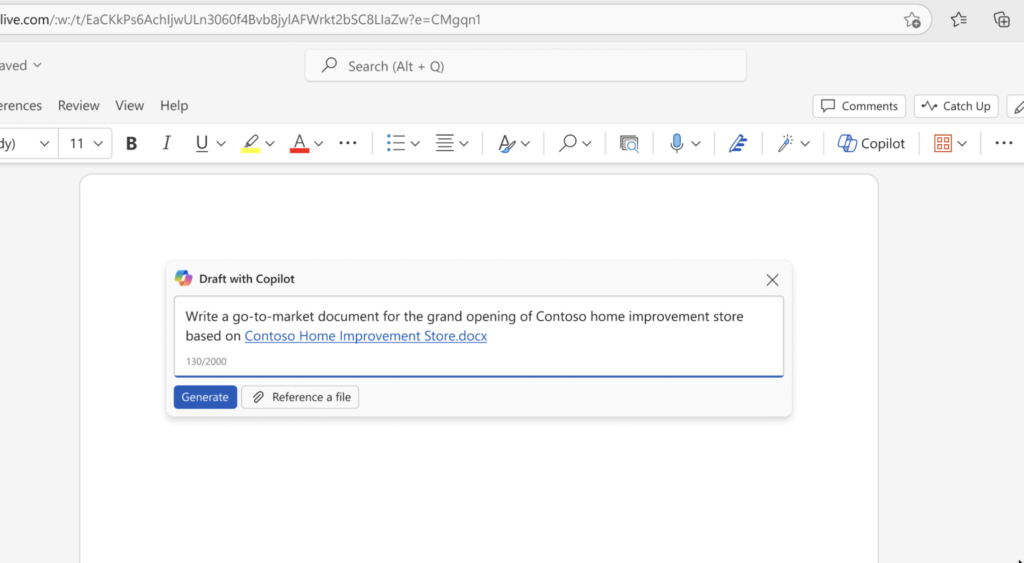
Copilot can summarize Teams meetings and identify action items, which helps late joiners catch up without interrupting the discussion. For emails, Outlook support lets users summarize long threads and draft replies in a specific tone. Excel users can analyze data through natural-language prompts, while Word support helps turn short instructions into drafts or rewrite existing content.
One major trade-off is cost. Access to Copilot requires a dedicated license on top of an existing Microsoft 365 subscription. This is harder to justify for organizations that are not fully committed to the Microsoft ecosystem. Teams that mainly need AI for project tracking and workflow automation may be better served by monday.com.
Key features
- Work IQ grounding: Uses Microsoft 365 data, context, and permissions to ground Copilot responses.
- Copilot Pages: Turns Copilot responses into editable, shareable pages for team collaboration.
- Office file agents: Create Word, Excel, and PowerPoint files from prompts in Copilot Chat.
- File-based chat: Lets users add files or images to Copilot Chat for context-aware responses.
Pricing
- Microsoft 365 Copilot Business: $18/user/month in the first year, then $21/user/month — Includes Work IQ, Copilot in Microsoft 365 apps, agents with Copilot Studio, enterprise-grade security, and business process support.
- Microsoft 365 Copilot Enterprise: $30/user/month — Includes Copilot for enterprise users with Work IQ, Microsoft 365 app integration, agent support, and enterprise security. A qualifying Microsoft 365 license is required.

Claude: Best for long-form complex reasoning
Overall score
4.37/5
Free plan available
Pros
- Edits long drafts with nuance
- Analyzes large documents consistently
- Artifacts create shareable work outputs
Cons
- Recent outages affected reliability
- No task management capability
- Strict usage caps can disrupt workflows
Why I chose Claude
Long-form work can reveal the limits of AI productivity tools. This is especially true for detailed analysis, technical documents, and multi-step research briefs. Claude is a strong fit for this type of work because its extended context window can handle very large amounts of text in one conversation.
Claude can review research papers, contracts, or codebases without losing track of previous chats. This benefits knowledge workers who need to analyze documents that are too large for a single prompt.
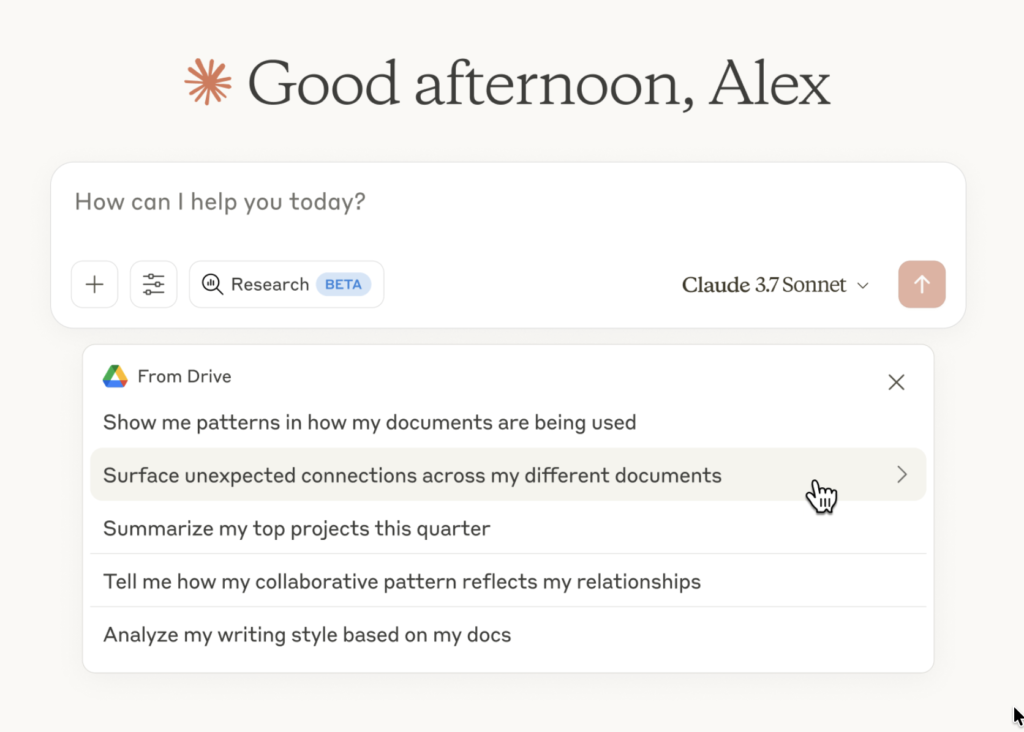
Claude’s extended thinking feature also helps with complex tasks. When a question has several parts or requires judgment, Claude can reason through the problem before answering. This is useful for research briefs, comparative analysis, and arguments because the response is more likely to stay consistent from start to finish.
The main limitation is integration. Claude does not have the same native presence inside everyday productivity apps as some competitors. For teams that already work heavily in Microsoft 365 and want AI built into documents, email, and meetings, Microsoft Copilot is the stronger fit.
Key features
- Claude Projects: Creates focused workspaces with chat history, uploaded documents, and custom context.
- Research mode: Searches connected tools and the web for deeper answers.
- Artifacts: Turn prompts into shareable apps, tools, visualizations, or content.
- Claude Cowork: Handles multi-step work like organized files, documents, and synthesized research.
Pricing
- Pro: $17/month — Includes more usage, Claude Code, Claude Cowork, Claude Design, unlimited projects, Research, and more model access.
- Team Standard: $20/seat/month — Includes all Claude features, more usage than Pro, central billing, administration, SSO, connectors, and project collaboration.
- Team Premium: $100/seat/month — Includes 5x more usage than Team Standard, plus the same team controls and collaboration features.
- Enterprise: $20 per seat + usage at API rates — Includes Team features, role-based access, SCIM, audit logs, compliance API, custom data retention, IP controls, and HIPAA-ready options.
Notion: Best for knowledge management
Overall score
4.32/5
Free plan available
Pros
- Searches Notion and connected apps
- Turns meetings into action items
- Updates databases through AI agents
Cons
- New users may struggle with customization
- Advanced workflows need a highly customized structure
- Advanced AI needs higher plans
Why I chose Notion
Notion works best for teams that want to manage documents, databases, and tasks in one workspace, with quick access to the information they need.
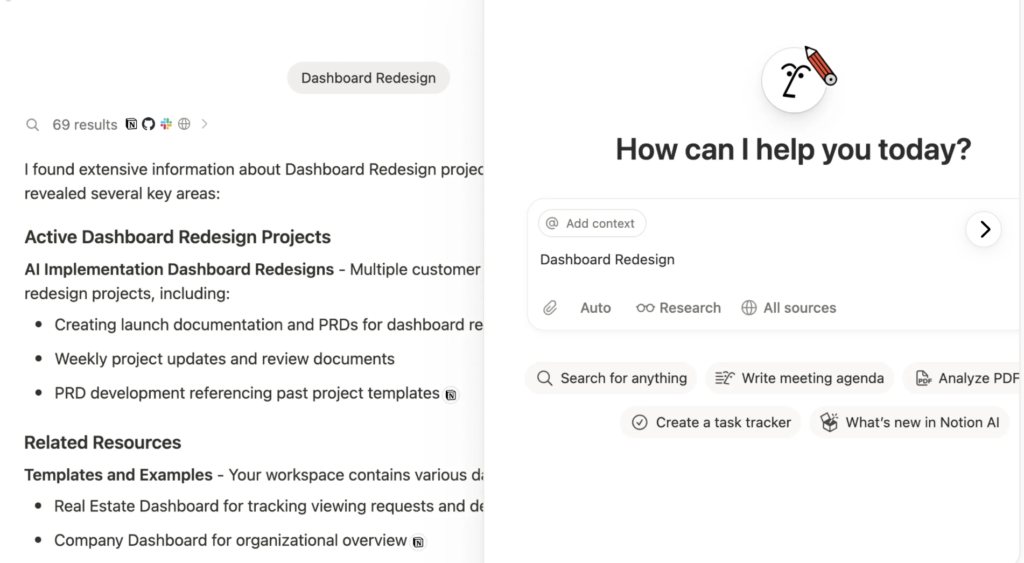
Notion AI’s Q&A feature searches across your entire workspace and answers questions by pulling directly from your actual pages, wikis, and databases. If your team has built out a company wiki, any team member can ask a plain-language question and get a cited answer drawn from policies and reference docs.
The AI Agent handles more complex work: it can build databases from a description, update pages across your wiki in bulk, and pull information from connected tools like Slack and Gmail.
Notion does not have advanced scheduling or calendar management, so it won’t help you protect focus time or plan your day around meetings. If task scheduling is the priority rather than knowledge organization, ClickUp handles both task coordination and AI-assisted project management.
Key features
- Enterprise Search: Searches Notion and connected apps like Slack or Google Drive for sources.
- AI Meeting Notes: Transcribes meetings and extracts key points, summaries, and action items.
- Task planning Agent: Analyzes projects and tasks to create weekly action plans by person.
- Weekly update drafts: Pull project database progress into status updates.
Pricing
AI pricing note: Free and Plus plans include limited AI trials. Business includes AI workspace features, while custom agents require Notion credits.
- Plus: $10/member/month — Includes unlimited blocks, file uploads, charts, custom forms, sites, and basic connections.
- Business: $20/member/month — Includes Notion Agent, AI Meeting Notes, Enterprise Search beta, SAML SSO, and granular database permissions.
- Enterprise: Custom pricing — Includes advanced security, SCIM, audit logs, customer success, and zero data retention with LLM providers.
Read our Notion review.

monday Work Management: Best for no-code board automation
Overall score
3.85/5
Free plan available
Pros
- Generates summaries inside boards
- AI agents flag status changes
- AI blocks automate workflows
Cons
- AI credits system complicates budgeting
- Advanced workflows need detailed configuration
- AI capabilities are limited to boards
Why I chose monday
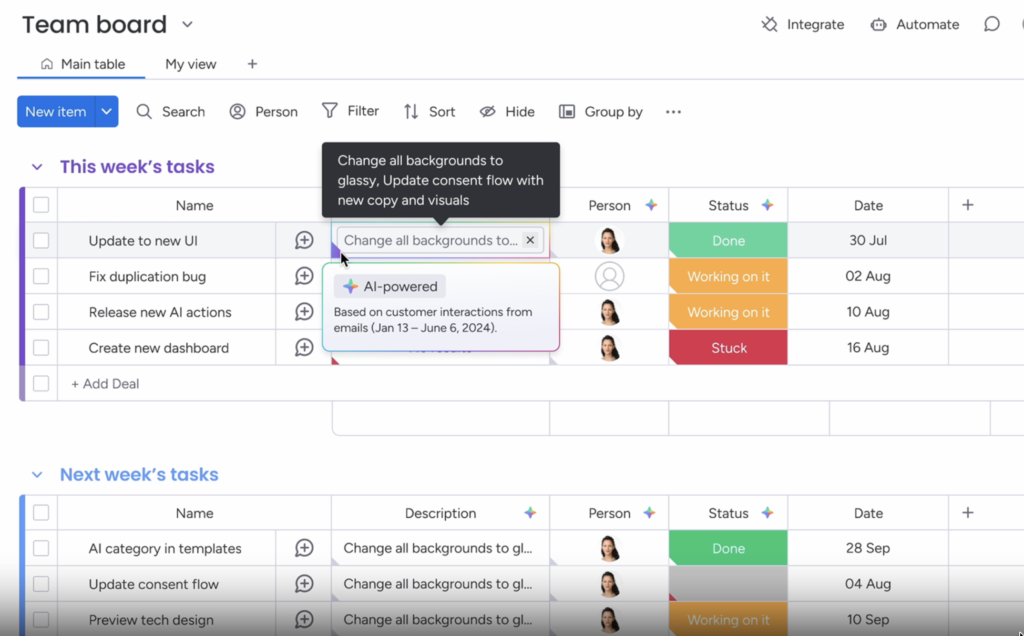
monday works best for teams that manage work through boards. Its color-coded columns help teams track tasks by status, owner, and stage. Teams can create automation rules that update statuses, notify owners, and assign tasks. For operations teams with repeatable processes, this is more useful than a general AI chatbot.
AI Board Suggestions reviews a board and recommends AI-powered columns, along with an estimate of how much time each suggestion could save per month. AI blocks can also be added to automations to categorize items, summarize updates, extract information from text, and detect sentiment. This helps teams process requests, form responses, and project updates faster.
The AI Workflows feature can create multi-step automations across boards. monday Sidekick also lets users ask questions about projects and tasks in plain language. Together, these AI-powered productivity tools reduce the repetitive work that builds up as teams manage more projects.
monday AI is designed for team-level coordination across boards, not for individual research or long-form analytical work. If the primary need is AI that synthesizes large documents and produces research reports, ChatGPT handles them better.
Key features
- AI blocks: Enable AI-powered columns and workflow automations across monday.
- AI columns: Analyze, summarize, and generate content within project boards.
- AI workflows: Build multi-step automations for processes that span several actions.
- monday agents: Review work, apply defined priorities, and take next-best actions inside set boundaries.
Pricing
AI pricing note: monday uses monthly AI credits that vary by plan. Basic includes 1,000 credits per month, while Standard includes 2,000 credits per month. Additional credits are available as an add-on.
- Basic: $9/user/month — Includes work tracking, unlimited items, dashboards, and limited AI credits.
- Standard: $12/user/month — Includes timelines, Gantt views, automations, integrations, and guest access.
- Pro: $19/user/month — Includes time tracking, private boards, chart views, formulas, and higher automation limits.
- Enterprise: Custom pricing — Includes enterprise automations, advanced reporting, permissions, governance, and priority support.
Read our monday work management review.
How to choose the best AI productivity tool
The best AI tools for productivity depend on what type of output you need most often. Some platforms work best as general assistants for writing and research, while others perform better when AI is built into your workspace or internal knowledge systems. Before choosing a tool, make sure to consider the following factors:
- Start with your main workflow. Choose a tool based on the work you handle most often, such as content drafting, task tracking, meeting summaries, knowledge search, or workflow automation. A tool will be more useful when it connects to the files, messages, tasks, and project records your team uses.
- Check how the AI pulls context. Some tools depend mostly on what you type into the prompt, while others can reference uploaded files, workspace data, email threads, meeting notes, or connected apps. If your team needs answers based on internal information, prioritize tools that can retrieve details from approved company sources.
- Match the tool to your output. Content teams may need support for drafting and research, while operations teams may need status updates, task routing, and workflow triggers. Choose the tool that turns AI output into the format you need, such as a document, task, meeting recap, report, or automation step.
- Review controls and security. For solo use, basic account settings may be enough, but teams should review admin controls, data retention, permissions, audit logs, and role-based access. These controls become important when AI can access shared files, customer records, project updates, or company knowledge.
- Compare pricing against actual use. AI pricing may depend on seats, plan tiers, add-ons, usage limits, or credits, so the entry-level price may not reflect the total cost. Test the plan against your daily workflows, then check whether features like higher usage, enterprise search, workflow automation, or admin controls require a higher tier.
FAQs
