Key takeaways
- Smartsheet combines the structure of a spreadsheet with the capabilities of a project management platform.
- Smartsheet’s enterprise-grade security and scalability features allow organizations to manage large portfolios and governance structures while protecting sensitive data.
- Dashboards are one of Smartsheet’s core features that summarize and share real-time data and project status with stakeholders for clear alignment between strategy and execution.
If you’ve outgrown Excel but aren’t ready to abandon the spreadsheet format, Smartsheet is worth a serious look. As a long time user, I can say Smartsheet builds on the familiarity of spreadsheets while adding project tracking, real-time reporting, and workflow automation in one place. However, it’s not always intuitive at first, especially if you’re moving into a full-featured work management platform like Smartsheet. In this guide, I’ll walk you through how to set up, use, and optimize Smartsheet for different project uses.
Featured partners
Why use Smartsheet for project management
With so many project management tools available, choosing the right one can feel overwhelming. If you decide to go with Smartsheet, you’ll discover a platform that combines the spreadsheet layout with project management features.
Here’s why Smartsheet stands out as a strong partner for your project management needs.
Smartsheet brings together project planning, collaboration, and reporting on one platform. You can visualize projects in different ways, including timeline, Grid, Card, Gantt, or Calendar.
Portfolio features standardize execution and reporting across projects, while live dashboards consolidate status and key metrics for quick decisions. You can also attach documents directly to specific tasks or deliverables and collaborate with anyone, including non-licensed users.
You can set up approval flows and dependency alerts in minutes, eliminating manual follow-ups. Sheets also come with built-in formula generation to automate complex computations. These features streamline decision-making processes and surface insights that shorten cycles and reduce errors.
The platform features activity tracking and audit logs to support compliance measures. System admin features enable users to create no-code solutions, while providing IT with full control over security and governance.
Smartsheet integrates with third-party business apps and productivity tools, which helps centralize workflows and communication. It also supports pre-built connectors and application programming interfaces (APIs) for efficient data exchange between different software systems.
Resource management tracks capacity and assigns work based on availability, while request management gathers incoming tasks and monitors their progress. As adoption grows, admin tools enforce standard processes and portfolio controls keep performance metrics consistent across all teams.
Getting started: Setup & initial configuration
A sheet serves as the central location for all your data, and how you set it up affects how you take advantage of Smartsheet. You can start with the default grid view, which you can customize by adding column types, labels, attachments. You can also select other views, such as table, board, or timeline, depending on your workflow.
If you’re coming from Excel, the grid view is the easiest starting point since it lets you organize tasks quickly before layering in more advanced features like automation or reporting.
In my experience, starting with a template from the Solution Center significantly speeds up setup, especially for common use cases like project plans or task trackers, where much of the structure is already built in.
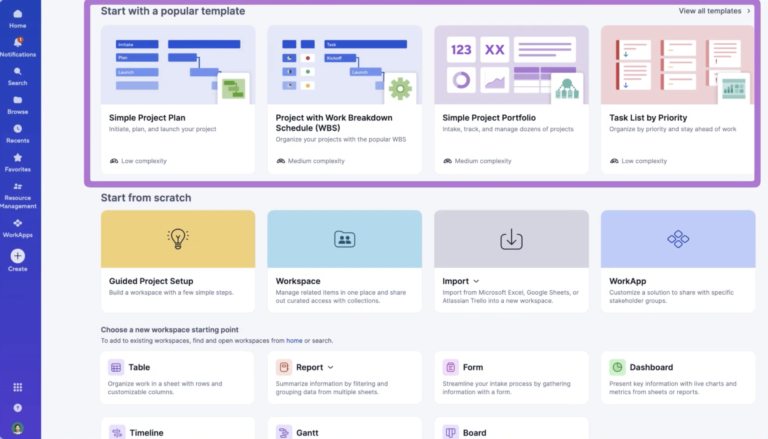
If you prefer to build from scratch, you can choose a different Smartsheet view that fits your project needs. The table below lists available Smartsheet project views.
| Item name | Overview |
|---|---|
| Table | A blank workspace with no predefined columns, ideal for organizing raw data or building a custom layout from the ground up. |
| Grid | Works like a spreadsheet, suited for tracking tasks, resources, or any project information. |
| Gantt | Comes with columns and settings that support project timelines and dependencies. |
| Calendar | Visualize your work on a customizable calendar that shows tasks and dates in daily, weekly, or monthly formats. |
| Board | Provides a Kanban-style layout for managing tasks by status or workflow stage using drag-and-drop cards. |
| Form | Creates a default three-column sheet linked to a form for collecting and organizing data submitted by others. |
| Report | Compiles live data from multiple sheets into one view for easier tracking and analysis. |
| Dashboard | Lets you build visual summaries and performance snapshots using charts, metrics, and project reports. |
| Timeline | Displays tasks and milestones along a chronological view to track project progress over time. |
Building a project plan
With Smartsheet, you build project plans that organize every task, resource, and deadline in one place. You can use its project plan template to define who is responsible for each task, set dates, and monitor risks or delays using color-coded status indicators. Once the plan is complete, you can switch views to visualize progress and scheduling in the way that best suits your workflow.
What stood out to me here is how easy it is to switch between views. Once your data is in place, moving from grid to Gantt or calendar view gives you completely different perspectives without rebuilding your plan.
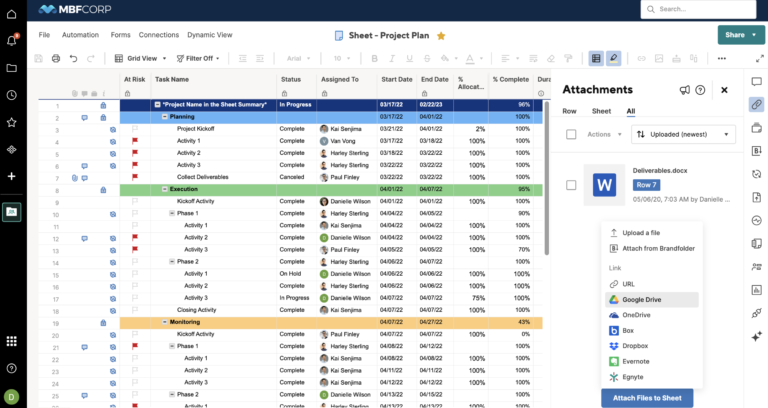
Beyond task tracking, Smartsheet makes it easy to connect your plan with dashboards and automation tools. Dashboards offers a widget-based display consisting of real-time data from Google Docs, YouTube, and Tabelau, allowing you to view progress, monitor priorities, and share updates at a glance.
Here are additional project management features available in Smartsheet.
- Formulas and functions: Perform calculations, link data across sheets, and automate updates.
- Forms: Collect client data for requests, events, or feedback through branded, mobile-ready forms with conditional logic.
- Workload Tracking: Monitor resource capacity and availability to balance team workloads.
- Text and Summaries: Use generative AI to create or refine sheet content and store results directly within the sheet.
- Critical Path: Identify the sequence of tasks that determine your project’s completion date.
- Dependencies: Manage task relationships so when one task’s schedule changes, connected timelines update automatically.
Collaboration & workflow automation
Smartsheet simplifies collaboration by bringing communication, files, and feedback into one shared workspace. You can use the Conversations feature to tie discussions to specific rows or tasks, so it’s easier to trace decisions and maintain context throughout a project.
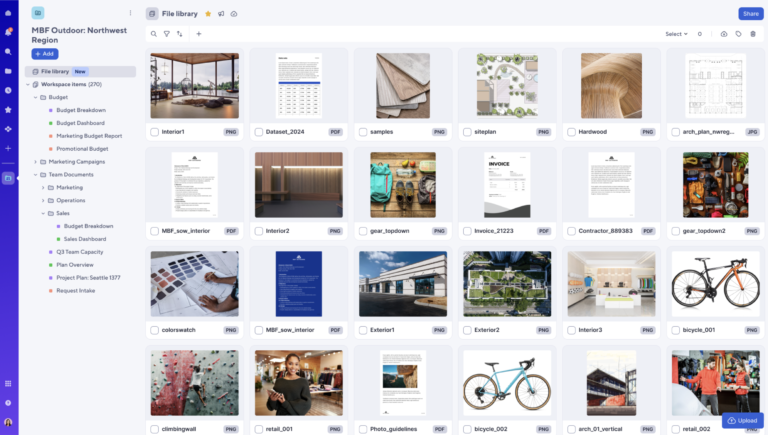
The File Library supports asynchronous teamwork by storing project documents in one place, so every stakeholder can access updated files without switching between tools. This ensures faster turnaround times for approvals, especially when multiple contributors are working toward shared deadlines.
Sharing in Smartsheet helps teams maintain control while promoting transparency. You can give collaborators inside or outside your organization access and set permissions that match their role, from view-only to full ownership.
Smartsheet users can share sheets with anyone, including non-licensed users, with no limit on the number of collaborators. Published sheets can be accessed without signing in, giving clients or partners visibility into progress.
Automation takes collaboration further by sending alerts, reminders, or approvals directly through email, Slack, or Teams. Teams can collaborate on documents in real time and sign PDFs directly within the platform.
One thing I noticed when using Smartsheet is how quickly you can set up basic automation workflows, like alerts or approval requests, which can immediately reduce manual follow-ups for project managers.
Formulas & functions
Formulas in Smartsheet work similarly to Excel: click a cell, type an equal sign, and enter your calculation or function. Smartsheet supports standard operators like addition, subtraction, multiplication, and division, along with comparison operators for building conditional logic.
Column formulas are worth setting up early. Build a formula once in a single cell, convert it to a column formula, and Smartsheet applies it automatically to every row, including new ones added later.
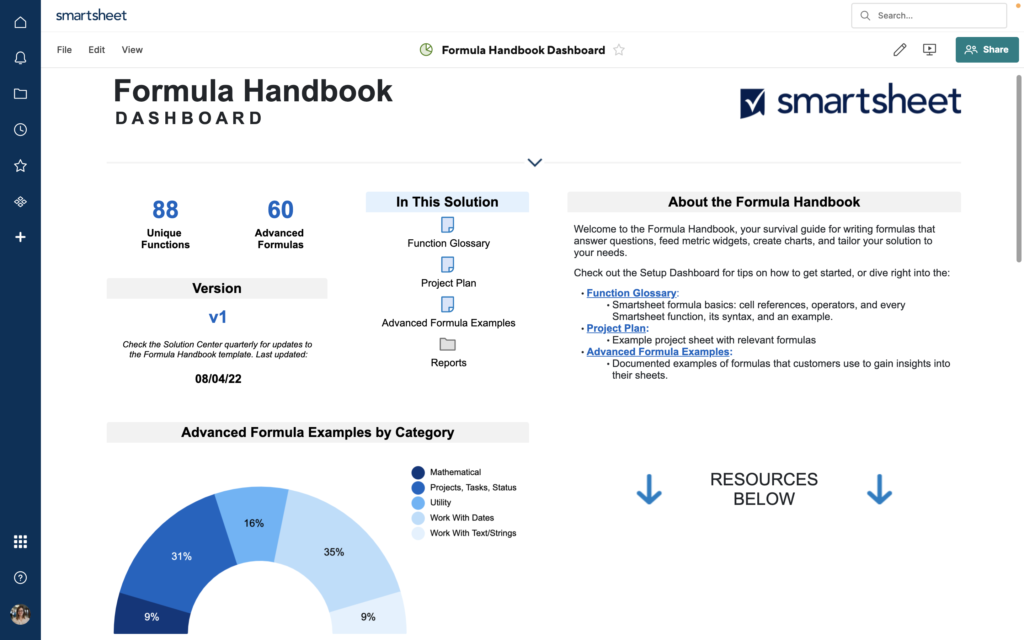
To use a function like SUM, AVG, or IF, type the equal sign followed by the function name and its required syntax, then press Enter to return the result. If you’re unsure which function to use, the toolbar’s dropdown arrow lists all available functions with brief descriptions.
For multi-cell use, drag-fill copies a formula to adjacent cells by dragging from the lower-right corner of the selected cell. To keep a reference fixed as you copy, add a dollar sign in front of the column name or row number.
One thing to note: formulas can’t be entered directly in forms, reports, or dashboards, but the results of formulas built in sheets will still display in those views.
Reporting & managing progress
Smartsheet gives you a real-time portfolio view that surfaces at-risk projects and top issues so you can address them early. Dashboards are where Smartsheet really stands out. They make it much easier to communicate project status to stakeholders without having to compile updates manually.
The Control Center, Smartsheet’s niche feature, standardizes project assets, including task plans, dashboard, budget, RAID log, and status report, then automates how new projects are created and managed. This automatically compiles portfolio data so leaders can view project status, budget performance, and risk levels in one consolidated report.
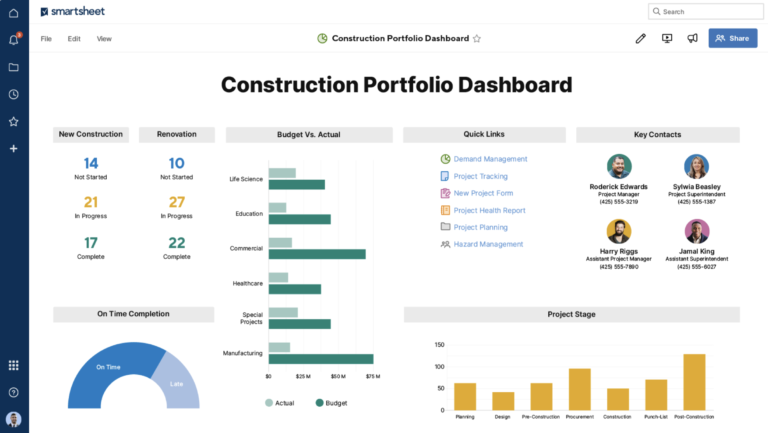
As your organization adds more projects, the real-time portfolio view displays project status, budget data, and goal alignment in one dashboard. When new projects are approved, the Control Center adds them to the portfolio automatically so teams can track results and ensure delivery is on schedule.
Here are reporting and progress-tracking features available in Smartsheet:
- Automated project creation and standardized assets for consistent metrics.
- Centralized demand intake that ties investments to strategy.
- Real-time portfolio dashboards that auto-add new projects.
- Change management at scale from a single console.
- WorkApps and Resource Management for guided execution and capacity planning.
When Smartsheet is the right fit (and when it’s not)
Smartsheet is a powerful platform, but it works best in specific scenarios. Based on how it’s designed, here’s where it tends to shine and where it may fall short.
When Smartsheet works best
- You’re scaling operations across teams or departments: Smartsheet’s portfolio and governance features support larger organizations with more complex needs.
- You’re moving beyond Excel but want a familiar structure: Smartsheet’s grid view makes it easy for spreadsheet users to transition without a steep learning curve.
- You need structured project tracking and reporting: It’s especially effective for PMOs or teams managing multiple projects that require standardized processes and consistent reporting.
- Stakeholder visibility is a priority: Dashboards and automated reports make it easier to share real-time updates with leadership or clients without manual effort.
- Your workflows involve approvals or repeatable processes: Automation features help streamline task assignments, approvals, and status updates across teams.
When Smartsheet may not be the best choice
- You want a simple, plug-and-play tool: Smartsheet’s flexibility can come with a learning curve, especially for smaller teams that just need basic task tracking.
- You prefer highly visual, drag-and-drop interfaces: Tools like Trello or ClickUp may feel more intuitive if your team prioritizes visual workflows over structured data.
- You’re looking for a free solution: Smartsheet doesn’t offer a free plan, which may be a barrier for individuals or budget-conscious teams.
- Your projects require frequent, rapid changes: While Smartsheet supports flexibility, it’s better suited for structured workflows than highly iterative environments.
Best practices for using Smartsheet
Smartsheet offers powerful tools for project management, but maximizing its value depends on how you utilize it. Follow these Smartsheet tips to manage projects efficiently.
- Centralize key project details: Build a project summary page to consolidate invoices, budgeting, and project lists into one view.
- Visualize timelines effectively: Use the Gantt chart view when you need oversight of task durations and relationships to finish dates.
- Maintain accurate schedules: Enable Dependencies so task dates adjust automatically when prior activities change, improving schedule accuracy.
- Test workflows before launch: Begin with a test workflow when setting up automation so you can validate triggers and notifications before they go live.
- Automate status updates: Set up update-request workflows that prompt task owners for progress details and remove the need for manual follow-ups.
- Standardize project structure: Standardize sheet structure and processes so new projects feed data into dashboards and reduce redundant work.
- Link data between sheets: Use cell links to reference specific values from one sheet in another, ensuring data remains synchronized across workflows.
- Automate cross-sheet calculations: Apply cross-sheet formulas (e.g., LOOKUP or INDEX/MATCH) to automate lookups and calculations that span multiple sheets to eliminate manual entry.
- Scale data connections efficiently: Use column links to map information across sheets by referencing entire columns with a unique identifier instead of using formulas.
Bottom line
Smartsheet is a strong choice for teams that want the familiarity of spreadsheets combined with the structure of a project management platform. It’s particularly effective for organizations that need standardized workflows, detailed reporting, and scalable project oversight.
However, teams looking for a more visual or lightweight tool may find alternatives like Asana or monday.com easier to adopt. Ultimately, Smartsheet is best suited for users who value structure, automation, and data-driven project management.
FAQs
Yes, Smartsheet functions similarly to Excel but offers stronger collaboration and automation features. Learning how to use Smartsheet helps you manage tasks and schedules more effectively than in a traditional spreadsheet.
Smartsheet shares Google Sheets’ grid layout but adds project management tools such as dashboards, reports, and workflows. It provides greater control over task tracking and resource management.
Smartsheet is easy to grasp for anyone familiar with spreadsheets. Once you understand how to use Smartsheet, you can quickly manage projects, automate tasks, and monitor progress.